

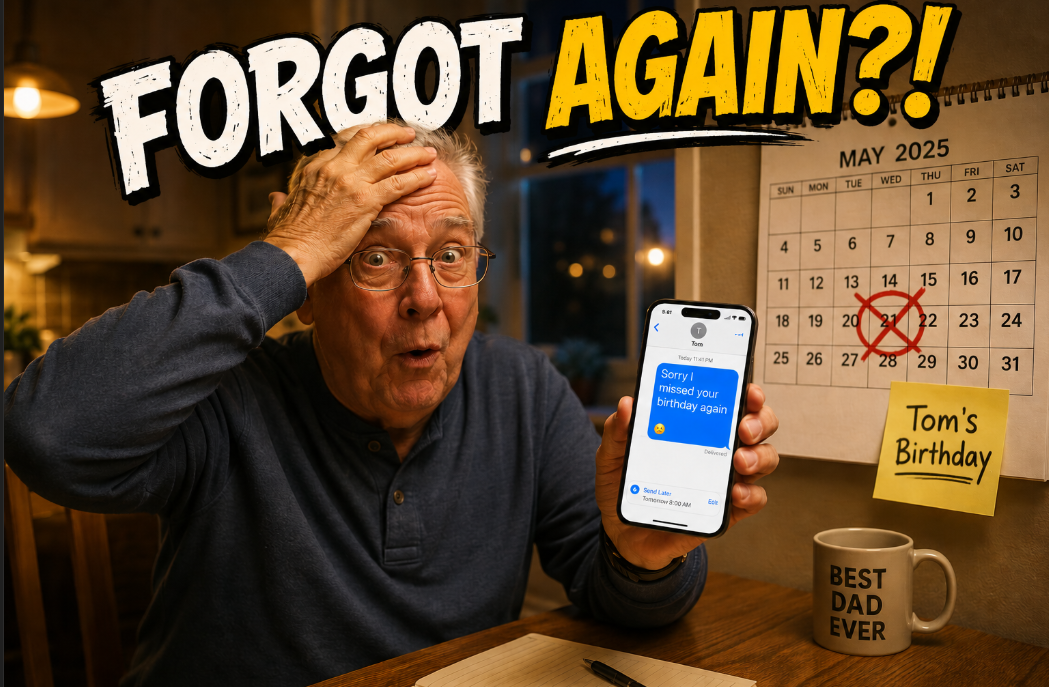
If you've ever wanted to learn how to schedule a text message on iPhone, I bet this scenario probably sounds familiar. A friend says, "Remind me to call the pharmacy tomorrow, I always forget." You promise you will. Then the day gets away from you, and the promise slips your mind. That's exactly why learning how to schedule a text message on your iPhone might just be one of the handiest tricks you pick up all year.
Instead of always forgetting about the reminder, here's a better way. You can schedule a text message on your iPhone right now, while it's fresh in your mind, and have it land on their phone at nine o'clock sharp tomorrow morning. You write it once, your phone remembers for you, and you get to be the reliable hero who came through.
If you've never done this before, you're not alone. It's not a very well-known Apple feature, but it's a handy one, and the steps are clear enough that anyone can follow along and get it right. The whole thing takes about thirty seconds once you know where to look.
One important heads-up before we start. This only works if the person you're texting also has an iPhone. If they have any other kind of phone, the option won't even show up. So before you count on it, make sure they're an iPhone user. I'll explain how to tell, and what to do instead, further down.
Let's jump right into it. Your online tech nephew has got you covered.
Just Need the Quick Steps?
If you're in a hurry, here's how to schedule a text message on iPhone fast.
First, one thing you have to get right: the person you're texting MUST have an iPhone too and iMessage turned on. If they have any other kind of phone, or their iMessage is turned off, this will not work, and we'll explain why further down.
- 1Open the Messages app and start your text
- 2Tap the plus (+) button to the left of where you type.
- 3Tap Send Later.
- 4Choose the date and time you want it to go out.
- 5Type your message and tap the send arrow.
That's it. Your message sits and waits, then sends itself at the time you picked. Keep reading for the full walk-through, including how to change or cancel a scheduled text.
Why Would You Want to Schedule a Text Anyway?
Scheduling a text is one of those features you don't think about until the moment you need it. Then you wonder how you ever got by without it.
Think of it like writing a note tonight and leaving it out for the mail carrier to pick up in the morning. The work is done while it's on your mind. You don't have to remember a thing tomorrow, and the message still goes out right on time. Your phone becomes the mail carrier that never forgets.
A birthday is the classic example. You remember at eleven at night that your buddy's birthday is tomorrow. Instead of hoping you remember when you wake up, you write "Happy birthday!" right now and set it to arrive at eight in the morning. They wake up to your message, none the wiser that you nearly forgot.
Reminders are another good one. A friend asks you to remind them about an appointment, the way we talked about up top. You line up the text tonight, and you're off the hook.
And then there's distance. If you've got family or friends a time zones away, you can write a message at a sensible hour for you and have it arrive at a sensible hour for them, instead of buzzing their phone in the middle of the night, or early hours of the morning.
It's part of a bigger idea, really, using your iPhone to save everyone a little back-and-forth. Sharing your location → Ole Dog New Tech - How to Share Your Location on iPhone is another good example, it ends the endless "where are you now?" texts the same way this ends the "did you forget?" ones.
What You'll Need First
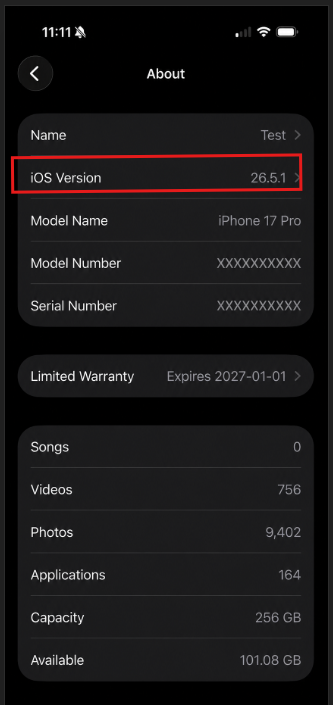
Before you can schedule a text, two things need to be true. Your iPhone needs to be running iOS 18 or a newer version, and the person you're texting needs to have an iPhone too. If both of those are sorted, you're ready to go.
So what is iOS? It's simply the name for your iPhone's software, the system that runs everything on the phone. Apple gives it a fresh update every so often, and the Send Later feature arrived with the version called iOS 18, back in the fall of 2024. If your iPhone is a few years old but still getting updates, there's a good chance you already have it.
Here's how to check, just to be sure.
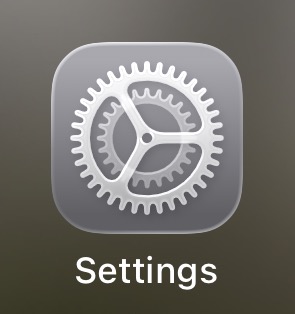
Step 1: Open Settings. Find the grey gear icon on your home screen and give it a tap. This is where all your iPhone's main controls live.
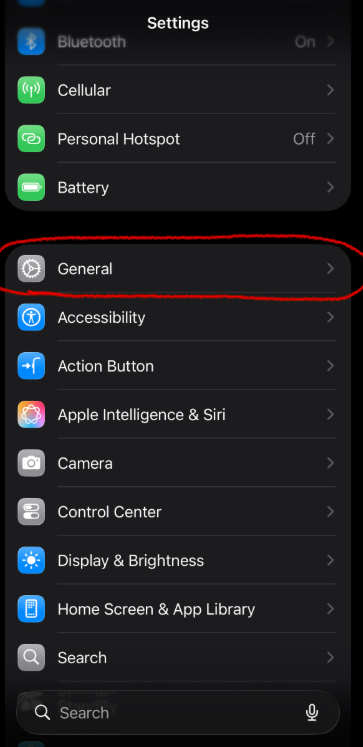
Step 2: Tap General. Scroll down a little until you see General, then tap it. It's the section that holds most of your phone's core settings.
Step 3: Tap About. About sits right near the top of the General screen.
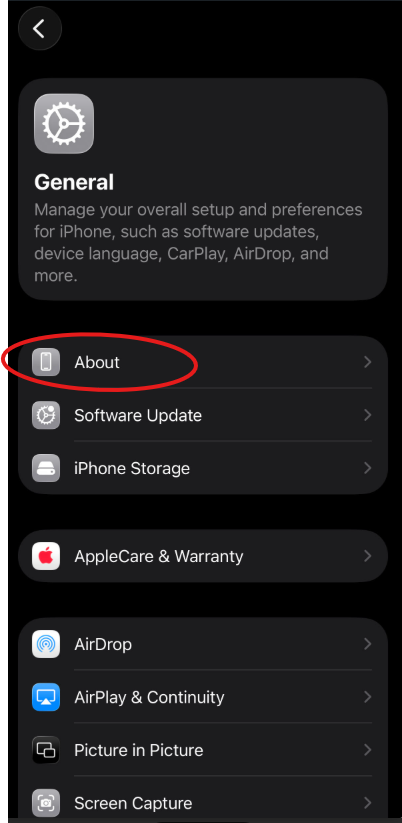
Step 4: Look at the iOS Version. Find the line that says iOS Version. If the number there is 18.0.0 or higher, you have everything you need. If your number is lower than 18.0.0, you'll want to update before going further. Updating is free, and it's worth doing for more reasons than just this one.
How to Schedule a Text Message on Your iPhone, Step by Step
Open the Messages app, start a text to an iPhone user, and tap the plus button to the left of the typing area. Choose Send Later, set the date and time you want, type your message, and tap the send arrow. Your phone holds onto it and sends it for you at the right moment.
Now let's walk through it slowly.
Step 1: Open the Messages App. Tap the green icon with the white speech bubble. It's the same app you already use for texting.
Step 2: Open a Conversation. Tap an existing conversation with the person you want to text, or start a fresh one by tapping the pencil-and-paper icon in the bottom right corner.
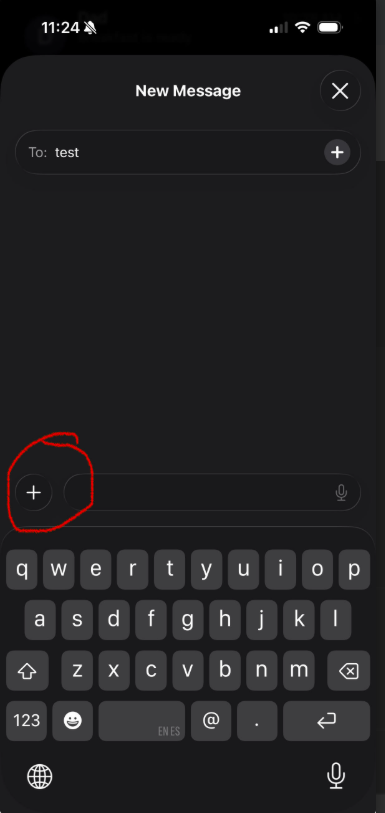
Step 3. Tap the Plus (+) button. Look to the left of the box where you'd normally type your message. Tap the + sign, and a short menu of extra options slides up.
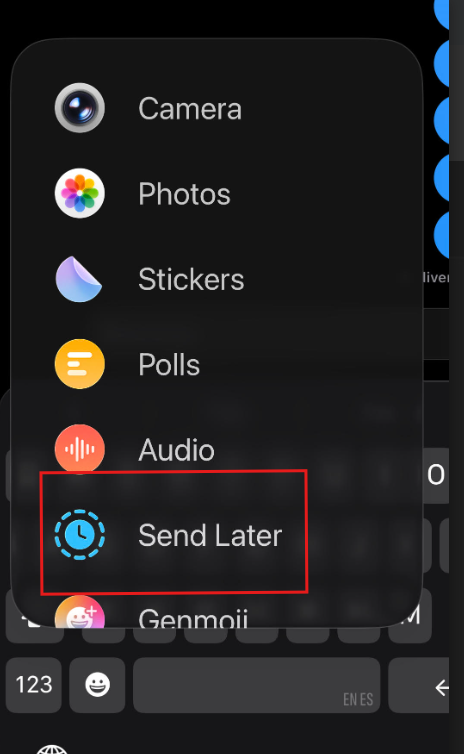
Step 4: Tap "Send Later". In that menu, find Send Later and tap it.
Step 5: Choose your Date and Time. A little calendar and clock appear. Tap it and then below, spin the wheels to pick exactly when you want the message to go out. You can set it up to fourteen days ahead.
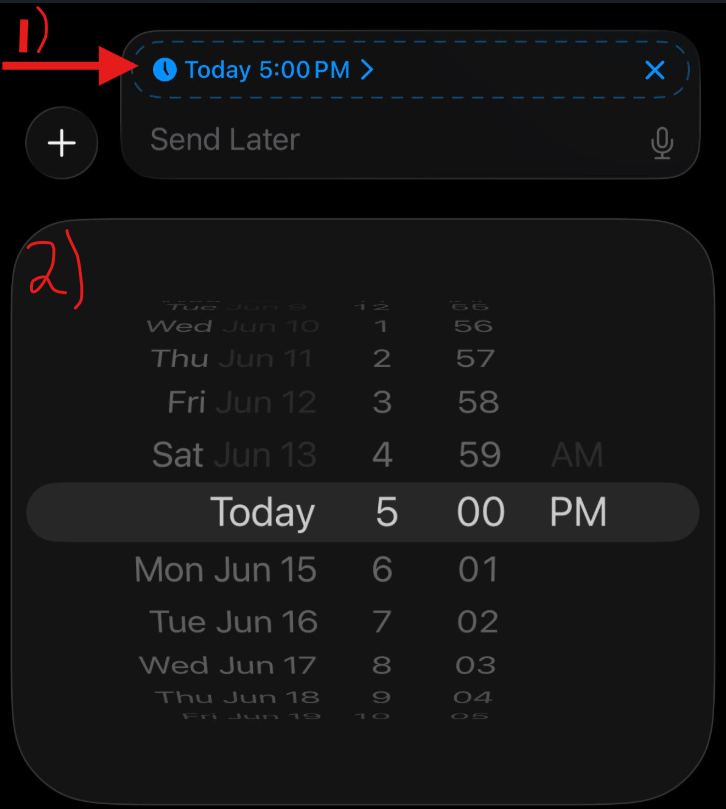
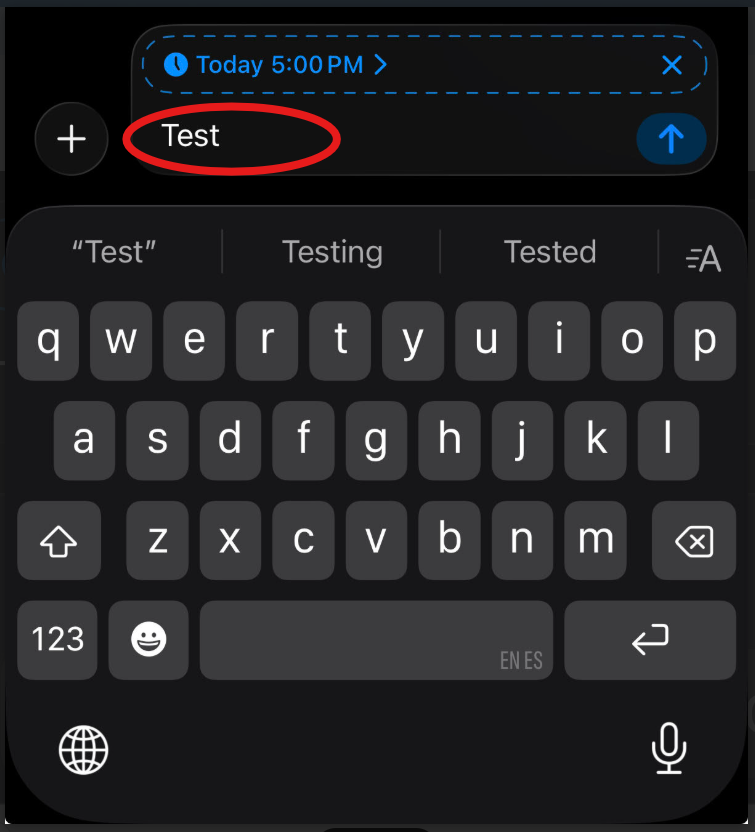
Step 6: Type Your Message. Tap back into the message field and type your text the way you always would.
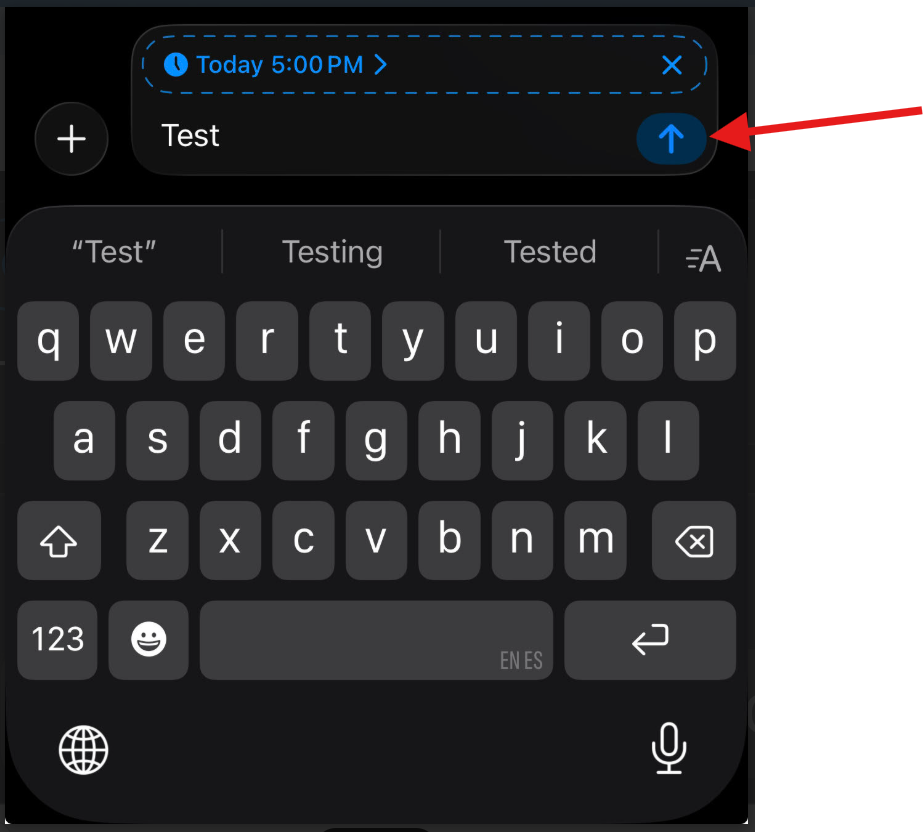
Step 7: Tap the Send Arrow. Tap the blue up arrow to lock it in. Your message now appears in the conversation with a dashed outline and the scheduled time above it, so you can see at a glance that it's waiting to go.
That's really all there is to it. Your phone takes care of the rest.
One honest note while we're here. In most cases your message will go out even if your phone is asleep, because Apple handles scheduled texts on its own end. To be on the safe side, though, it's not a bad idea to keep your phone on and connected to the internet around the scheduled time.
How to Change, Reschedule, or Delete a Scheduled Text
Changed your mind? No problem. Open the conversation that holds your scheduled message, tap the Edit button next to the send time, and you can send it now, rewrite it, pick a new time, or delete it altogether.
Here's how, step by step.
Step 1: Open the conversation. Go back into messages and tap the conversation that holds your previous waiting message we just set up in the last step. You'll spot it by the dashed outline and the time stamp.
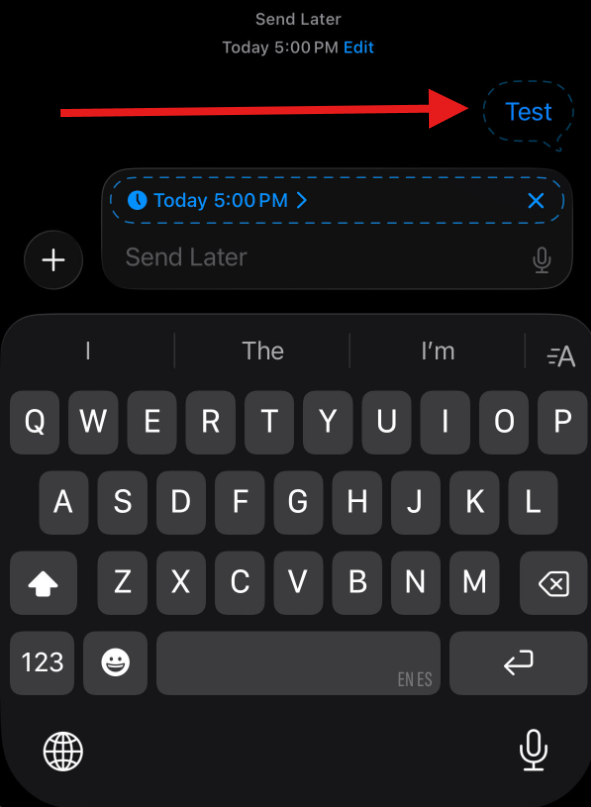
Step 2: Tap Edit. Tap the Edit button shown next to the scheduled send time. (Note, patience may be required here as the edit button is very tiny, so you may need to tap it a couple of times before you actually get it).
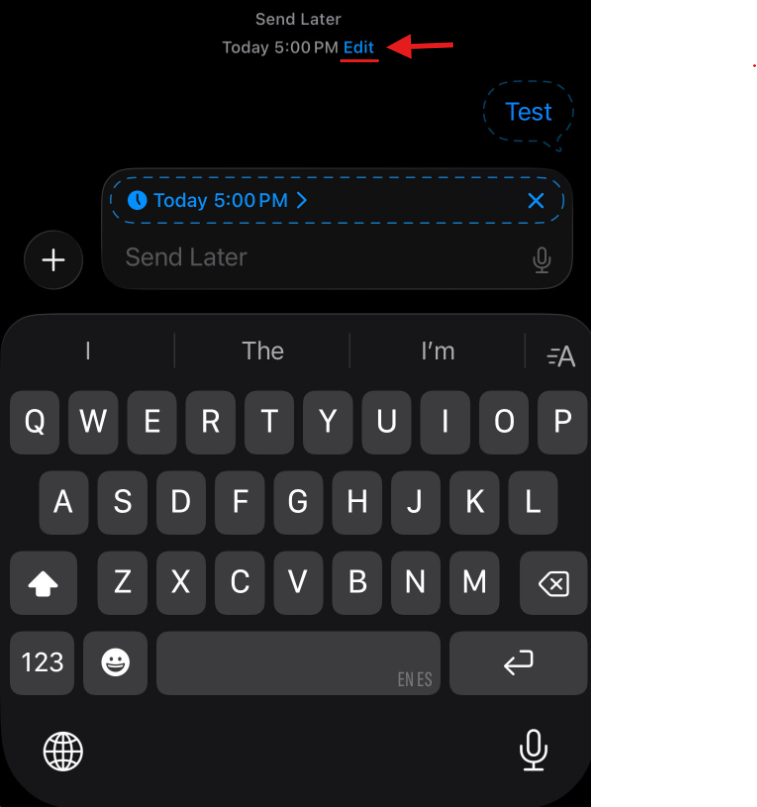
Step 3: Make your change. From here you can send it right away, rewrite the message, choose a new time, or delete it completely. Tap whichever option serves your needs!
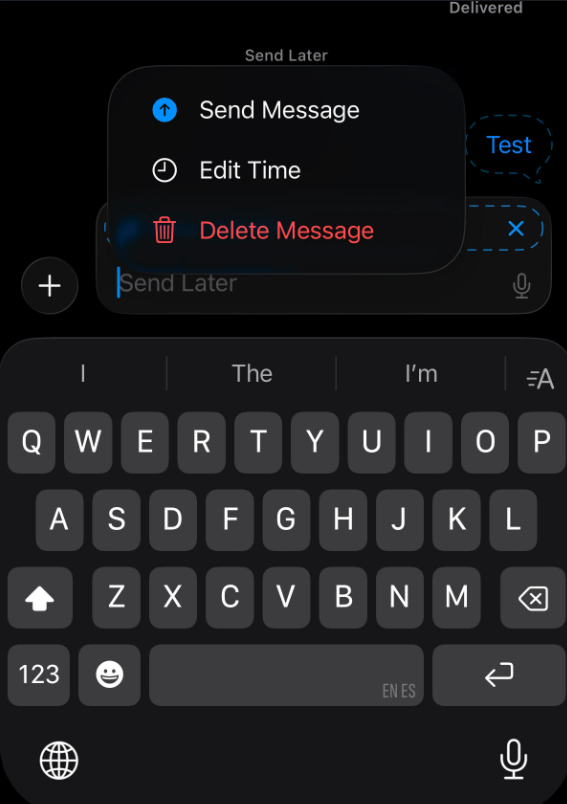
There's no harm in changing your mind. Nothing is set in stone until the message actually sends.
Why Don't I See the "Send Later" Option?
If Send Later isn't showing up for you, it's almost always for one reason: the person you're texting doesn't have an iPhone. This feature only works between iPhones, so the moment there's any other kind of phone on the other end, the option disappears.
Here's what's going on behind the scenes. When you text another iPhone user, your messages travel through Apple's own system, called iMessage, and they show up in blue bubbles. When you text someone who doesn't have an iPhone, your message goes out the old-fashioned way through your phone company instead.
Send Later only works with the blue ones. Here's a helpful link directly from Apple Support that describes it in more detail (Apple Support - If Your iPhone Messages Are Green). The reason is technical, but the short version is this: Apple can hold a blue-bubble message on its own computers and release it at the right moment. It can't do that with a green-bubble message, because that one runs through your phone company, not Apple.
So what exactly is a non-iPhone? It's simply any phone that wasn't made by Apple. The most common kind is an Android phone, which is the other big family of smartphones, the ones made by companies like Samsung and Google. If you're texting someone with one of those, you won't see Send Later.
And if your buddy is still loyal to the flip phone he's had since gas was under a dollar, Send Later isn't going to work for him either. The takeaway is simple: if it's not an iPhone on the other end, this trick sits the dance out.
The easiest way to check before you count on it is the bubble colour. Send the person a normal text and look at the colour of the bubble. Blue means they're on an iPhone and Send Later will work. Green means they're not, and it won't.
Wrapping Up
And that's the whole thing. Scheduling a text is one of those small tricks that makes your iPhone feel like it's finally working for you instead of the other way around. You write the message once, while it's on your mind, and your phone delivers it right on cue. No sticky notes, no scrambling, no "oh shoot, I forgot."
Just remember the one rule that trips people up: the person on the other end needs an iPhone. Check the bubble colour first, blue is good to go, and you're all set.
So here's my question for you. What's the first text you're going to schedule? A birthday, a reminder, a good-morning note to someone you love? And if there's another iPhone puzzle that's been nagging at you, tell me about it in the comments below. It just might be my next post.
Until next time,
Your Online Tech Nephew.
Frequently Asked Questions
Can I schedule a text to someone who doesn't have an iPhone?
No. The Send Later feature only works between iPhones. If the person you're texting has an Android or any other kind of phone, the option won't even appear. The quickest way to check is the bubble colour: blue means iPhone, green means it won't work.
How far in advance can I schedule a text message?
You can schedule a message up to fourteen days ahead. If you need to send something further out than that, you'd have to wait and set it closer to the date.
Will the other person know I scheduled the text?
No. When your message arrives, it looks like any other text. There's nothing on their end that shows it was written ahead of time, so your secret is safe.
Does my iPhone need to be on for the message to send?
In most cases your message will go out even if your phone is asleep, because Apple handles scheduled texts on its own end. To be safe, it's a good idea to keep your phone on and connected to the internet around the scheduled time.
Why don't I see the "Send Later" option when I tap the plus button?
The most common reason is that you're texting someone who doesn't have an iPhone, which hides the option. Make sure the conversation shows blue bubbles. If it still doesn't appear, check that your iPhone is updated to iOS 18 or newer, since that's when the ability to schedule a text message on iPhone was first introduced. Another possibility if you know for sure the other person does in fact have an iPhone, and your iOS is greater than 18, could be that the either you, or the person you're trying to text has their iMessage turned off.
Súper helpful🩵