

If you’re trying to figure out how to make the text bigger on your iPhone, you’re not alone.
Tell me if this scenario sounds familiar. Your phone dings with a new message. You pick it up, holding it out with your arm fully extended, squinting for dear life, only to barely be able to read a text message that says “Don’t forget to pick up the milk.” The same milk that you already picked up 30 minutes ago.
If that hit a little close to home, you are not alone. This is one of the most common things people want to change on their iPhone, and the fix takes about 30 seconds.
Here’s the good news. Your iPhone has a built-in fix for this. No tech experience needed, and I promise you won’t break anything by following these steps.
Let’s jump right into it.
Short on Time? Here’s the Quick Version
Settings – Display & Brightness – Text Size – Drag the slider right.
If you need the text even bigger, here’s how it’s done:
Settings – Accessibility – Display & Text Size – Larger Text – Turn on Larger Accessibility Sizes.
This will give you a much bigger range for options.
Lastly, if you want your text heavier and easier to spot, turn on Bold Text.
Settings – Display & Brightness – toggle Bold Text to on.
Keep reading for the full walkthrough with pictures.
How to Make the Text Bigger on Your iPhone
This is the quickest fix and the one most people need. It takes about 30 seconds and makes a noticeable difference right away.
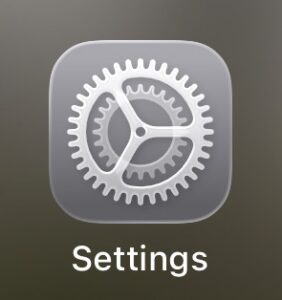
Step 1: Find the Settings app on your home screen. It is the grey icon that looks like a set of gears. Tap it.
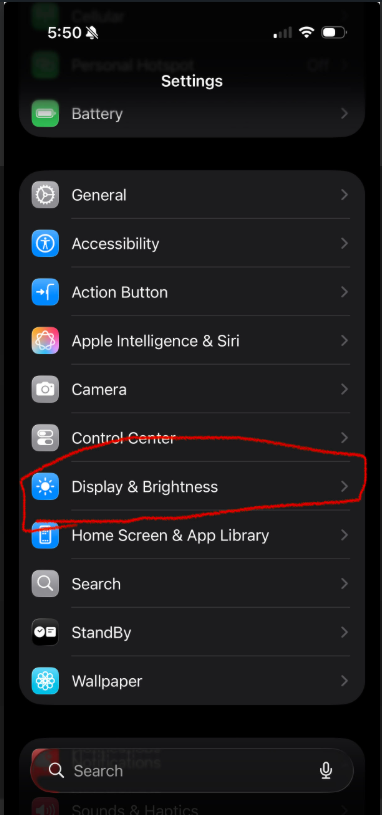
Step 2: Scroll down and tap Display & Brightness.
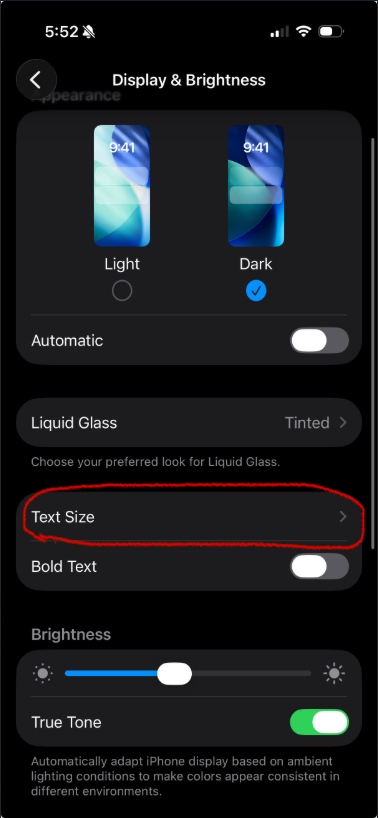
Step 3: Tap Text Size.
Step 4: You will see a slider with a small letter A on the left and a big letter A on the right. Drag the slider to the right to make the text larger.
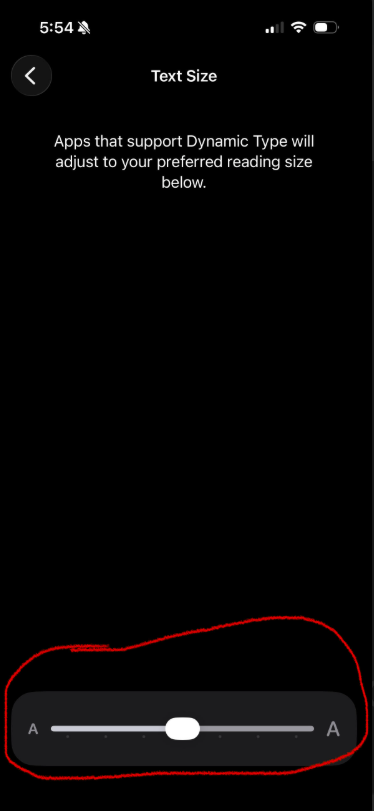
Step 5: Watch the sample text above the slider. It updates in real time so you can see exactly what your text will look like before you leave this screen.
Step 6: When you are happy with the size, tap the back arrow in the top left corner. Your new text size is saved automatically.
Need It Even Bigger? Try This
The slider above works great for most people. But if you need the text significantly larger, or your eyesight makes even the bigger setting hard to read, Apple has a second option that goes much further.
Step 1: Open the Settings app again.
Step 2: Scroll down and tap Accessibility.
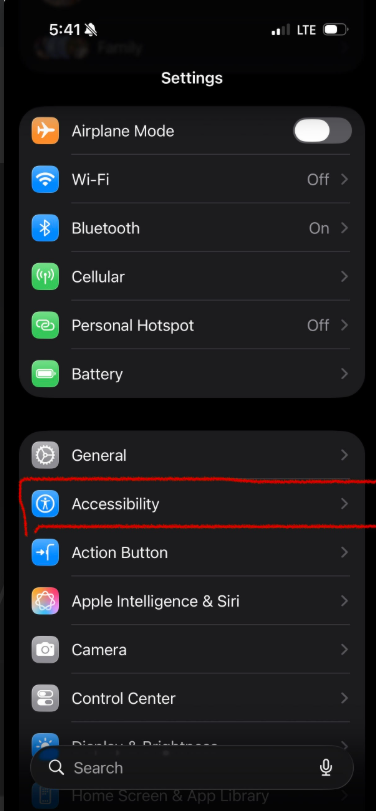
Step 3: Tap Display & Text Size.
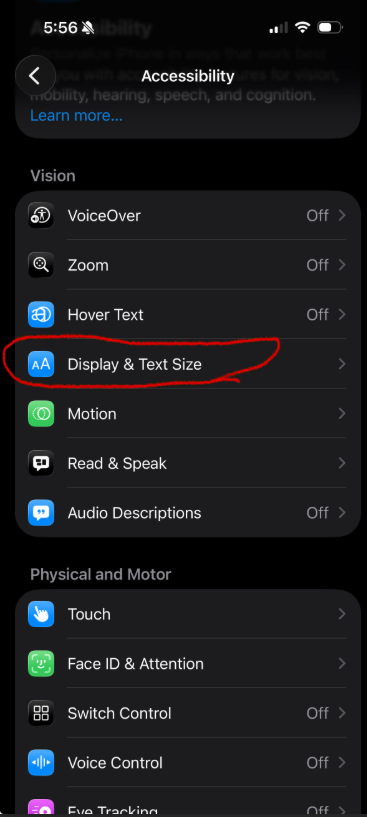
Step 4: Tap Larger Text.
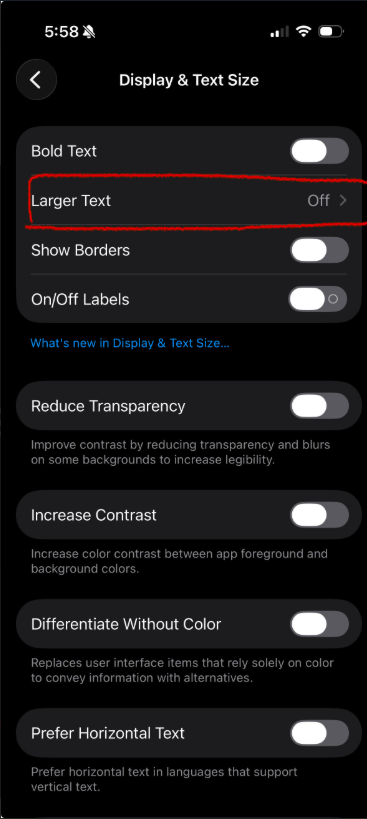
Step 5: At the top of the screen you will see a toggle that says Larger Accessibility Sizes. Tap it to turn it on. The toggle will turn green when it is active.
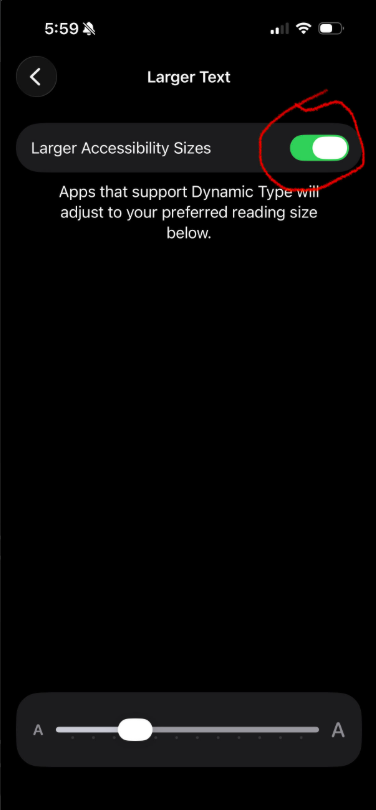
Step 6: Now drag the slider to the right to choose your preferred size. This goes much bigger than the standard setting from Section 1.
One More Thing: Make the Text Bolder Too
This one takes about ten seconds and makes a surprising difference. Bold text makes every letter thicker and easier to read, especially in low light or on a bright screen.
Step 1: Open the Settings app.
Step 2: Tap Display & Brightness again.
Step 3: Scroll down until you see Bold Text. Tap the toggle to turn it on. It will turn green when active.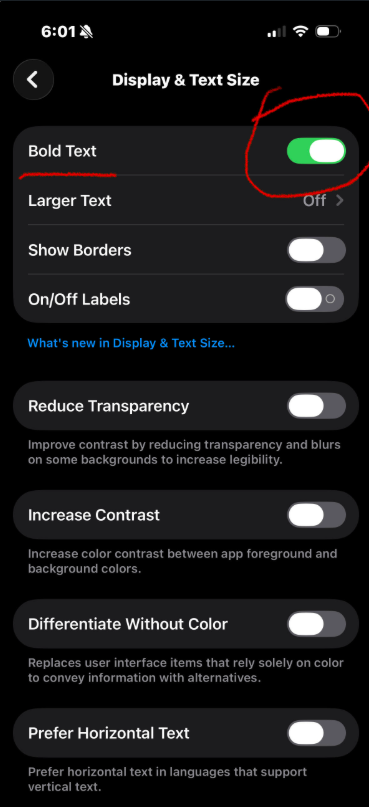
That is it. Three steps and your text is now bigger and bolder. Your iPhone should already be looking a lot easier to read.
There You Go!
That is all there is to it. A few taps and your iPhone is already a whole lot easier to read. No tech degree required.
If the standard text size slider did the trick for you, great. If you needed to go the Accessibility route for something bigger, even better. And if you threw in Bold Text on top of it, your eyes are probably thanking you right now.
The best part is that none of this is permanent. If you ever want to go back and adjust anything, you know exactly where to find it. Apple also has a full guide to display and text settings here Apple Display and Text Size Preferences if you ever want to explore even more ways to make your screen easier on the eyes.
Go ahead and send a text message to someone. I have a feeling you won’t need to hold your arm out quite as far this time.
If this tip helped, here’s another one worth trying, How to Turn Off iPhone Keyboard Clicks it’s a ten-second fix that makes your phone a little more pleasant to use every day.
Let me know which setting worked best for you, and if you know someone who has been squinting at their phone for far too long, do them a favour and share this with post with them. It takes 30 seconds and their eyes will thank you for it!
Until next time,
Your Online Tech Nephew.
Frequently Asked Questions
Will this make the text bigger in every app?
Most apps that use Apple’s standard text settings will resize along with everything else, things like Messages, Mail, Settings, and most apps you use daily. A few apps, especially games or apps with their own custom design, might not change size. That’s normal and not something you did wrong.
Can I undo this if I don’t like it?
Yes, anytime. Just head back to the same slider and drag it back to the left, or turn the toggles back off. Nothing here is permanent.
What’s the difference between the regular Text Size slider and Larger Text in Accessibility?
The regular slider under Display & Brightness covers a solid, everyday range. The Larger Text option under Accessibility goes noticeably further for anyone who needs an even bigger size than the standard slider offers.
Do I need to save my changes?
No separate save step needed. As soon as you tap the back arrow or leave the screen, your new setting is already in effect.