
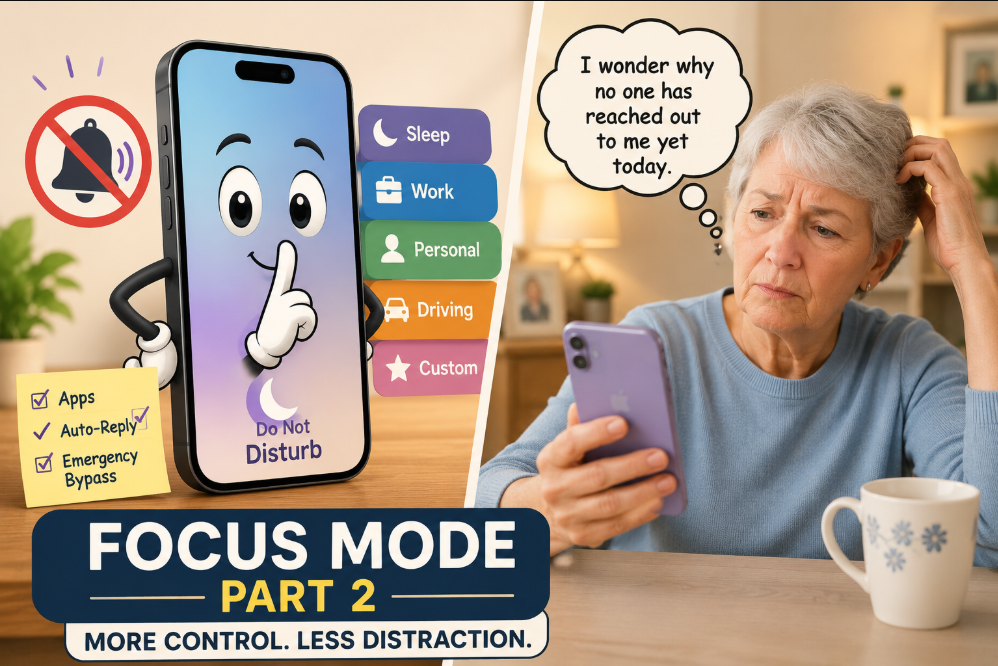
This is actually part two of a series. If you haven't set up a basic Do Not Disturb schedule yet, start here → Ole Dog New Tech - How to Schedule Do Not Disturb on iPhone. It walks you through that first. Everything below assumes you've already got that up and running.
So, what is Focus mode on iPhone, really? In the last post, we covered the short version, Do Not Disturb used to stand alone, and Apple eventually moved it inside a bigger settings area called Focus, alongside a handful of other modes. That was enough to get your schedule working. But if you're the type who likes understanding exactly what's happening behind the scenes, or you want tighter control over who and what can reach you, this post goes further.
Here's what we'll cover
- 1The other Focus Modes you'll see alongside Do Not Disturb. Plus, how to set up your own Custom Focus mode.
- 2How to let specific apps keep notifying you even while you have a Focus Mode active.
- 3A setting called Emergency Bypass that goes even further than what we set up in part 1.
- 4And one newer feature worth knowing about, even if I wouldn't necessarily recommend turning it on.
Let's get into it. Your online tech nephew has got you covered.
What is Focus Mode on iPhone, Beyond Do Not Disturb?
In the last post, we compared Focus to a mall, and Do Not Disturb to one shop inside it.
So who are the other shops? Apple ships a handful of ready-made Focus modes alongside Do Not Disturb, each built for a different part of your day.
Sleep
Ties into the bedtime schedule you have to set up in the Health app, so it turns on and off based on that instead of a schedule you set here.
Work
Can turn on automatically based on your location, arriving at the office for example. If it's set up, your phone essentially goes into a Do Not Disturb-style state until you leave, silencing everything except what you've specifically allowed through. The difference is you can give Work its own separate list of allowed people and apps, so your colleagues and work apps can reach you during the day without opening that same door at 2 in the morning.
Personal
Works the same way as Work, but for the opposite end of your day. Can turn on automatically when you arrive home, and gives you the chance to let family and personal apps through while keeping work notifications quiet until you're back on the clock.
Driving
Cuts down on notifications while you're behind the wheel, and can turn on automatically the moment your iPhone detects you're driving, or when it connects to CarPlay or your car's Bluetooth. It can also send an automatic reply letting people know you're driving and can't respond right now. One more thing worth knowing about Driving Focus, it actually works a little differently than the others. More on that later in this post.
A Few Others Worth Knowing About
Apple also includes a handful of Focus modes built for specific activities like Fitness, Gaming, Mindfulness, and Reading. Each one turning on automatically when you start that activity. They're not likely to come up as often for most people reading this, so I won't get into the details here. But if there's one of these you'd like explained in more depth, let me know in the comments at the end of this post, that might be exactly what I write about next.
The reason there are so many of these, rather than just one all-purpose Do Not Disturb, is that a single setting rarely fits every part of your day. Who you want reaching you at work isn't the same as who you want reaching you at 2 in the morning, and that's exactly why Apple built the ability to create several different Focuses, each with its own rules, instead of forcing one setting to do everything.
Custom: Build Your Own
If none of the ready-made options quite fit your life, you can build a Focus completely from scratch. Here's how.
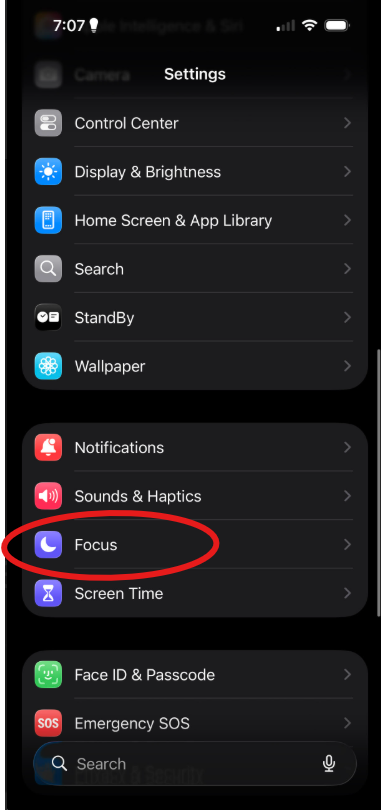
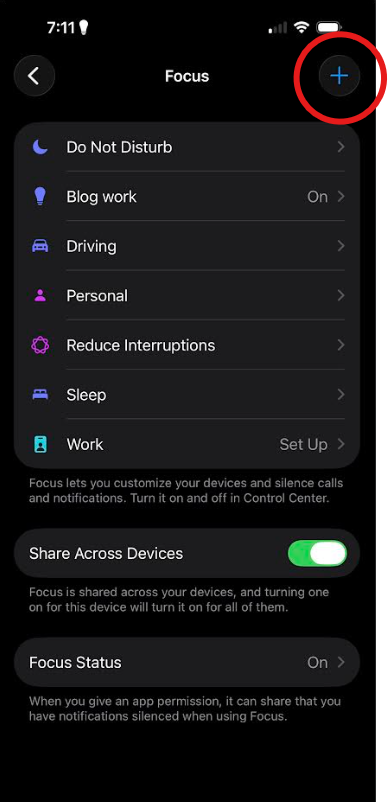
Step 1: Go to Settings then Focus. You'll see all of your existing Focus modes listed here.
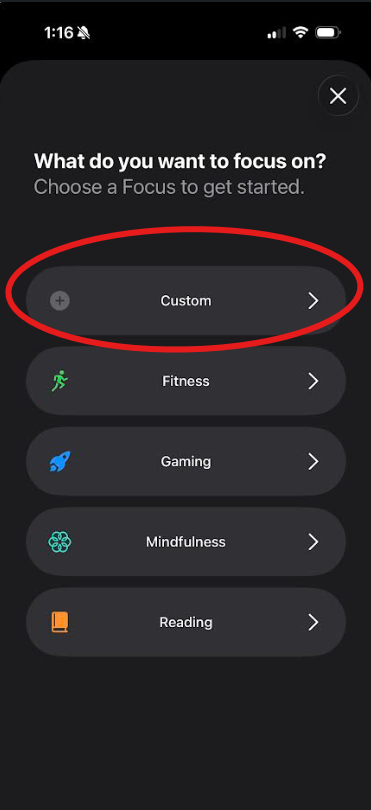
Step 2: Tap the + icon in the top right corner, then choose Custom. You'll also see the other Focus modes we discussed in Step 1.
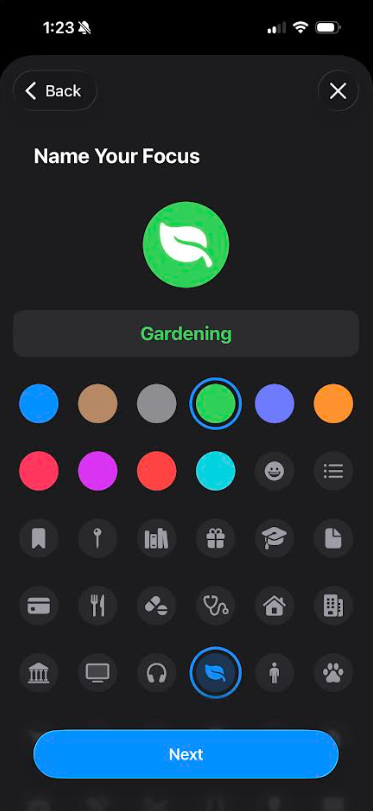
Step 3: Name it. Then choose a colour and icon. Something short and easy to recognize works best. "Gardening" or "Dog Walking" for example. Tap Next at the bottom when you're done.
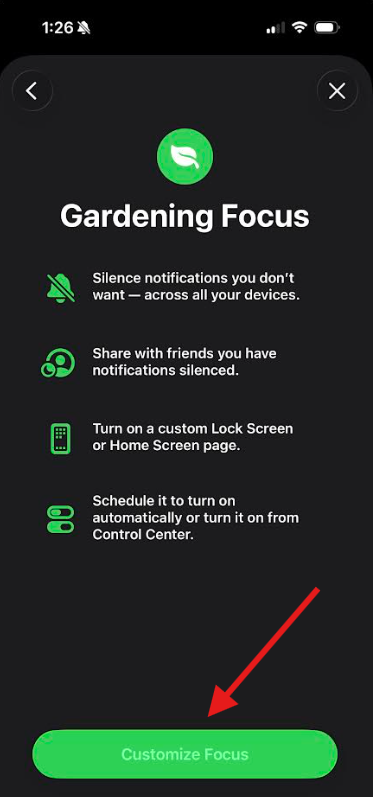
Step 4: You'll land on a short overview screen showing what this Focus can do, silence notifications across your devices, share when you're unavailable, customize your lock screen, and run on a schedule. Tap Customize Focus at the bottom to continue.
Step 5: Choose who can still reach you. This works exactly like the People step we covered in the Part 1 Ole Dog New Tech - How to Schedule Do Not Disturb on iPhone of this two-part series, just for your new Custom Focus instead of Do Not Disturb.
Settings > Focus > Gardening Focus (or whatever name you gave yours).
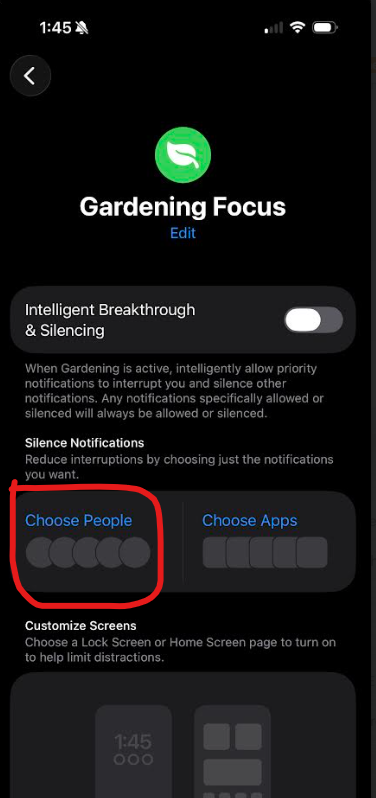
And that's it, your own custom Focus, built entirely around whatever part of your day needs it.
Here's the Good News
Once you've set up one Focus, whether it's this Custom one or any of the ready-made options above, you basically know how to set up all of them. The screens and steps are nearly identical across the board, with one exception we'll get to shortly. Like I eluded to earlier, Driving Focus plays by slightly different rules than the rest of the Focus modes.
Here's Apple's own link Apple Support - Set Up a Focus on iPhone on how to set up a Focus on iPhone.
Letting Specific Apps Through
Just like you can choose which people get through a Focus, you can also choose which apps still get through.
This works the same way across Do Not Disturb, Custom Focus, Sleep, Work, and Personal, so once you know these steps, you can apply them to whichever Focus you're setting up. Here's how:
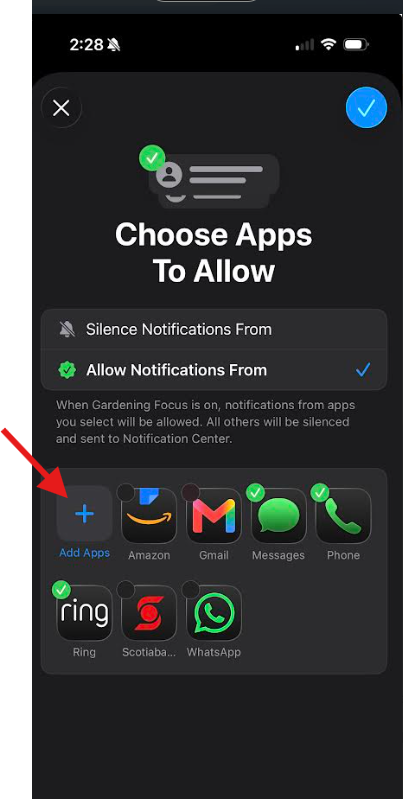
Step 1: Go to Settings > Focus > then choose whichever Focus Mode you want to allow an app through. I'll use the Custom Gardening Focus we just set up in this example. Once you're there, tap Choose
Apps. You'll find it right next to Choose
People.
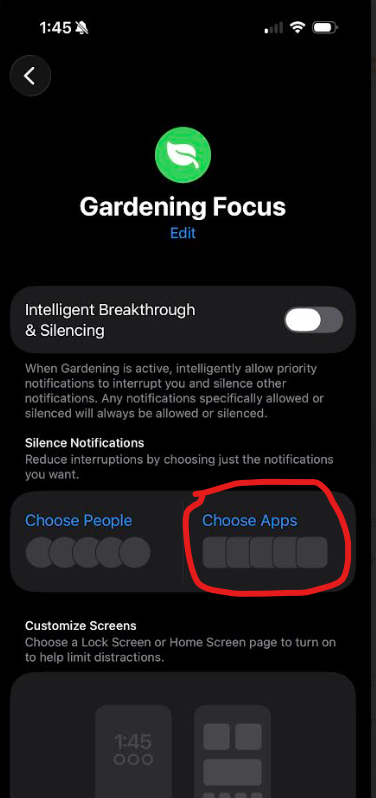
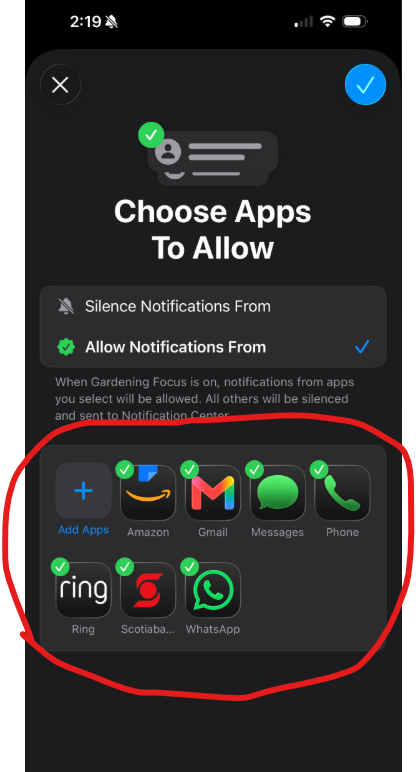
Step 2: You may notice a few apps are already checked by default, Apple pre-selects some common ones like Messages, Phone, and Mail, etc.
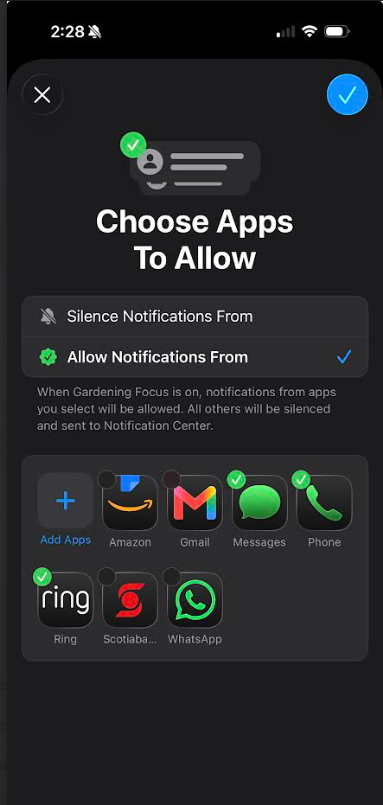
If any of those don't matter to you, just tap them again to deselect. You'll notice the green checkmark in the top left corner disappears once you do, that's your cue it's no longer selected.
For example, in the second screenshot below, I de-selected Amazon, Gmail, Scotiabank, and WhatsApp since those aren't apps I need to hear from while I'm out gardening. But I left Messages, Phone, and Ring (my Doorbell Camera app) checked, since those are ones I'd genuinely want to know about even while I'm out back.
Step 3: Don't see the specific app you want? Tap the big blue + icon with add apps underneath it at the start of the list. This one opens your full list of installed apps. Search for the one you're after, or simply scroll till you find it in the alphabetical list. Once you find it, tap it to select the app, tap Done in the top-right corner, and it'll join the list going forward. In the example below, let's say I want to add the FaceTime app to my approved list for apps while I'm in my Gardening Focus.
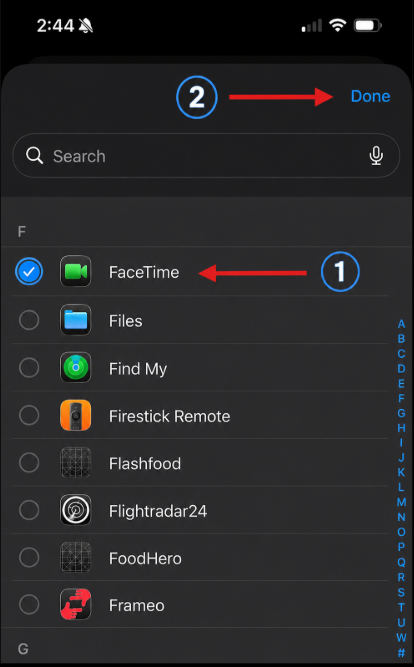
That's it, those apps now keep notifying you even while everything else on that Focus goes quiet. Like I mentioned earlier, it's an extremely similar set up across all other Focus Modes, so once you set it up for one, you should be able to do it for all.
The One Exception: Driving Focus
Remember that "slightly different rules" I kept mentioning? Here it is. Driving Focus doesn't let you allow specific apps through, only specific people. Apple built it that way on purpose, working with highway safety organizations, to keep things as distraction-free as possible while you're behind the wheel.
Driving Focus: Setting Up an Auto-Reply
So if Driving can't let any app's notifications penetrate it's Focus mode, what does it offer instead? Something arguably even better for this particular situation - an automatic reply that lets people know you're driving the moment they try to reach you. Here's how to set it up:
Step 1: Go to Settings > Focus > Driving. If you haven't set up Driving Focus yet, tap the + button on the main Focus screen and choose Driving first.
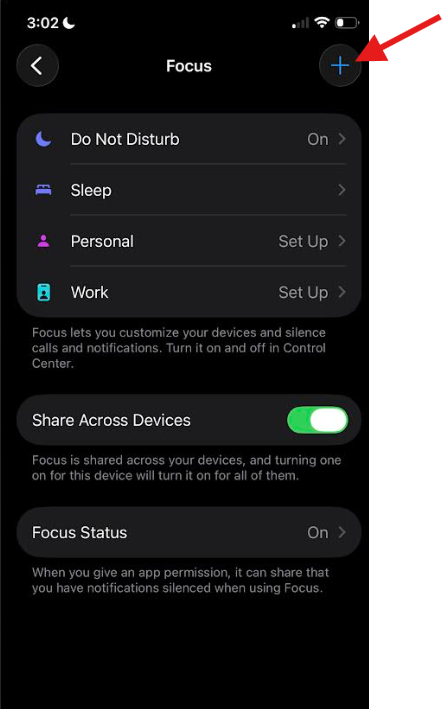
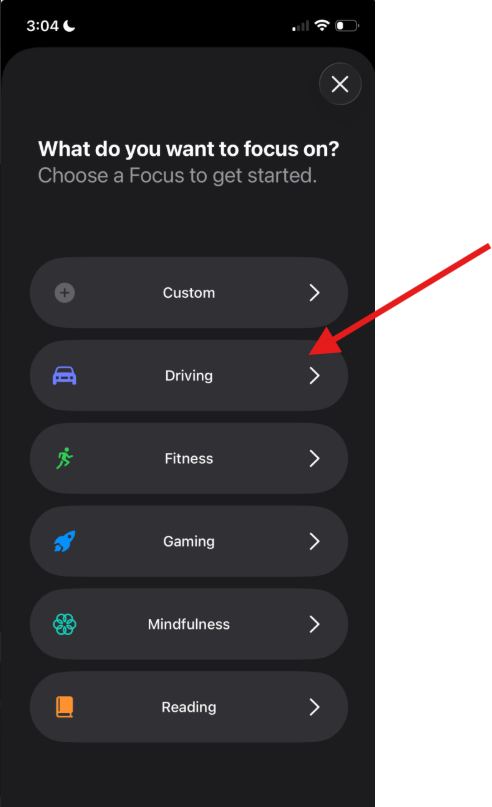
Step 2: Tap Customize Focus. This only applies if you're setting up Driving Focus for the first time. If you're not, simply skip to Step 3.
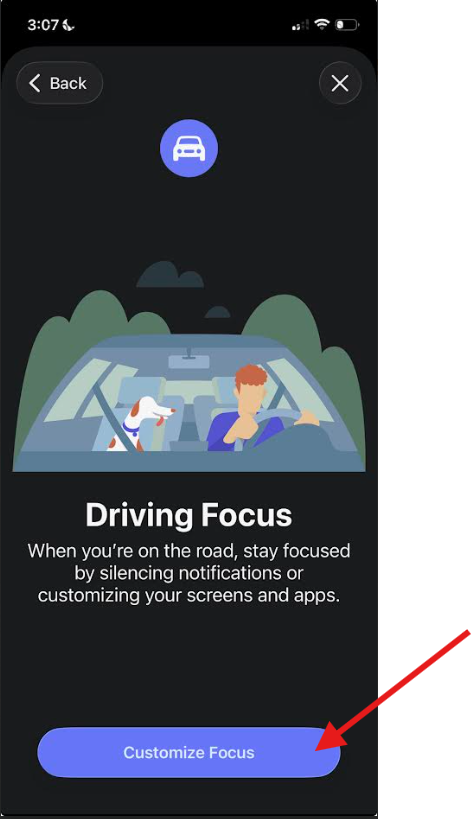
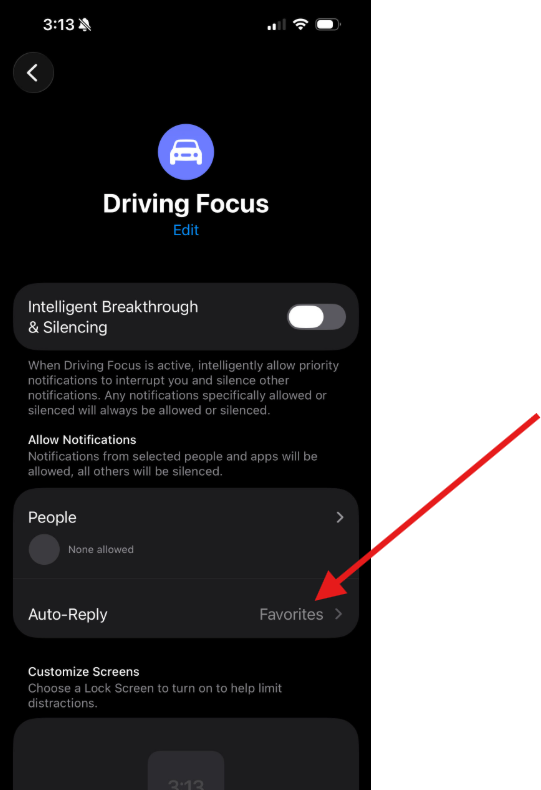
Step 3: Tap Auto-Reply. You'll find this listed among the Driving Focus options. By default, it's probably going to have Favourites selected. Choose who receives the auto-reply. No One, Recents, Favourite, or All Contacts.
Apple shows a short description underneath each one as you tap through them, so you'll always know exactly what you're choosing. No One and All Contacts are pretty straightforward, and Recents lets people you've responded to in the last day receive the Auto-Reply.
Favorites is worth a special mention, since it's not automatic, you have to manually build that list yourself.
For this reason, my recommendation is either All Contacts, or Recents.
All Contacts guarantees nobody's left wondering why you've gone quiet, no matter who's texting you. Recents is a solid middle ground too, it covers anyone you've been in touch with lately without you needing to build and maintain a separate Favorites list.
If you are curious about how to build your own favourites list, let me know in the comments below and maybe it's something I'll write about in a future post.
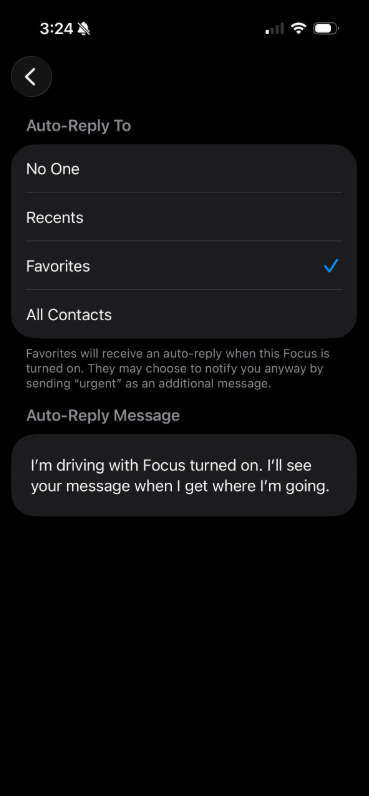
Step 4: Customize the message if you'd like, then you're done. Apple's default message reads "I'm driving with Focus turned on. I'll see your message when I get where I'm going." You're welcome to leave that as-is, or tap the message box to write your own.
And that's Driving Focus fully set up, quiet notifications while you're on the road, and an automatic heads-up for anyone who happens to text you at the wrong moment. Between this and everything else we've covered so far, you've got a genuinely solid handle on how Focus works across your iPhone. But there's one more setting worth knowing about, one that goes even further than anything we've covered yet, letting one specific person reach you no matter what's active. That's Emergency Bypass, and it's up next.
Emergency Bypass: An Even Stronger Guarantee
Everything we've covered so far works by letting specific people or app through one particular Focus you've set up. Emergency Bypass takes that idea and turns it up a notch. It's a setting you turn on individually for as many contacts as you see fit, and once it's on for someone, that person can always reach you, calls and texts both, no matter what Focus is active. This even works if your phone is not on a Focus but is just sitting on manual Silent Mode.
Think of it as a master key. Every other setting we've covered so far is like a key that only opens one specific door, one Focus, one moment. Emergency Bypass is different, it's a master key that opens every door, every Focus, all at once for whichever person you hand it to.
Here's how to set it up:
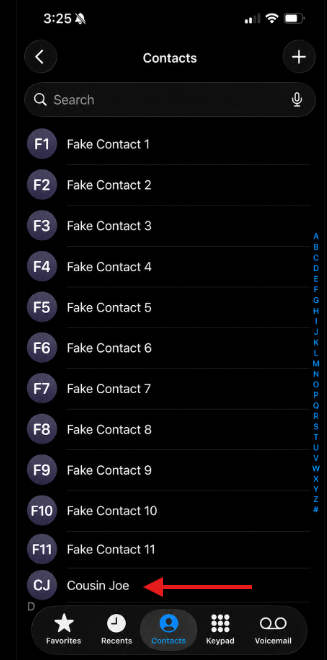
Step 1: Open the Contacts App.
Step 2: Find the person in your Contacts list you'd like to give Emergency Bypass access to and tap on their name. In the example below, I picked a fake contact named Cousin Joe.
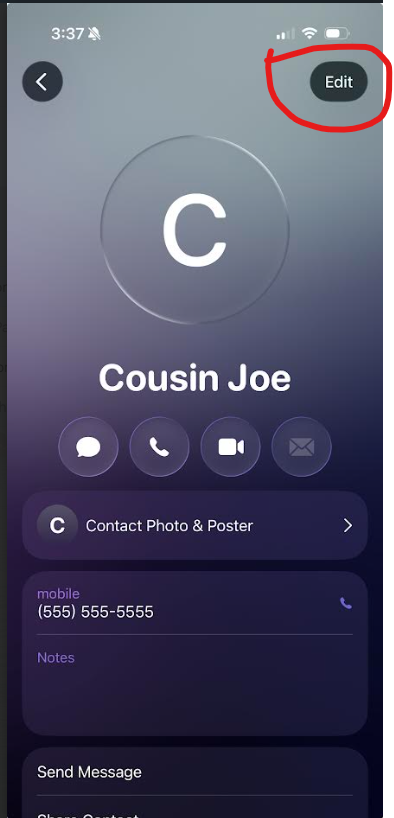
Step 3: Tap Edit in the top right-hand corner.
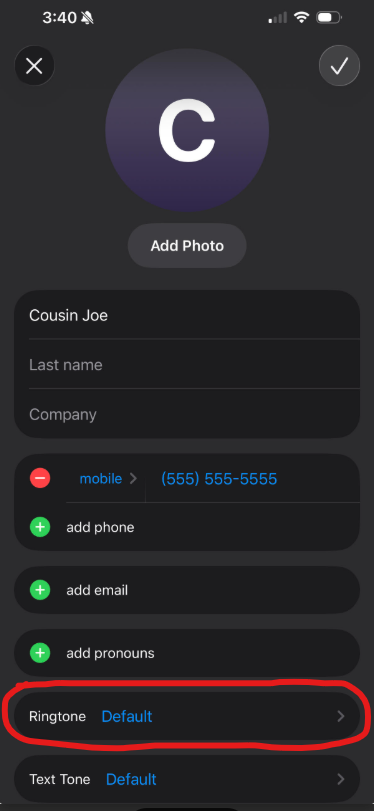
Step 4: Tap Ringtone. Once you're in the Ringtone Menu, you'll see Emergency Bypass at the very top of the screen. Tap it to switch it on, then hit the blue checkmark in the top right corner to save.
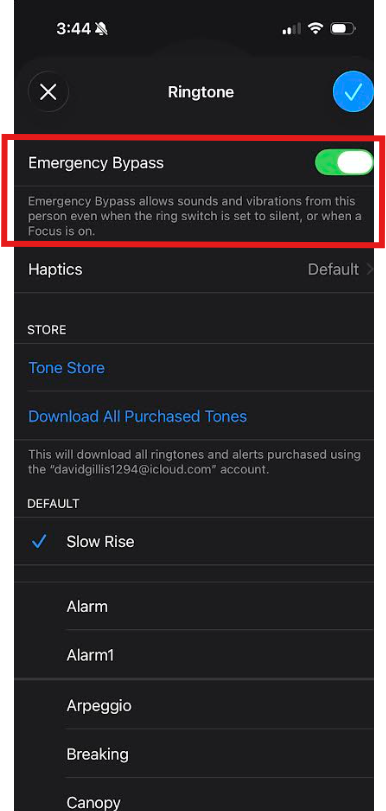
Step 5: Repeat the exact same process under Text Tone, right below Ringtone, if you'd also like their texts to come through with sound.
That's it, from now on, this person's calls, and messages will always reach you with sound, regardless of which Focus is active, or if your phone is on Silent Mode.
Between everything covered so far, and Emergency Bypass for the select few people you'd truly want to hear from no matter what, you now have a genuinely complete picture of how Focus works.
If you're looking for a second source of how to use Emergency Bypass, check out this article from How To Geek → How To Geek - Emergency Bypass iPhone
Intelligent Breakthrough & Silencing
Here's the last piece, and it's a relatively new (October 2024) feature from Apple as of the time of this writing. If you have an iPhone 15 Pro or newer (excluding the regular iPhone 15) iPhone, you may have noticed an option called Intelligent Breakthrough & Silencing sitting inside almost every Focus menu we explored so far.
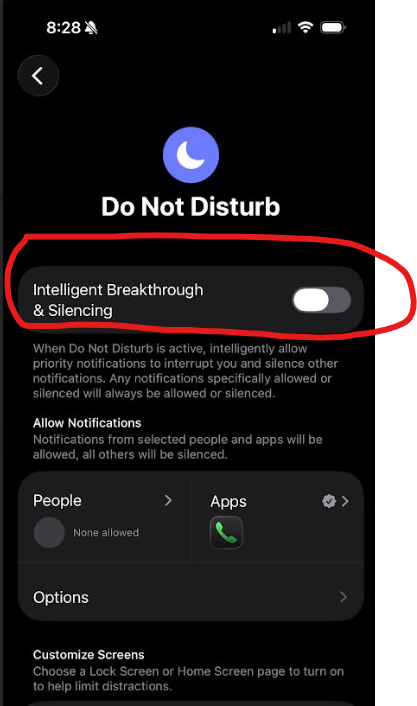
This feature uses Apple's built-in AI to scan your notifications and decide on its own, which ones are worth interrupting you for, letting those notifications through, and quieting the rest automatically. No People list, no App list, no manual setup required.
That might sound pretty great on paper, and for some people it may work well. But it's not foolproof. This is a relatively new feature, and it's making judgement calls about what matters to you, which means it can occasionally get it wrong. Letting something unimportant though, or staying quiet on something that actually did matter. So it's worth pointing out there's a learning curve and growing pains if you decide to go down this route
Here's a helpful analogy
Intelligent Breakthrough & Silencing
A brand new, off the lot car, fully loaded with all the bells and whistles in terms of dozens of sensors and multiple cameras.
Manually setting things up yourself via People, Apps, Emergency Bypass
The older, reliable car. No fancy bells and whistles, just turn the key and it goes.
The new car can do impressive things no doubt, but only when all of its bells and whistles are working right. If one sensor goes, or a camera gets some mud on it and blocks its view, you might get an annoying false alarm telling you there's an error, or worse, it stays quiet when it should have warned you about something that actually mattered.
The old car rarely, if ever has that problem, it just does exactly what you told it to do.
My honest recommendation, after everything we've built together across both of these posts, is to stick with the tried and true. People, Apps, and Emergency Bypass already give you everything you need to keep the right things you want getting through, simple and predictable. But if you've got a newer iPhone, a higher tolerance for some mistakes in what notifications Apple deems worthy for you, and feel like experimenting, that Intelligent Breakthrough & Silencing is there for you to try!
You're Fully Equipped Now
That's Focus Mode, top to bottom. You now know what all those other modes sitting next to Do Not Disturb actually do, how to build a Custom Focus around any part of your life, how to let specific apps through when it matters, how Driving Focus handles things a little differently, and the strongest tool of all Emergency Bypass, for the people you never want to miss.
Between this post, and post 1, you've got a genuinely complete picture of how to make your iPhone quiet exactly when you want it, and loud exactly when you need it to be.
Was there a Focus Mode we didn't dig into that you're curious about? Let me know in the comments below, that might be what I write about next.
Until next time,
Your Online Tech Nephew.
Frequently Asked Questions
What's the difference between adding someone to a Focus's People list and turning on Emergency Bypass for them?
Adding someone to a Focus's People list lets them through that one specific Focus. Emergency Bypass is stronger, it overrides every Focus at once, and even manual Silent mode, for that one contact, everywhere, all the time. Think of People as "let them through this Focus" and Emergency Bypass as "always let them through, no matter what."
What's the difference between Do Not Disturb and the Sleep Focus?
They're both good for nighttime, but Sleep ties directly into the bedtime schedule you set up in the Health app, so it turns on and off based on that instead of a schedule you build in Settings. Do Not Disturb, the one we set up in Part 1, works entirely on its own schedule, no Health app needed.
Can I have more than one Focus active at the same time?
No, only one Focus can be active at a time. If you turn on a new one, whichever Focus was running before it turns off automatically.
Do all of these settings sync across my other Apple devices?
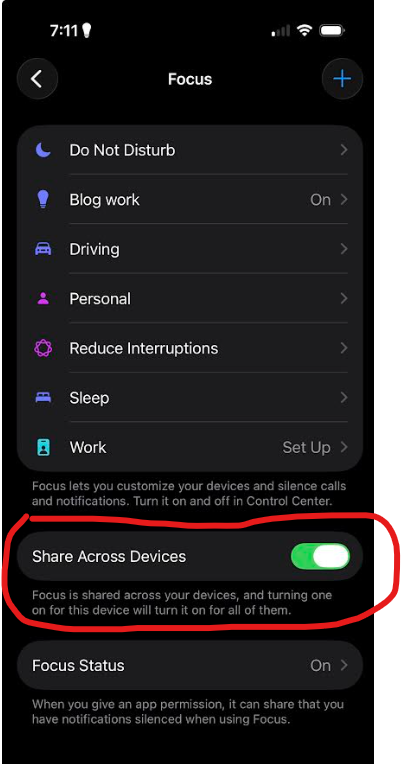
They can, if you have Share Across Devices turned on in your Focus settings and your other devices are signed into the same Apple ID. If you'd rather keep a Focus limited to just your iPhone, you can turn that setting off for that specific Focus.
What happens if two Focus schedules overlap?
Only one Focus can be active at a time, so if two schedules overlap, iPhone has to pick one, but Apple doesn't clearly document exactly how it decides. In practice, it seems to come down to whichever Focus activates first, though this isn't something Apple guarantees or explains outright. The safest bet is to avoid setting up overlapping schedules in the first place, if you want predictable behavior, keep your Focus schedules from crossing over each other.
Can I delete a Custom Focus I no longer want?
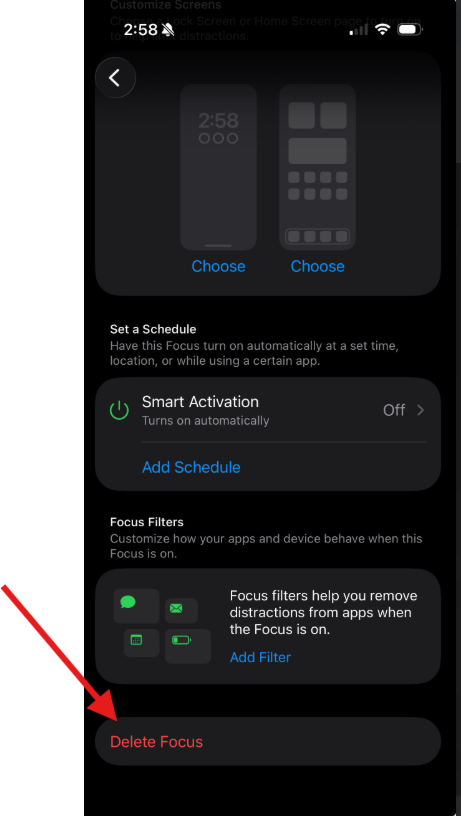
Yes. Go to Settings > Focus > then tap the Focus you want to remove, scroll to the bottom, and tap Delete Focus. This won't affect any of your other Focus modes.