

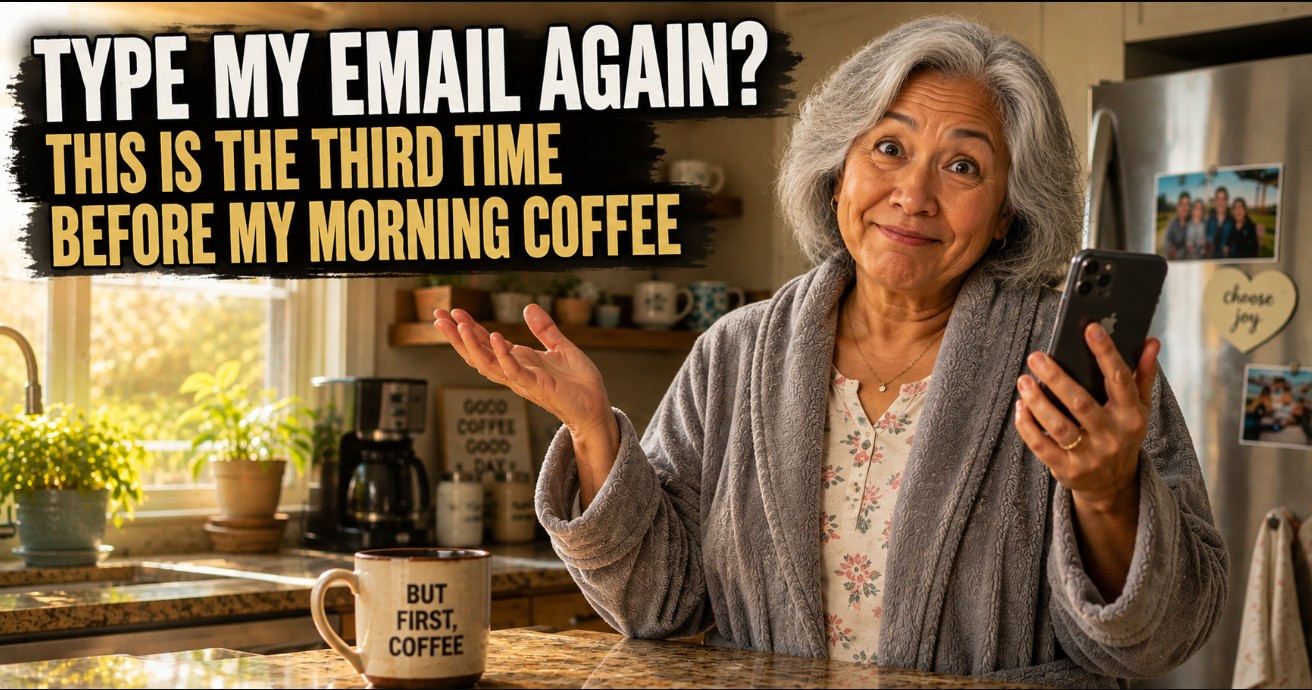
Have you ever noticed there's certain things you're typing over, and over, and OVER again on your iPhone's keyboard? One example that jumps out to me is your email address. Did you know there's a simple iPhone keyboard shortcut that can knock that off your list of daily annoyances?
Staying with the email example, it's no secret that every app under the sun wants it these days, or when you're doing some online shopping and the moment you go to check out, there it is again. All that typing on a keyboard even a newborn baby's fingers are too big for is enough to drive anyone crazy, and you're probably still doing it the hard way, hunting and pecking your way through the whole thing, letter by letter, number by number, struggling to find the pesky @ symbol, even though you could recite it in your sleep. Some days it feels like you've typed your own email address ten times before you've had lunch!
You're not alone. Most people retype the same information on their iPhone every day without ever knowing this trick is sitting right there waiting for them.
The good news is it only takes about 30 seconds to set up. Think of it like speed dial on your old phone. Punch in one or two numbers and it dialed your sister without you keying in all ten digits. This works the same way, except for typing. Set it up once, and from then on, a few quick letters call up the whole thing, email address and all.
Here's exactly how to set it up.
Short on Time? Here's the Quick Version
If you just want the fast path, here it is. Open Settings, tap General, then Keyboard, then Text Replacement. Tap the + in the corner. Type the full email address (or whatever you're tired of typing over and over again) into the Phrase box, and a short set of letters into the Shortcut box. Tap Save, and you're done. Keep reading if you'd like the full walkthrough, along with a few other ways to put this to use.
1) Settings. 2) General. 3) Keyboard. 4) Text Replacement. 5) +. 6) Type in your email address (or whatever you're tired of overtyping daily) into the Phrase box. 7) Type a short set of letters into the shortcut box. 8) Save.
What This Feature Actually Does
Apple calls this feature Text Replacement https://support.apple.com/en-us/104995. It's been quietly built into your iPhone this whole time. It lets you create a short little code that automatically expands into something longer the moment you type it.
So instead of typing your entire email address - let's use MyExampleEmailAddress123@gmail.com - which is 34 characters long, you could create your own mini "speed dial" code like "qqq" and watch your phone fill in your email address for you, symbols and all.
Nothing about this changes how your phone works otherwise. You're not turning off auto-correct or changing any settings that could cause problems elsewhere. You're simply teaching your keyboard a shortcut.
How to Set Up Your First iPhone Keyboard Shortcut
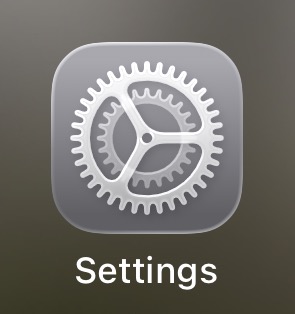
Step 1: Open Settings. Tap the settings icon on your home screen.
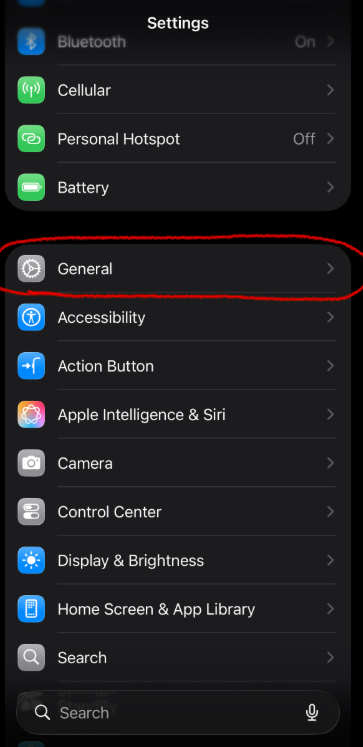
Step 2: Tap General. Scroll down until you see General and give it a tap.
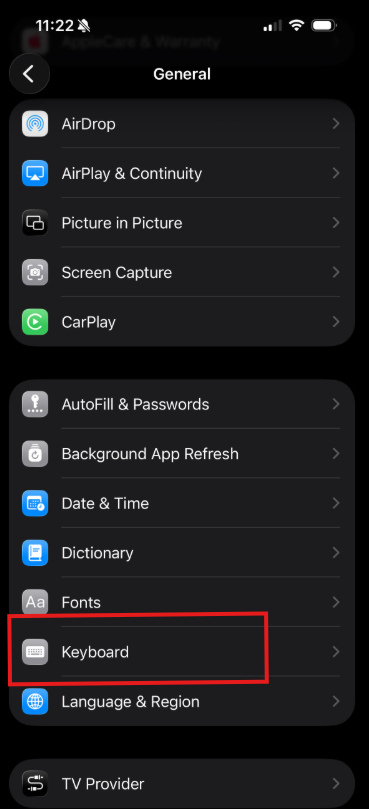
Step 3: Tap Keyboard. You should find it partway down the General menu.
Step 4: Tap Text Replacement. This opens the list of shortcuts already on your iPhone. If you notice there's one or two already there, don't panic. Apple pre-builds some by default like "omw" to expand to "On my way!".
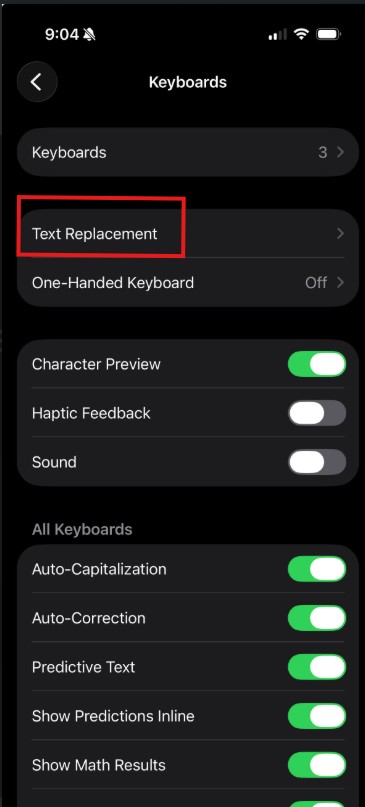
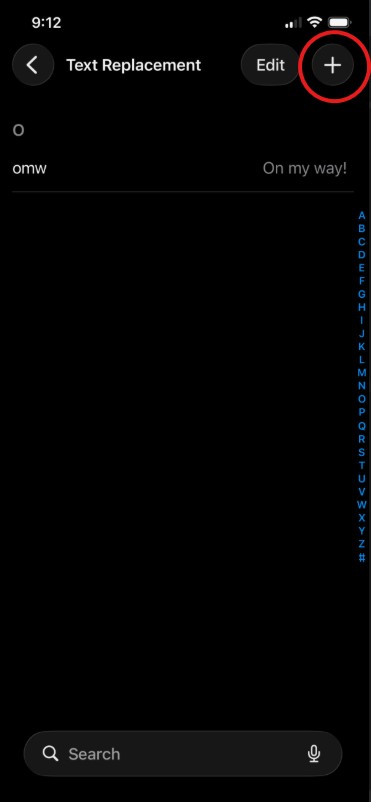
Step 5: Tap the + sign. You'll see it in the upper right corner of the screen.
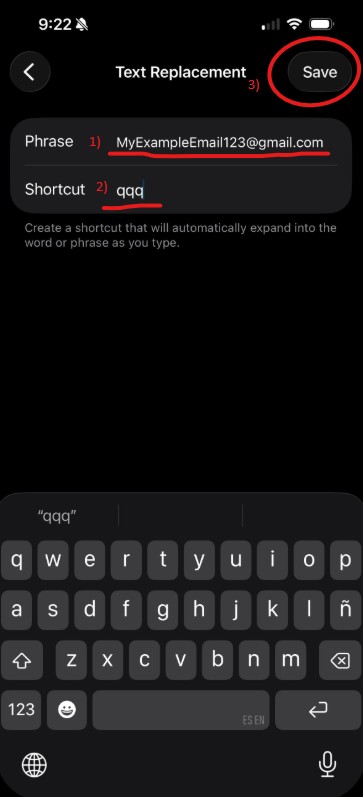
Step 6: Type your full email address into the Phrase box. This is the long version, the one you're tired of typing out all the time. Then, type your "speed dial" shortcut code into the Shortcut box (in this example I'm again using "qqq"). Whatever you decide to use, keep it short, and avoid using a combination that you'd type by accident during a normal sentence. Once you're finished, tap Save in the top right corner.
Try it Out
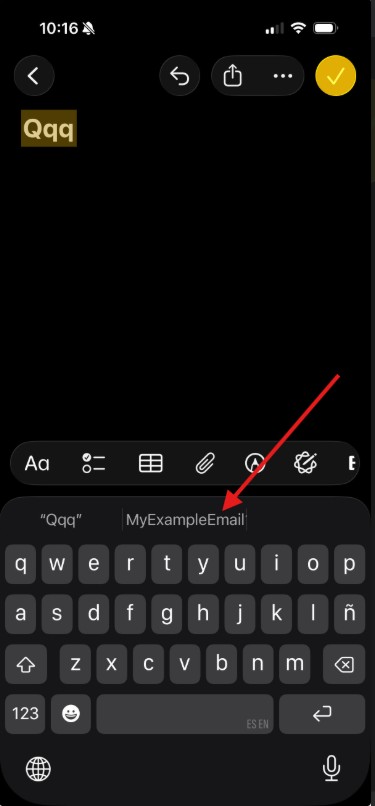
This is the fun part. Open your messages app or Notes, or anywhere else you can type, and test your new shortcut. Type the short letters you just created and before you hit the space bar, keep an eye on the suggestion bar just above your keyboard.
You'll see your full email address (or whatever your replacement phrase you chose) pop up there as a suggestion. From here, you've got two options: tap the suggestion to insert it, or simply hit the space bar and let it insert automatically. Either way, the choice is yours. Go ahead and give it a try before you move on. There's something oddly satisfying about watching a shortcut work for the first time.
Use it However You Like
Your email address is just the beginning. Once you've got the hang of setting up one shortcut, you can create as many as you'd like for anything you type on a regular basis.
Some ideas to get you started. Your home address, for filling out delivery forms without typing the whole thing out. Your phone number, for the same reason. A go-to text message you send often, like letting someone know you're running a few minutes late. Even a proper sign-off for emails, like your full name and a closing line.
Before You Decide
A word of caution here. Try not to make your shortcut something you might type by accident in everyday conversation. If your shortcut for your home address happens to be a common word you use often, you might find your phone replacing it when you least expect it.
Made a Mistake? Here's How to Fix or Delete One
Worried you'll set this up wrong and cause a problem? You won't. This is one of those settings that's genuinely hard to mess up, and it's just as easy to undo.
Step 1: Go back to Text Replacement. Follow the same path as before, Settings - General - Keyboard - Text Replacement.
Step 2: Tap the shortcut you want to change. This opens it up so you can edit the Phrase or Shortcut text.
Step 3: Make your changes and tap Save. Or, if you'd rather remove it completely, swipe left on the shortcut in the list and simply tap Delete.
One More Thing
If you're signed into the same Apple ID on an iPad or a Mac, your shortcuts will follow you there too. Set one up on your iPhone, and it'll quietly show up on your other devices without you having to do a thing. One less job on your to-do list.
That's Really All There Is To It
A shortcut you set up once can save you from typing the same thing hundreds of times over the life of your phone. It's a small change, but the kind that adds up in a way you'll actually notice.
If you've got another iPhone habit you'd love to shortcut but aren't sure how, drop it in the comments below. That might just be my next post. And if you haven't already, take a look at my post on (link: turning off auto-correct on your iPhone → https://oledognewtech.com/how-to-turn-off-auto-correct-iphone/), which touches on a few other keyboard tricks worth knowing about.
Until next time, your online tech nephew.
Frequently Asked Questions
Will this shortcut work in every app, or just Messages?
It works almost everywhere you can type on your iPhone, including Messages, Notes, Mail, Safari, and most other apps. A small number of apps with their own custom keyboards may not support it, but this is uncommon.
Is it case sensitive?
Not something you need to worry about. Type your shortcut in lowercase, uppercase, or a combination of both. Regardless of how you type it, it will trigger the replacement either way. Your iPhone should also automatically adjust the capitalization to fit wherever it lands, like capitalizing the first letter if it's starting a new sentence.
Can I have more than one shortcut set up at a time?
Yes. There's no meaningful limit for everyday use. Many people end up with several once they realize how handy this feature is.
What happens if I forget my own shortcut?
Nothing bad. You can always go back into Text Replacement to check your full list whenever you need a reminder.
Does this affect how auto-correct works otherwise?
No. Text Replacement runs alongside auto-correct without changing any of your other keyboard settings.