

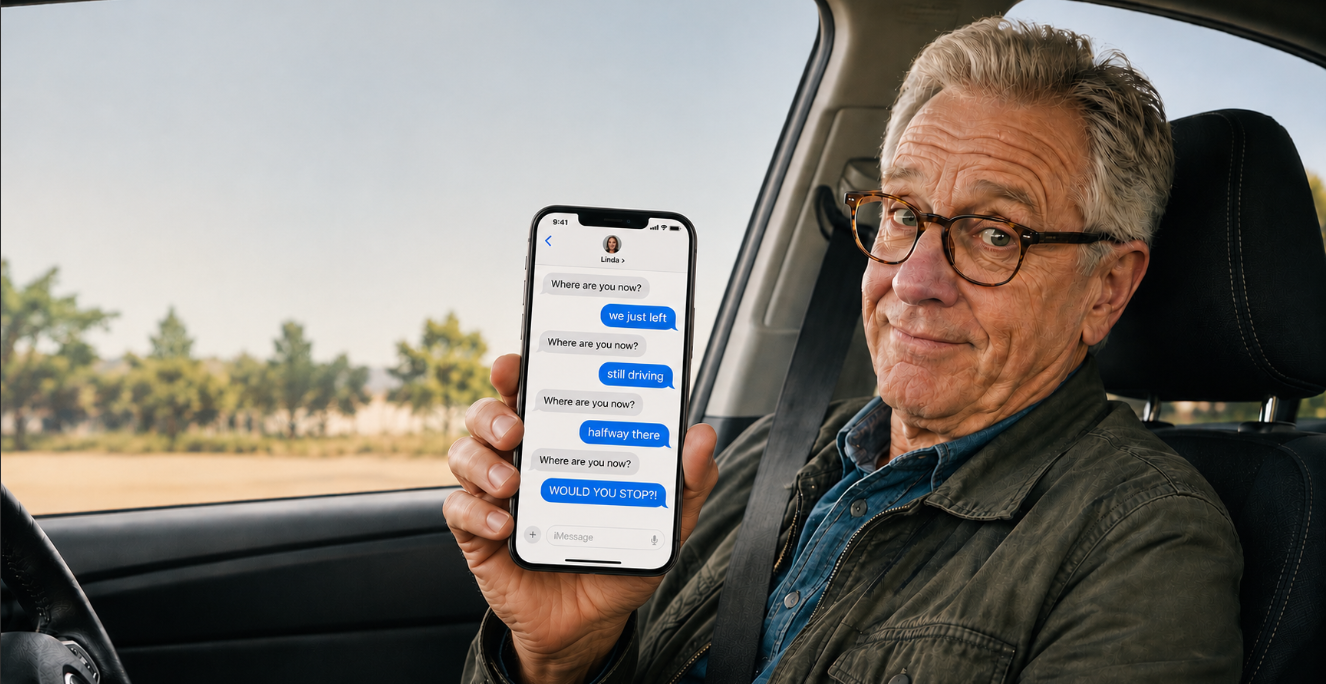
Picture this. You're three hours into a long drive to see the grandkids, the highway finally opens up, and your phone buzzes. "Where are you now?" It's the third time since you left the driveway. You sigh and start typing yet another reply.
If you learn how to share your location on iPhone, that steady stream of "where are you?" texts is over for good. And let's be honest, they come from a place of love. Someone is waiting on you and wants to know you made it safely. Now they can just glance at their phone and see how far along you are, no back-and-forth needed while you keep your eyes on the road.
Here's what gives a lot of folks pause, though. The idea of someone seeing where you are can feel like handing over a little too much. That's a fair worry, and you're not alone in having it. So here's the part that matters most: you decide who sees your location, you decide for how long, and you can shut it off any time you like. You're in the driver's seat the whole way, no pun intended.
So let's walk through it together, one step at a time.
Just Need the Quick Steps?
Here's the fastest path. I'll explain each part in full further down, but these are the key taps.
- 1Open the Messages app and tap the conversation with the person you want to share with.
- 2Tap the + button to the left of the text box.
- 3Tap Location.
- 4Tap Share, then choose how long: for one hour, until the end of the day, or indefinitely
That's it. They can now see where you are. Keep reading and I'll show you how to do this in the Find My app too, and the part that matters most, how to turn sharing off the moment you want to.
Why Share Your Location at All? (And the Worry That Stops Most People)
Sharing your location simply means letting someone you trust see where you are on a map, right from their own phone. No phone call, no text, no interrupting your day. It's one of those features that sounds a little strange until the first time it saves you a headache.
The road trip is the obvious one, but it comes in handy all over the place. You're meeting your daughter at a busy farmers market and can't spot each other in the crowd. You're flying out to visit family and they want to know when to leave for the airport. You head out for a winter walk and your spouse likes knowing you're on your way back. In every case, sharing your location does the talking for you.
Now, about that worry. A lot of people hear "share my location" and picture someone watching their every move like a dot on a screen, forever. I understand completely. But that's not how it works unless you choose to set it up that way.
Think of it like giving a trusted neighbour a spare key to your house. You decide who gets one. You decide whether it's just for the weekend you're away or for keeps. And if you ever change your mind, you can ask for it back, no hard feelings. Sharing your location works the very same way. You hand out access on your terms, and you can take it back whenever you please. I'll show you exactly how to do that turning-off part a little further down, because knowing how to stop is what makes turning it on feel comfortable in the first place.
One Quick Setting to Check First
Before we share anything, let's make sure one setting is switched on. This is the thing that quietly trips people up, so a thirty-second check now saves you a puzzled moment later.
The setting is called Location Services. That's just the iPhone feature that lets your phone figure out where it is, using the same GPS technology that powers your maps. If it's off, your phone has no location to share. Here's how to make sure it's on.
Step 1: Open the Settings App. That's the grey icon with the gears on it.
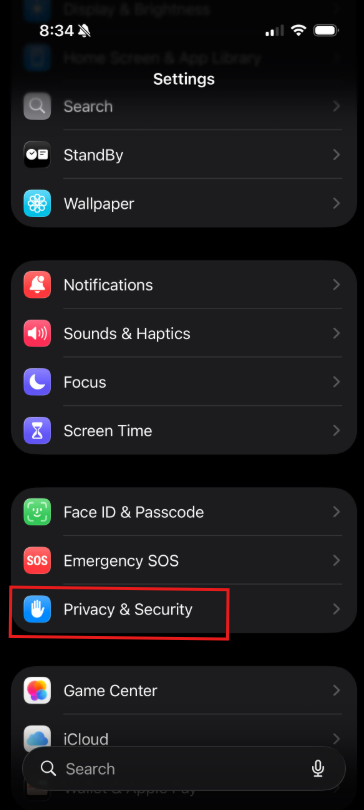
Step 2: Tap Privacy & Security. Scroll down until you find it. It has a blue hand icon to the left of it.
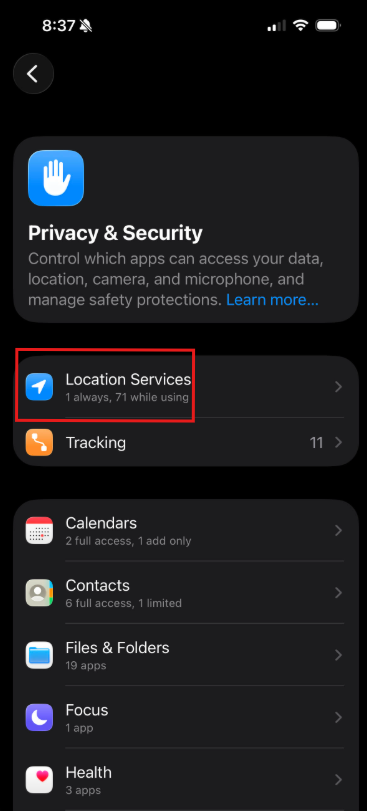
Step 3: Tap Location Services. It sits right at the top of the next screen.
Step 4: Make sure the switch is green. If the switch next to Location Services is already green, you're all set and can back out of here. If it's grey, give it a tap to turn it on.
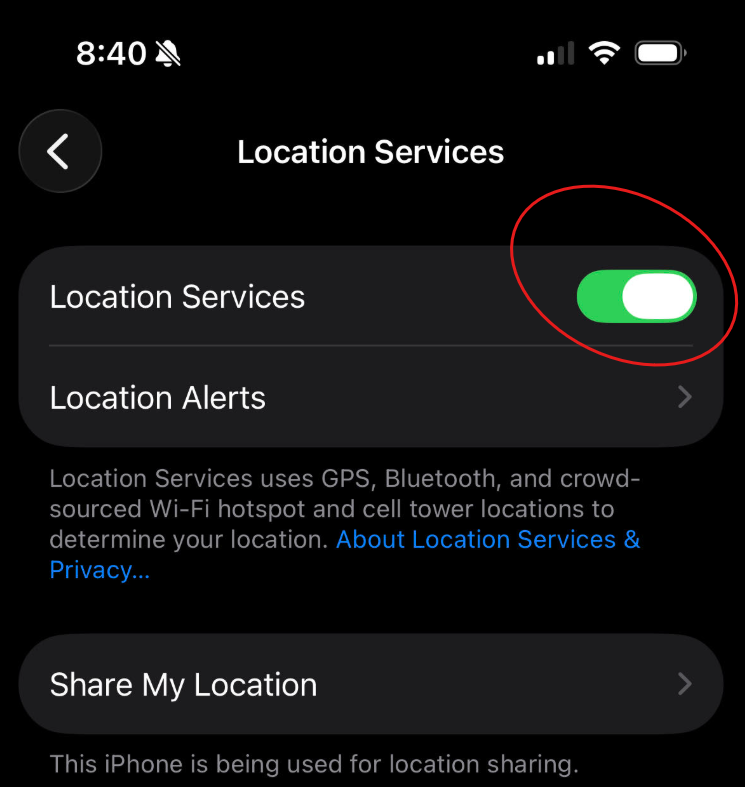
That's the only setting you need to worry about. With that sorted, let's get to the good part.
How to Share Your Location on iPhone Through Messages
For most people, the Messages app is the easiest place to do this, because you're already texting the person anyway. The steps use the same + button you'd use to schedule a text message in my previous post How to Schedule a Text Message on iPhone), so it may already feel a touch familiar. Here's exactly what to do.
Step 1: Open Messages and tap your conversation. Open the green Messages app and tap the conversation with the person you want to share your location with. If you don't have one going yet, start a new message to them.
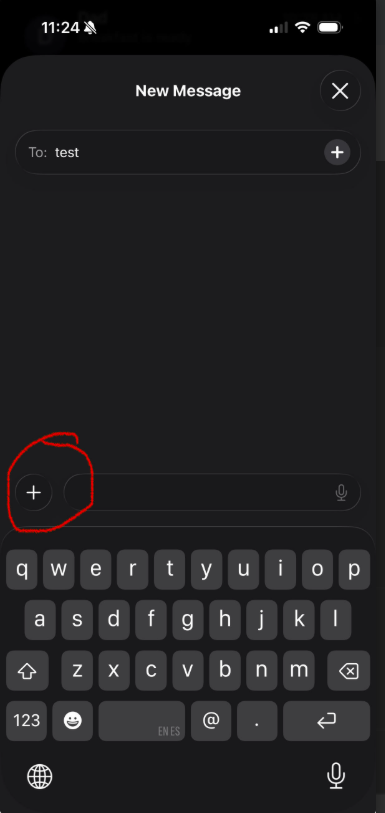
Step 2: Tap the + button. You'll find it to the left of the box where you type your message. Give it a tap and a little menu will pop up.
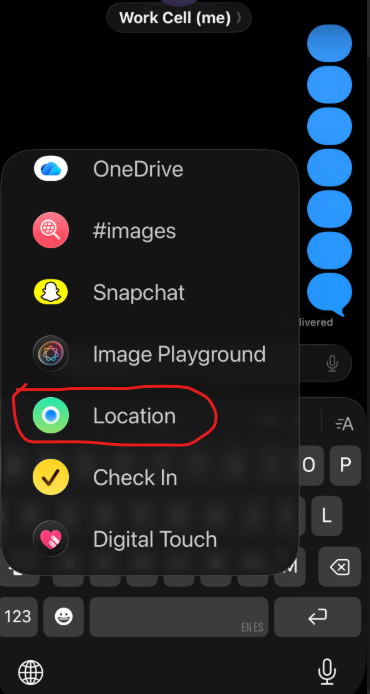
Step 3: Tap Location. In that menu, look for Location and tap it. You may have to scroll down a bit to find it.
Step 4: Tap Share. Now you'll see your sharing options. Tapping Share is the one that lets the person follow along as you move, which is what you want for the road trip. You'll also notice a small pin icon in the top left corner (circled in purple). That one sends a single, one-time location instead of the follow-along kind, and it's handy enough that I gave it its own section coming up next. For now, we're after the follow-along kind, so tap Share.
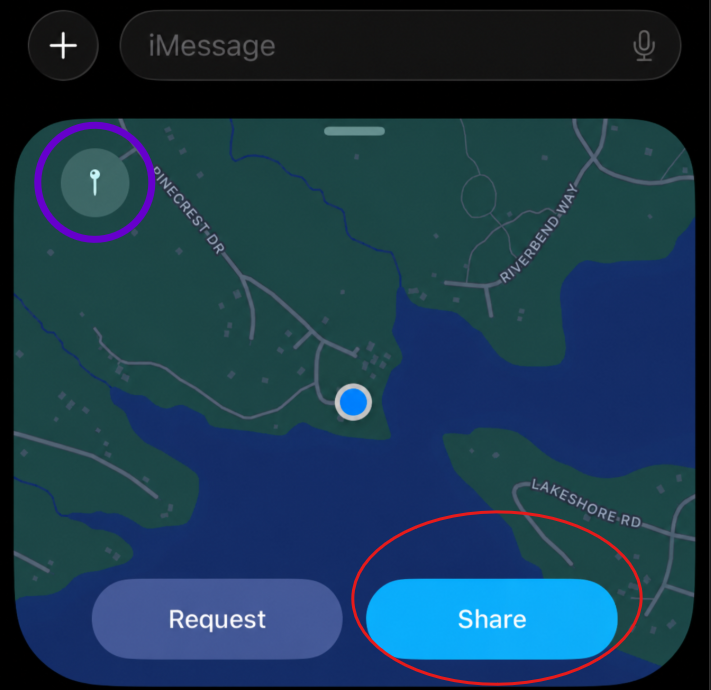
Step 5: Choose how long you want to share. This is the part that puts you in control. You get three options: for one hour, until end of day, or indefinitely. Pick whichever fits your needs and then tap the send button in the text box like you're sending a text message.
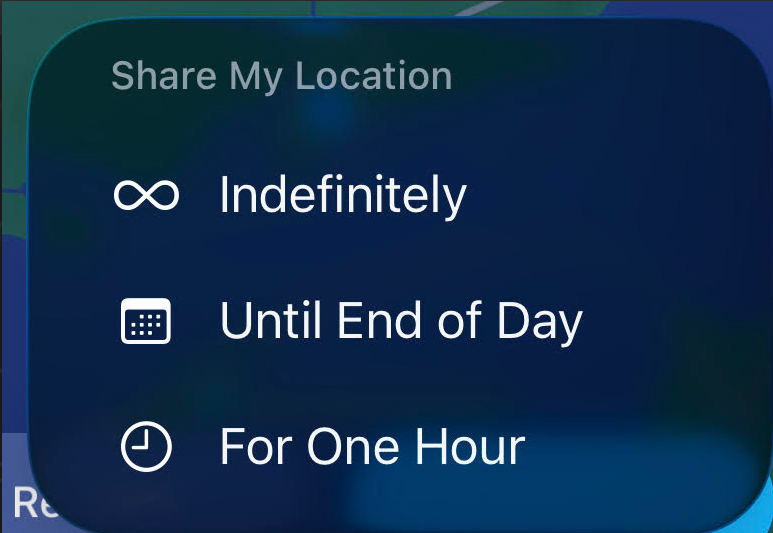
And that's really all there is to it. The person on the other end can now open the message and see where you are. If you picked one hour or until end of day, your iPhone stops sharing on its own when the time is up. You don't have to remember a thing. Apple lays out these options on its own location sharing support page → Apple Location Sharing Support if you ever want to read along.
How to "Drop a Pin" and Send Your Current Location
Sometimes you don't want anyone following along for an hour. You just want to show someone exactly where you are right now, once. That's what dropping a pin is for. Think of it like texting someone a photo of a map with an X on it. They see the one spot, and that's the end of it. It's perfect for "this is the restaurant" or "here's where I parked, come find me."
The nice part is you've already done most of the work. You get there the same way you started sharing, through the + button in Messages.
Step 1: Open your conversation and tap the + button. Same + button to the left of the text box, then tap Location, just like before.
Step 2: Tap the pin icon in the top left corner. Instead of tapping Share, look for the small pin icon up in the top left. Give it a tap.
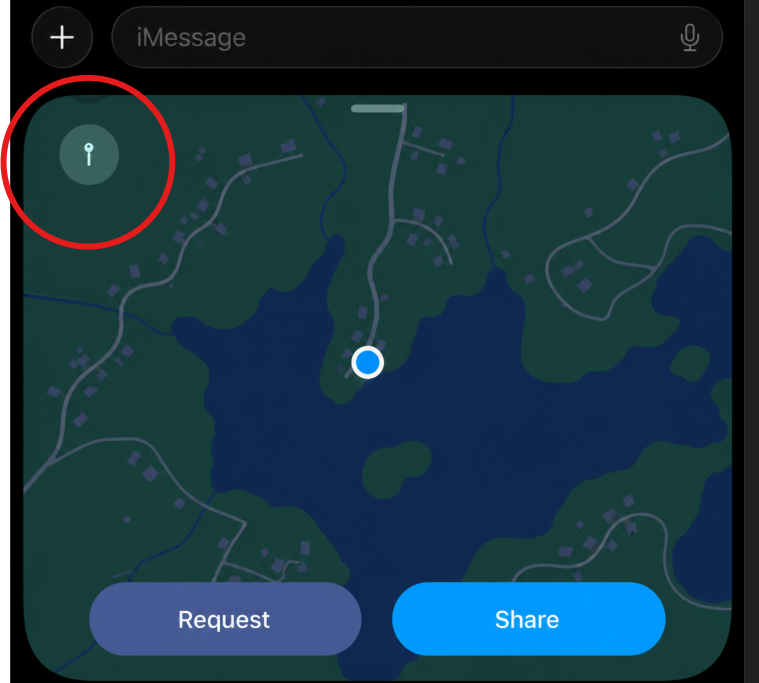
You'll be prompted to send your current location as a one-time spot. Tap to send it, the same way you'd send any text.
That's the whole thing. The person gets a single pin of where you are at that moment, and it never updates. No timer, no follow-along, nothing to remember to turn off later. And because it goes out as a regular message, this one even works for friends and family on an Android phone, which the live sharing doesn't.
How to Share Your Location on iPhone in the Find My App
There's a second way to do this, using an app called Find My. Find My is Apple's free, built-in app for keeping track of people and devices. It's the same app you'd reach for to find a misplaced iPhone. Some folks prefer it because it gives you one tidy place to see everyone you're sharing with and manage it all. Here's how to share from there.
Step 1: Open Find My App. This app will look like a green icon with a white radar-style circle on it.
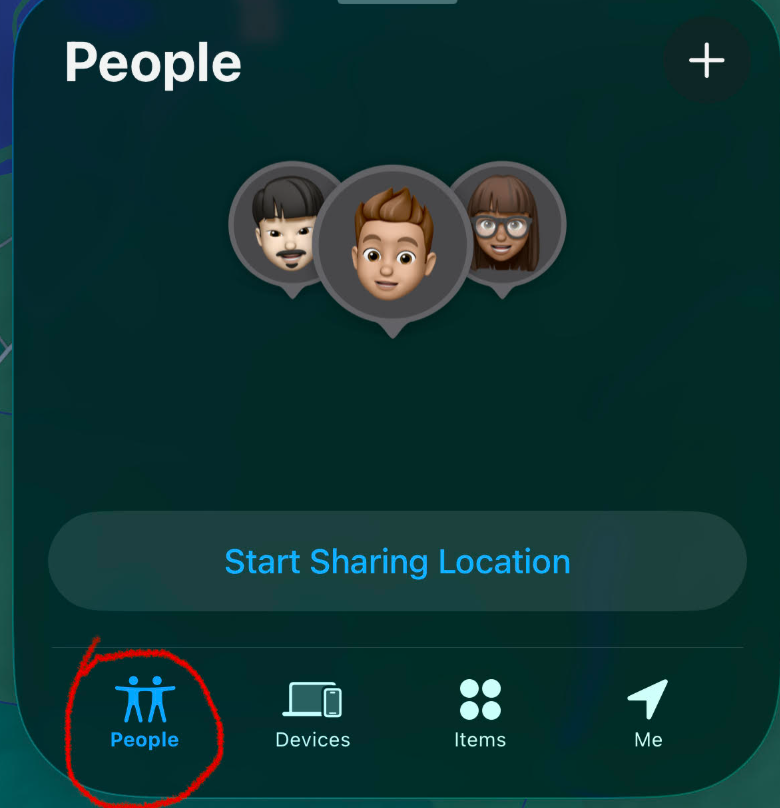
Step 2: Tap People. Along the bottom of the screen, you'll see a few tabs. Tap the one labelled People.
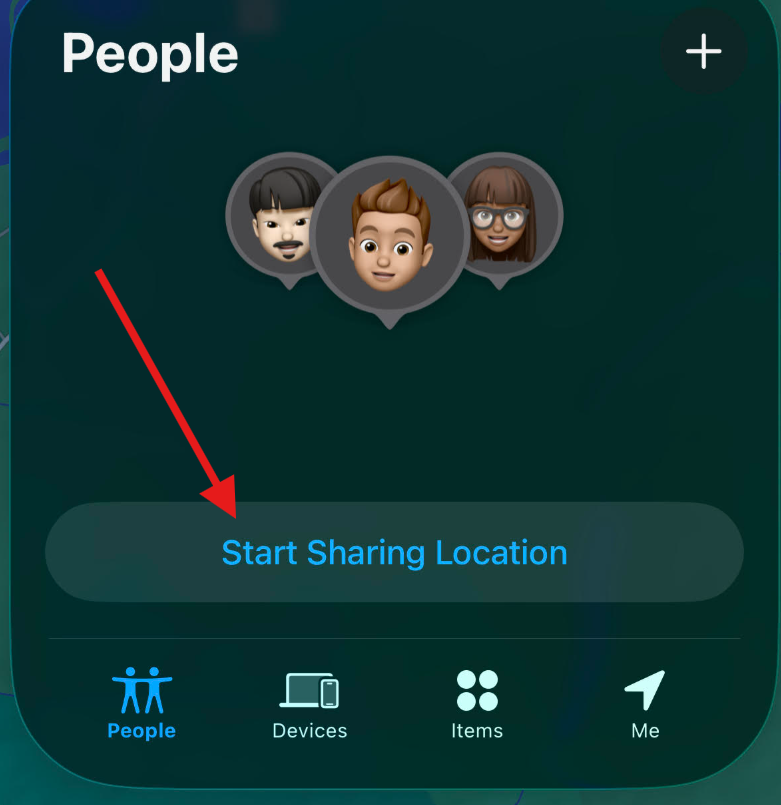
Step 3: Tap Start Sharing Location. In the same People tab, press the big Start Sharing Location button.
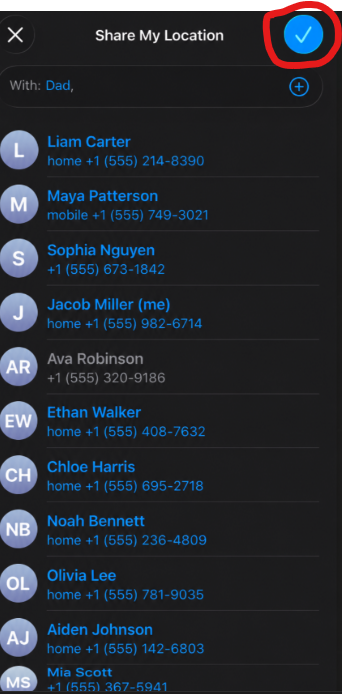
Step 4: Choose who to share with. Type the person's name in the box, or pick them from your contacts list when it appears. Then tap the blue send checkmark in the top right corner.
Step 5: Choose how long. Just like in Messages, you'll be asked whether to share for one hour, until the end of the day, or indefinitely. Tap your choice and you're done.
That's it. Their name now lives in your People list, and you can come back to this same tab any time to check who you're sharing with at a glance.
A Quick Heads-Up: This Is Mostly an Apple-to-Apple Thing
One thing worth knowing before you start sharing away. The live, follow-along sharing we covered, the kind that lets someone watch your progress as you move, is built for Apple devices talking to other Apple devices. In other words, that part is an apple-to-apple deal, and yes, pun fully intended.
Here's the exception, and it's a handy one. That single pin drop, where you send your current location as a one-time spot on the map, goes through to just about anyone, including folks on an Android phone like a Samsung or a Google Pixel. It arrives as a normal message they can tap and open. So if you just want to show someone where to meet you, that works across the board. It's only the ongoing, live sharing and the Find My app that stay in the Apple family.
How to Stop Sharing Your Location on iPhone Whenever You Want
Here's the section that makes everything else feel safe. Sharing your location is never a one-way door. You can stop any time, in seconds, and you never owe anyone an explanation. Let's cover the two ways you'll most likely want.
Stop Sharing With One Person
Say you shared with a friend for a weekend trip and now you'd like to switch it off, but you want to keep sharing with everyone else. Here's how to turn off just that one person.
Step 1: Open Find My and Tap People. Same People tab we used a moment ago.
Step 2: Tap the person's name. Find them in your list and give their name a tap to open their details.
Step 3: Tap Stop Sharing My Location. Scroll down their details until you see it, then tap it.
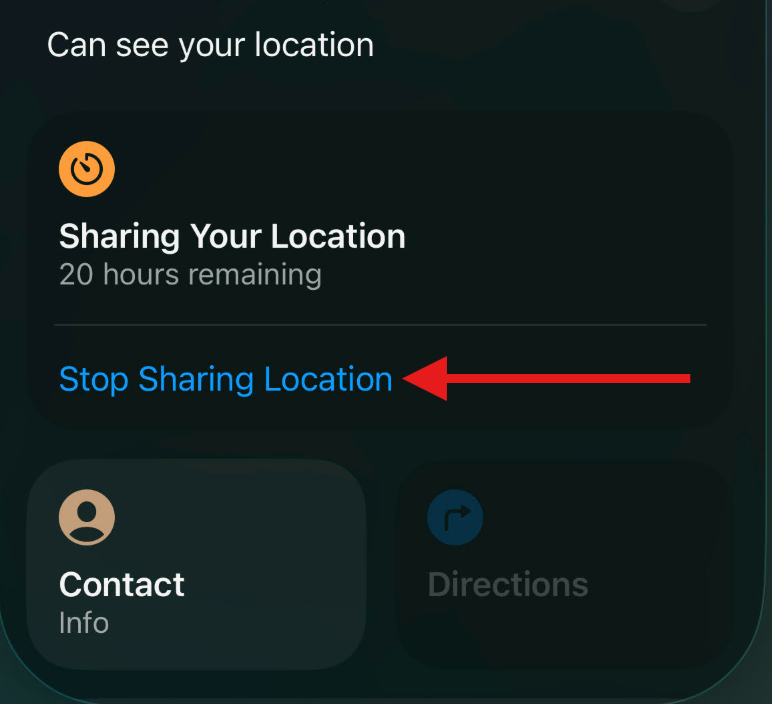
Step 4: Tap to confirm. Your iPhone will double-check by asking again. Tap Stop Sharing Location, and you're done. Your location vanishes from their phone.
Stop Sharing With Everyone at Once
Maybe you'd just like to go quiet for a while, with everybody. There's a single switch for that.
Step 1: Open Find My app and tap Me. That's the tab at the bottom for your own details.
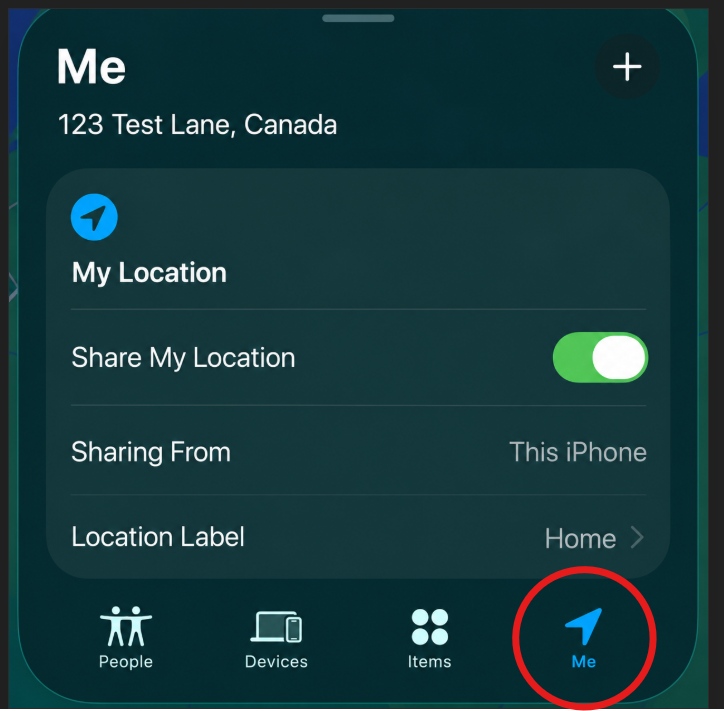
Step 2: Turn off Share My Location. Tap/toggle the switch next to Share My Location so it goes from green to grey. That instantly hides you from everyone you were sharing with. When you're ready to come back, flip the same switch on again.
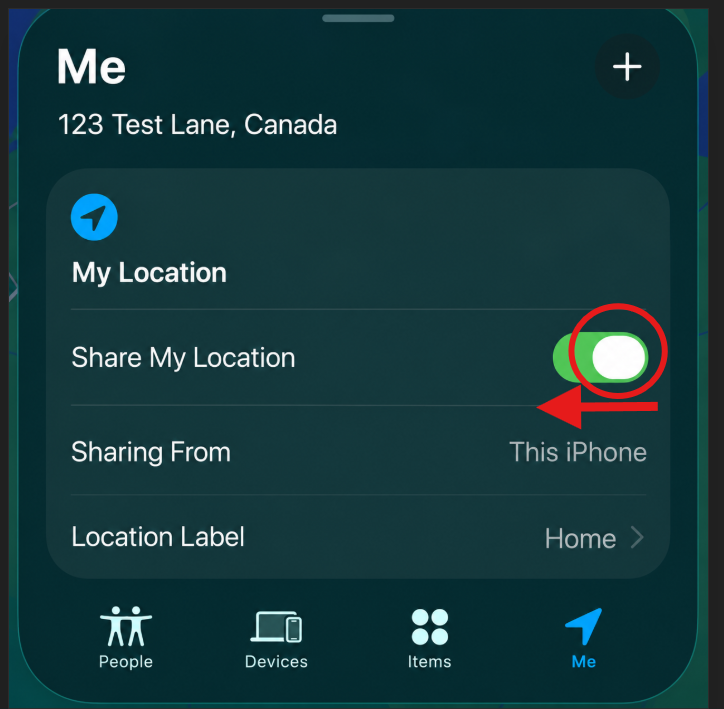
One honest note, because I'd want to know this myself. When you stop sharing, the other person doesn't get a pop-up announcing it. But they aren't kept fully in the dark either. If they go looking, they'll notice your location is no longer there. So think of it less as sneaking away and more as quietly stepping back, which is exactly what you're entitled to do.
A Bonus Trick: "Let Me Know You Got There Safe"
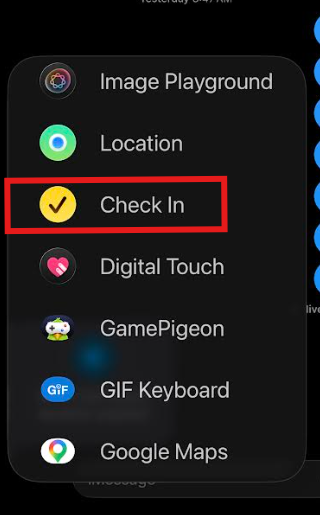
Before we wrap up, here's one more feature most people don't know about, and it fits this topic like a glove. It's called Check In.
Check In lets you tell someone you're heading somewhere, and your iPhone automatically lets them know the moment you arrive. If you get held up along the way, it gently checks that you're alright. It's perfect for the drive home after dark, or letting your son know you landed, without you having to remember to text at all.
You'll find it in the very same spot we started: open a conversation in Messages, tap the + button, then look for Check In in the menu. The nice thing is that it shares your location only until you arrive, then bows out on its own. It's a lovely middle ground if full-time sharing feels like a bit much.
You're in Control the Whole Way
So there you have it. Now that you know how to share your location on iPhone, you can share it straight from Messages, or from the Find My app, and you can pick whether it lasts an hour, a day, or until you decide otherwise. Best of all, turning it off is always just a few taps away.
The next time you're on a long drive or waiting at the gate, you won't have to thumb out "almost there" for the fourth time. The people who love you can simply see for themselves, and you can get back to enjoying the trip. That's not handing over your privacy. That's using a handy tool on your own terms.
Is there another iPhone headache you've been wrestling with? Leave me a comment below and tell me what's giving you grief. It just might be the subject of my next post.
Until next time,
Your Online Tech Nephew
Frequently Asked Questions
Will the other person know if I stop sharing my location?
They won't get a notification announcing it, so there's no awkward alert. That said, if they open their phone and go looking for you, they'll see that your location is no longer showing. So it's private, but it isn't a secret if someone checks. For most everyday situations, nobody notices at all.
Can I share my location with more than one person?
Yes, you can share with as many people as you like, and each one is separate. You might share with your spouse indefinitely, your daughter for the afternoon, and a friend just for one hour. Everyone gets their own setting, and you can stop any of them without affecting the others.
What's the difference between sharing my location and sending my current location (also referred to as "dropping a pin")?
Sharing your location lets the person follow along as you move, for the length of time you choose. Sending your current location drops them a single pin of where you are at that one moment, and it never updates. Use sharing for a trip, and sending for a quick "this is the spot, meet me here."
Does the other person need an iPhone to see where I am?
It depends on which kind you use. For the live, follow-along sharing through Messages or Find My, yes, both people need Apple devices like iPhones or iPads. But the single pin drop, where you send your current location as a one-time spot, goes through to just about anyone, including folks on an Android phone. So for a quick "here's where to meet me," it doesn't matter what phone they have. For ongoing sharing with someone on Android, you'd need a separate app you both install, which is a topic I plan to give its own post down the road.