


Has your iPhone ever frozen on you completely, leaving you wondering how to restart your iPhone and get things working again? You're not alone and the fix is simpler than you think.
Picture this. It's Saturday morning. You brew yourself a warm cup of coffee, curl up on the couch, and settle in to scroll through Facebook for the 15 minutes of peace you have before anyone else is up. You tap the app...... nothing happens. Again, you tap thinking it must have been a mistake on your end, and again, nothing. Suddenly one tap becomes two, two becomes five, and before you know it you feel like you're going 10 rounds with your screen looking to score a vicious KO from a flurry of taps. Your iPhone just sits there, completely unbothered, staring back at you like it has absolutely no idea who you are.
Before you start calculating in your head how much a new iPhone is going to cost you, stop. Your iPhone likely isn't broken. It's not dying. And you probably didn't do anything wrong (besides a few extra violent taps). iPhones are mini computers, and just like a computer, sometimes they just need to be turned off and turned back on again. One simple restart and nine times out of ten, whatever was going wrong disappears completely.
Let's jump right into it. Your online tech nephew has got you covered.
Short on Time? Here's the Quick Version
Newer iPhones (no home button): Hold the Side Button and either Volume Button together until the power-off slider appears > slide to power off > wait 10-15 seconds > hold just the Side Button until the Apple logo appears.
Older iPhones (with a home button): Hold just the Side Button until the slider appears > slide to power off > wait 10-15 seconds, then hold the Side Button again until the Apple logo appears.
If your screen is completely frozen and won't respond at all, skip ahead to the Force Restart section below.
Keep reading for the full walkthrough with more details, tips, and pictures.
When Should You Restart Your iPhone?
A restart is always the first thing I'd try when something feels off. Here are the most common situations where it helps:
- Your iPhone is running abnormally slow
- An app keeps freezing or crashing
- Your Wi-Fi or cellular signal seems stuck
- Your battery is draining unusually fast
- Your iPhone feels unusually hot to the touch
- You look at the top of your screen and instead of your normal signal bars, it just says SOS (this one can be particularly alarming, but fear not, a restart almost always clears it right up).
 Tip: You don't have to wait for your iPhone to act up before restarting it.
Think about your own brain for a second. Long day. Too much on your plate. Everything feels a little slow. A little foggy. What fixes it? A quick power nap.
Same idea here. Your iPhone is always running things in the background. Even when you don't see it. Give it a quick restart once a week. It clears things out and lets it start fresh. Takes less than a minute. Future you, on that quiet Saturday morning, will be very glad you did.
First Thing's First, What Model iPhone Do You Have?
The steps are slightly different depending on which model of iPhone you have. Here's the quickest way to figure it out.
Look at the front of your iPhone. Does the screen go all the way to the bottom edge with no button? Or is there a round button sitting below the screen?
- No button at the bottom - you have a newer iPhone (iPhone X or later). Follow Part 1 below.
- Round button at the bottom - you have an older iPhone (iPhone 8 or earlier). Click here to jump to Part 2.
Still not sure which model you have? Check out our post Ole Dog New Tech - What iPhone Model Do I Have for a more detailed post.
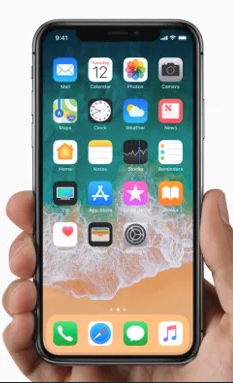
Newer iPhone - No Home Button
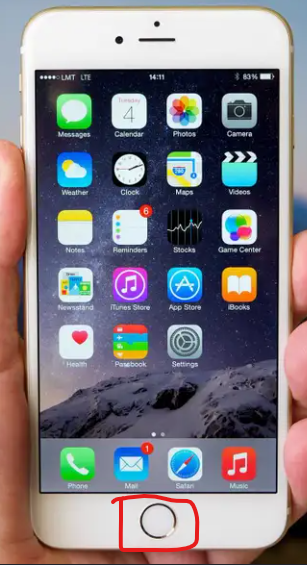
Older iPhone - Has a Home Button
How to Restart Your iPhone - Newer Models (No Home Button)
iPhone X and any model after, including the latest iPhone 17.
 WARNING BEFORE READING: Before performing these steps, I want to highlight something important. If you do these steps and hold the buttons for too long after the power off slider appears, your iPhone will show an Emergency SOS screen like the one in the picture below. If you continue holding, Emergency Services will actually be called. Don't panic if this happens though, simply release the buttons immediately and nothing will happen. Then try again, and this time as soon as you see the "slide to power off" slider appear, let go of the buttons and use your finger to slide it.
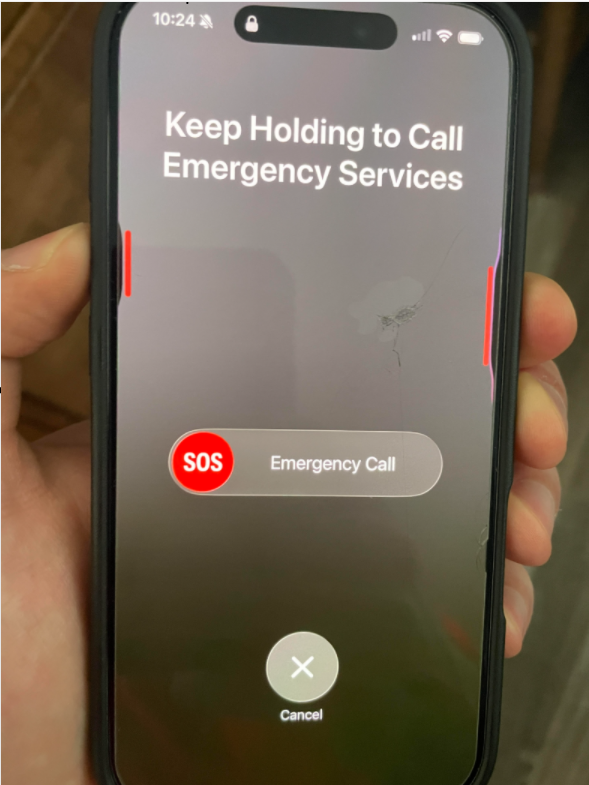
If you see this screen, you held the buttons too long. Let go of them immediately.
Alright, warning handled. Let's get back to restarting your iPhone.
Step 1: Press and hold the Side button (right side of your iPhone) and either Volume button (left side of your iPhone) at the same time. Hold them together. You only need one Volume button. Up or down, it doesn't matter. After a couple of seconds, your screen will display the power off slider (shown below in picture 3). You can then let go of the buttons.
Pro tip: Before you press anything, line up your thumb on a Volume button and your pointer finger on the Side button first, (as seen in the third picture below), or vice-versa depending on which hand you're more comfortable holding your phone with. That way you can press them both at exactly the same time when you're ready.
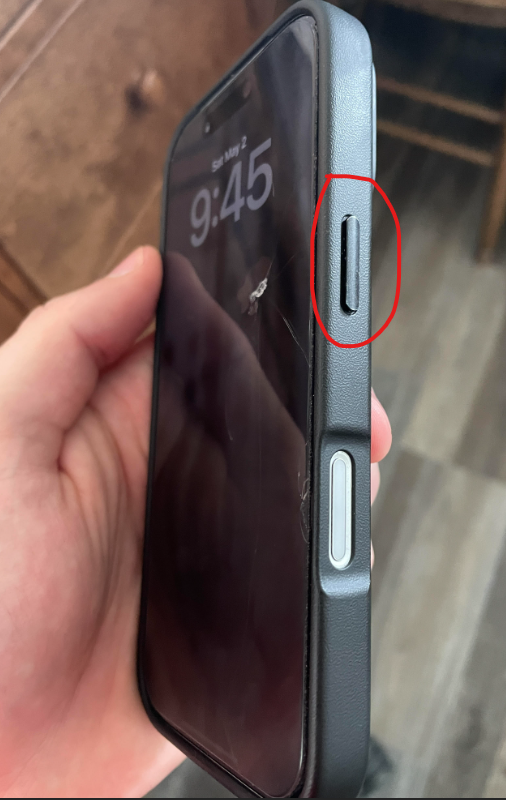
Side Button
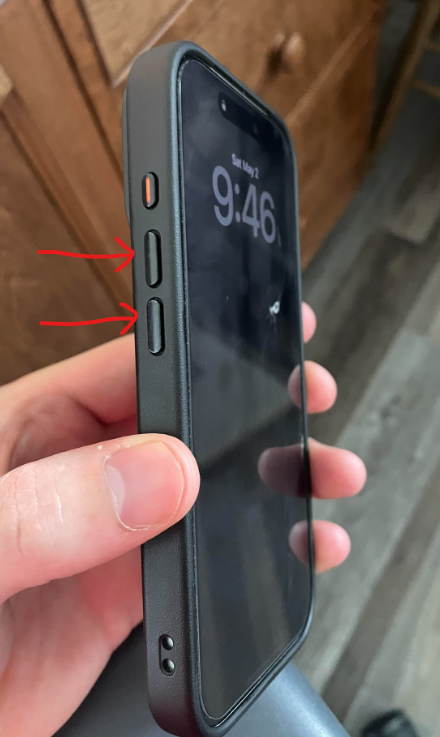
Volume Buttons
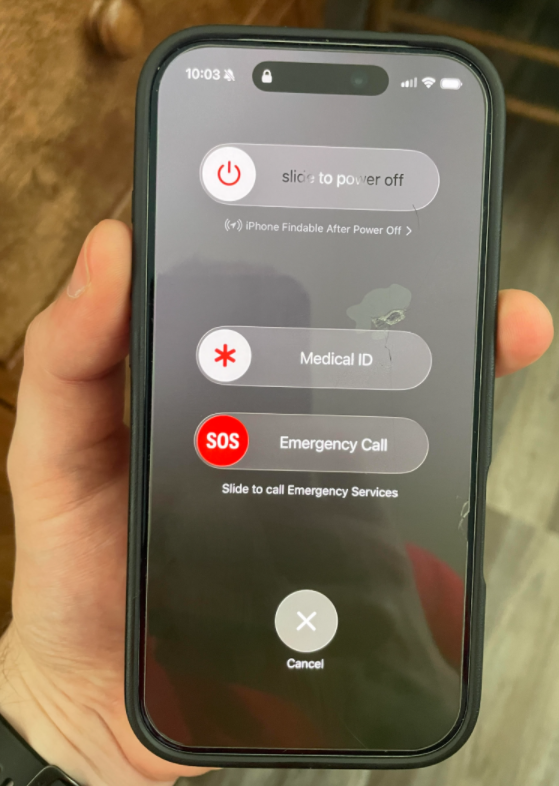
Step 2: When the “slide to power off” bar appears, release the buttons and use your finger to slide it to the right.
Step 3: Your screen will go black. Your iPhone is now off.
Step 4: Wait about 10-15 seconds, then press and hold just the Side button (on the right) until the Apple logo appears. Then let go and allow your iPhone to turn back on. This should take about 30-40 seconds.
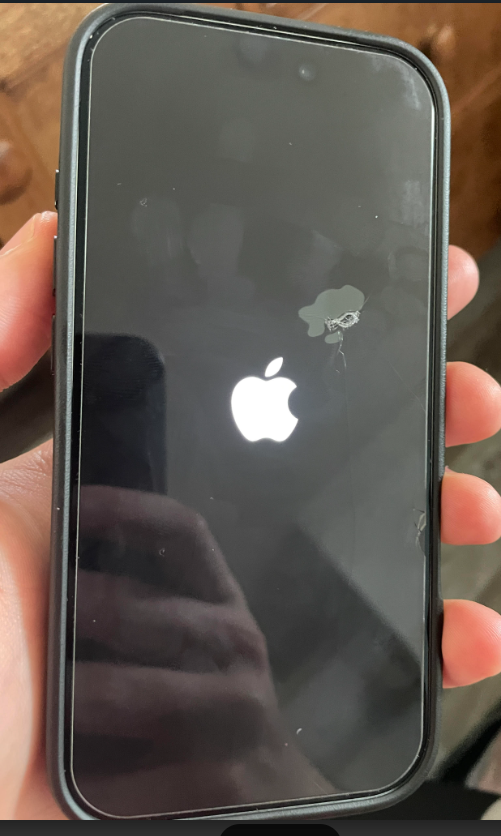
Tip: When your iPhone turns back on, it will always ask for your passcode to unlock it instead of using Face ID or Touch ID. Also, once your iPhone restarts it's completely normal for things like your Wi-Fi connection and some apps to take a few extra seconds to come back. Give it a minute and everything will be back to normal.
Apple's own restart guide → Apple Support - Restart Your iPhone covers this exact process if you want a second reference.
How to Restart Your iPhone: Older Models (With Home Button)
iPhone 8 and below
Step 1: Press and hold the Side button on the right side of your iPhone.
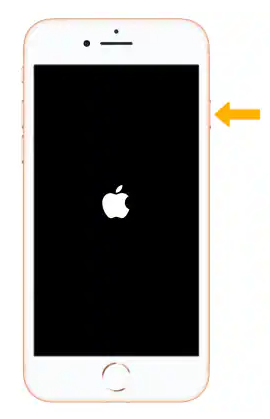
Step 2: After a few seconds, the "slide to power off" slider appears at the top of the screen.
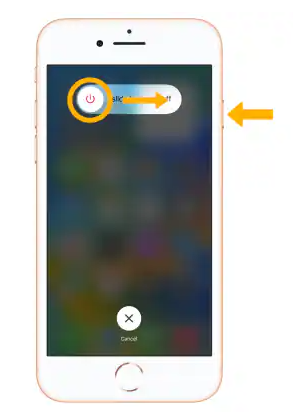
Step 3: Slide it to the right. Your screen goes black. Your iPhone is now off.
Step 4: Wait about 10-15 seconds, then press and hold the same Side button again until the Apple logo appears. Let go and allow your iPhone to finish restarting on its own.
Tip: Once you see the Apple logo you can let go. Your iPhone will finish starting up on its own. It's completely normal for things like your Wi-Fi connection and some apps to take a few extra seconds to come back. Give it a minute and everything will be back to normal.
What If My iPhone Is Completely Frozen?
Sometimes your iPhone gets so stuck that nothing responds at all. The screen is frozen, the "slide to power off" won't even appear, and you can't do anything. When this happens, don't panic. What we need to do is called a force restart. It sounds more dramatic than it is. It's completely safe, and it does not erase a single thing on your phone.
Force restart - Newer iPhone (No Home Button):
Step 1: Quickly press and release the Volume Up button.
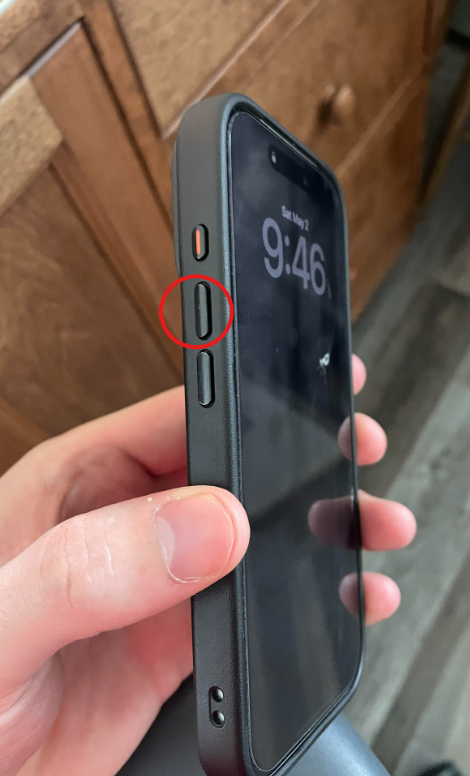
Step 2: Quickly press and release the Volume Down button.
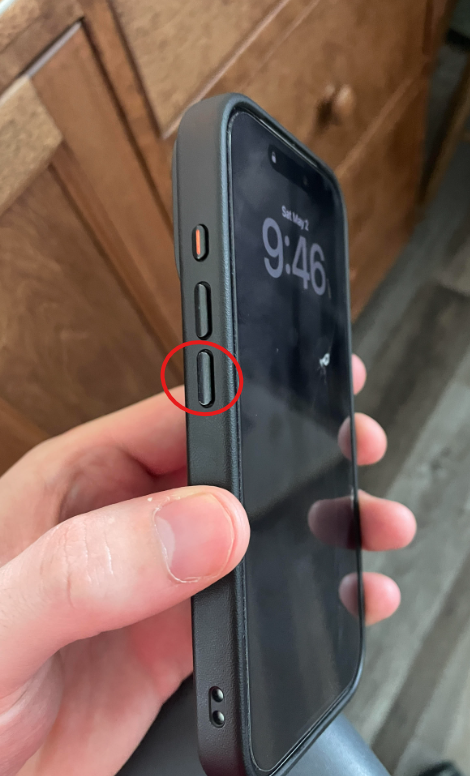
Step 3: Press and hold the Side button on the right. Keep holding even when the screen goes black. Let go when the Apple logo appears. Once the Apple logo appears, allow your iPhone to finish restarting on its own. This should take about 30 to 40 seconds and your iPhone will be back to normal.
Tip: Steps 1 and 2 are quick taps, not holds. Press and release immediately, like you're testing if a button works. Then hold the third one.
Force Restart - Older iPhone (With Home Button):
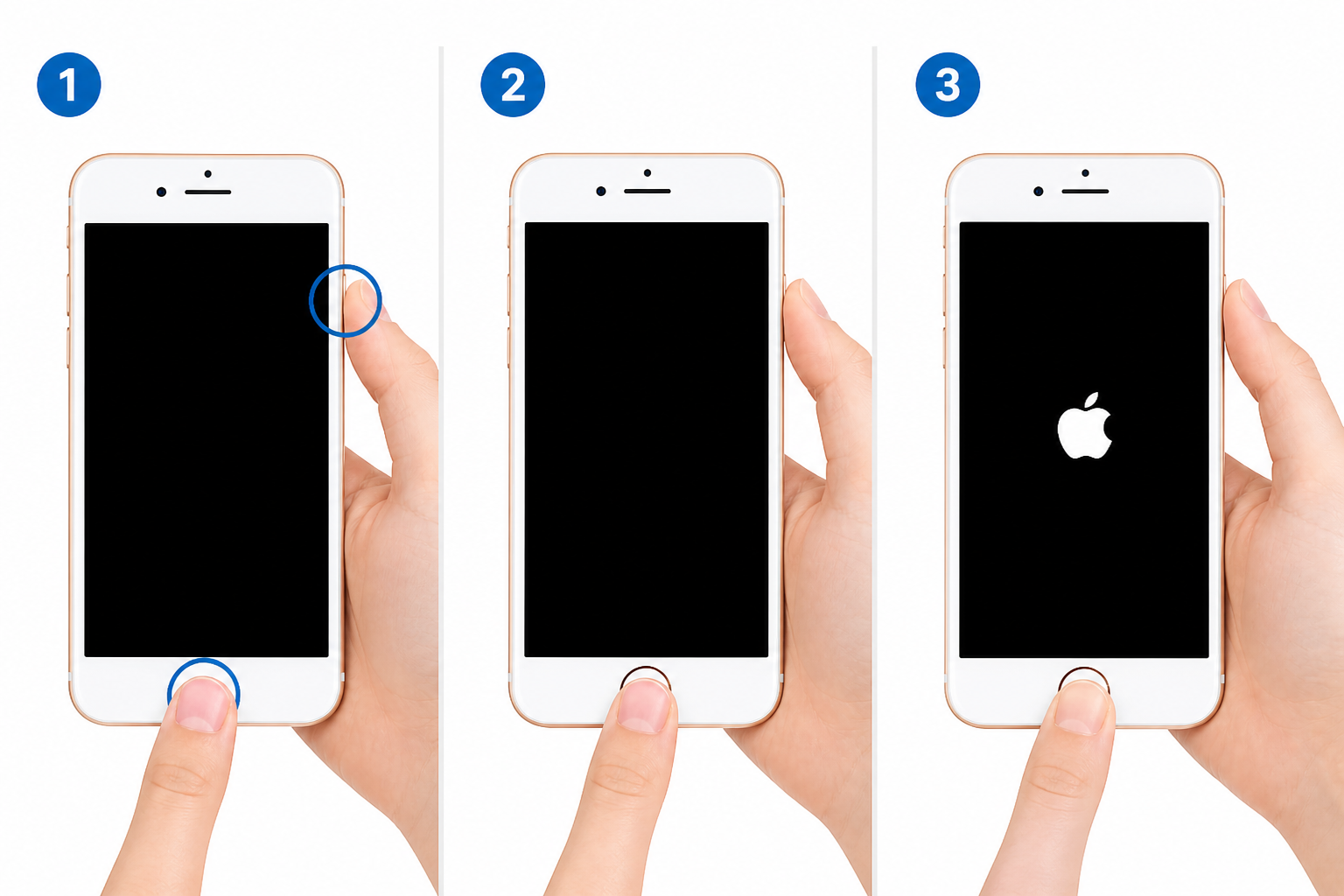
Press and hold both the Home button and the Side button at the same time. Keep holding through the black screen. Let go when the Apple logo appears and allow your iPhone to finish restarting on its own. This should take about 30 to 40 seconds and your iPhone will be back to normal.
You're All Set!
Next time it's a quiet Saturday morning, your coffee is hot, and your iPhone decides it wants to go 10 rounds with the finger tapper, you'll know exactly what to do. One restart and you'll likely be back scrolling Facebook before anyone else in the house even wakes up.
If this helped you out, I'd love to hear about it in the comments below. And if there's something else on your iPhone that's been giving you trouble, drop me a message. That might just be my next post!
Until next time,
Your Online Tech Nephew.
Frequently Asked Questions
Will restarting my iPhone delete anything?
No. A regular restart and a force restart are both completely safe. Nothing gets deleted, no photos, messages, apps, or settings. Your iPhone simply turns off and back on.
How often should I restart my iPhone?
There's no strict rule, but once every week or two is a great habit. It clears out background clutter and keeps things running smoothly, even if nothing seems wrong.
What's the difference between a restart and a force restart?
A regular restart is something you choose to do, using the slider. A force restart is for when your screen is frozen and won't respond at all, so you can't even get the slider to appear. Both end with the same result, your iPhone turning back on fresh.
I held the buttons and now it says Emergency SOS. What do I do?
Don't panic, just let go of the buttons right away. Nothing happens unless you keep holding. Once you've let go, try again, and this time release the buttons as soon as the "slide to power off" bar appears.
How do I know if I have a newer or older iPhone?
If your screen goes all the way to the bottom edge with no button, you have a newer model. If there's a round button below your screen, you have an older one. This guide → Ole Dog New Tech - What iPhone Model Do I Have) can help you confirm.