

What iPhone model do I have? If that question just made you pause, don't worry. You're about to find out in under a minute.
Did you ever have someone ask you what iPhone model you have and you draw a complete blank? Maybe your grandkid was trying to help you with something and needed to know. Maybe you were on the phone with Apple Support and they asked and you had no idea what to say. Maybe you were trying to follow along with a tutorial online and it kept referring to specific models and you weren't sure which category you fell into. It happens all the time and there is nothing to be embarrassed about.
The good news is finding out takes less than a minute and you do not need to remove your phone case, visit an Apple store, or ask anyone for help. Here are two ways to do it right now.
Let's jump right into it. Your online tech nephew has got you covered.
Short on Time? Here's the Quick Version
Fastest Way
Simply say "Hey Siri, what iPhone model do I have?" and it will tell you instantly.
Prefer to see it in writing?
Settings > General > About > Model Name.
Either way, you'll have your answer in under a minute.
Keep reading for the full walkthrough with pictures.
So, What iPhone Model Do I Have?
There are two simple ways to find out. Pick whichever one feels easier to you.
Method 1: Check Your Settings App
This is the easiest and most reliable way to find your iPhone model. Here's all you need to do:
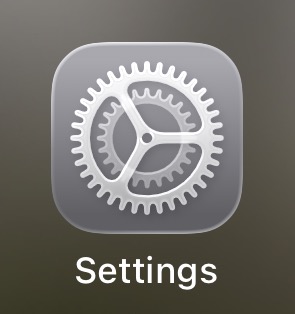
Step 1: Open the Settings app on your iPhone. It looks like a grey square with gears on it.
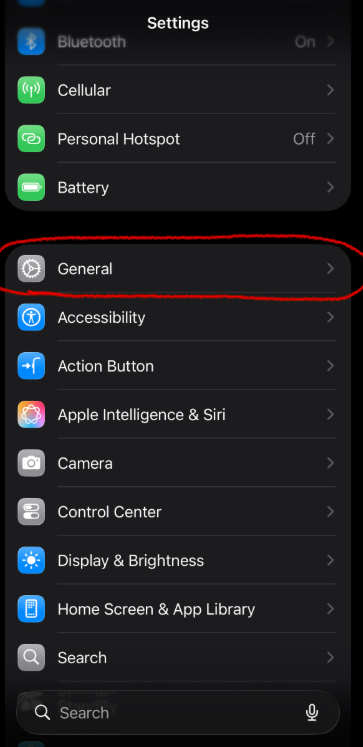
Step 2: Scroll down and tap General.
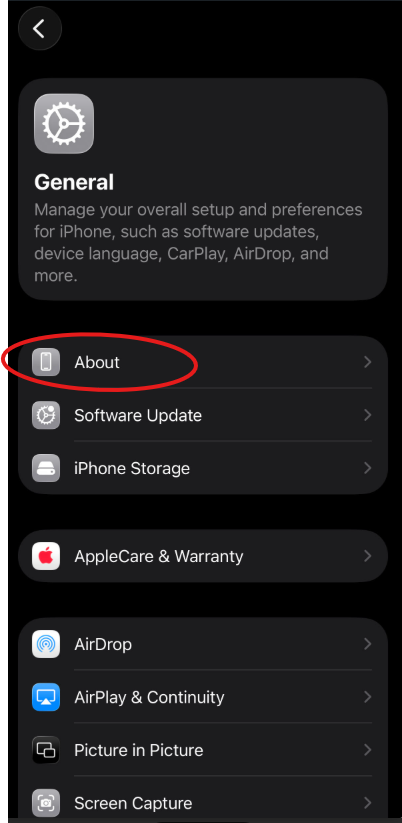
Step 3: Tap About.
Step 4: Look for Model Name. Right there on the screen it will tell you exactly which iPhone you have, something like "iPhone 17 Pro" or "iPhone SE."
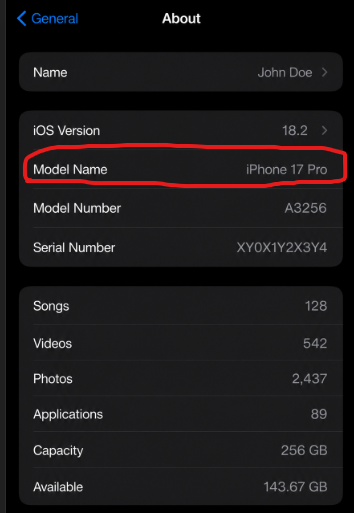
That's it. You now know your iPhone model.
Method 2: Just Ask Siri
If navigating through Settings feels like too many steps, try this instead. Siri already knows everything about your iPhone and she is happy to tell you.
All you have to do is say:
"Hey Siri, what iPhone model do I have?"
Siri will tell you instantly. No tapping, no scrolling, no menus. Just ask and she will answer.
 Tip: Not sure if Siri is turned on? If you say "Hey Siri" and your iPhone responds, you are good to go. We will be covering everything you need to know about Siri in a future post, so stay tuned.
Now That You Know Your Model
Once you know which iPhone you have, a lot of things get easier. You will know which instructions to follow when something goes wrong, whether your phone supports the latest iOS update, and whether an older model might be the reason things have been feeling a little slow lately. Not every iPhone supports the newest software, and knowing your model is the first step to understanding what your phone can and can't do. If you ever want to dig into the technical details further, like exact specs or model numbers, Apple's own model lookup page → Apple Support - Identify Your iPhone Model has you covered.
If this helped you out, drop a comment below and let me know which iPhone model you have. I would love to hear from the community!
Until next time,
Your Online Tech Nephew.
Frequently Asked Questions
What if Siri doesn't understand me or doesn't respond?
Try speaking a little slower and clearly, or double check that Siri is turned on by saying "Hey Siri" first and waiting for the chime. If it still doesn't work, the Settings method above will always get you the answer.
I found my model name, but what do the letters and numbers after it mean?
Those extra details, like storage size or color, aren't usually needed for troubleshooting or following a tutorial. The model name itself, like "iPhone 17 Pro," is almost always what you'll be asked for.
Will this tell me if my iPhone has a Home button or not?
Yes, indirectly. Once you know your model name, anything iPhone 8 or earlier has a Home button, and anything newer doesn't.
Why would I ever need to know my iPhone model?
It comes up more often than you'd think, following a tutorial, talking to Apple Support, checking if your phone supports a software update, or figuring out which button combination to use for something like restarting your phone.