

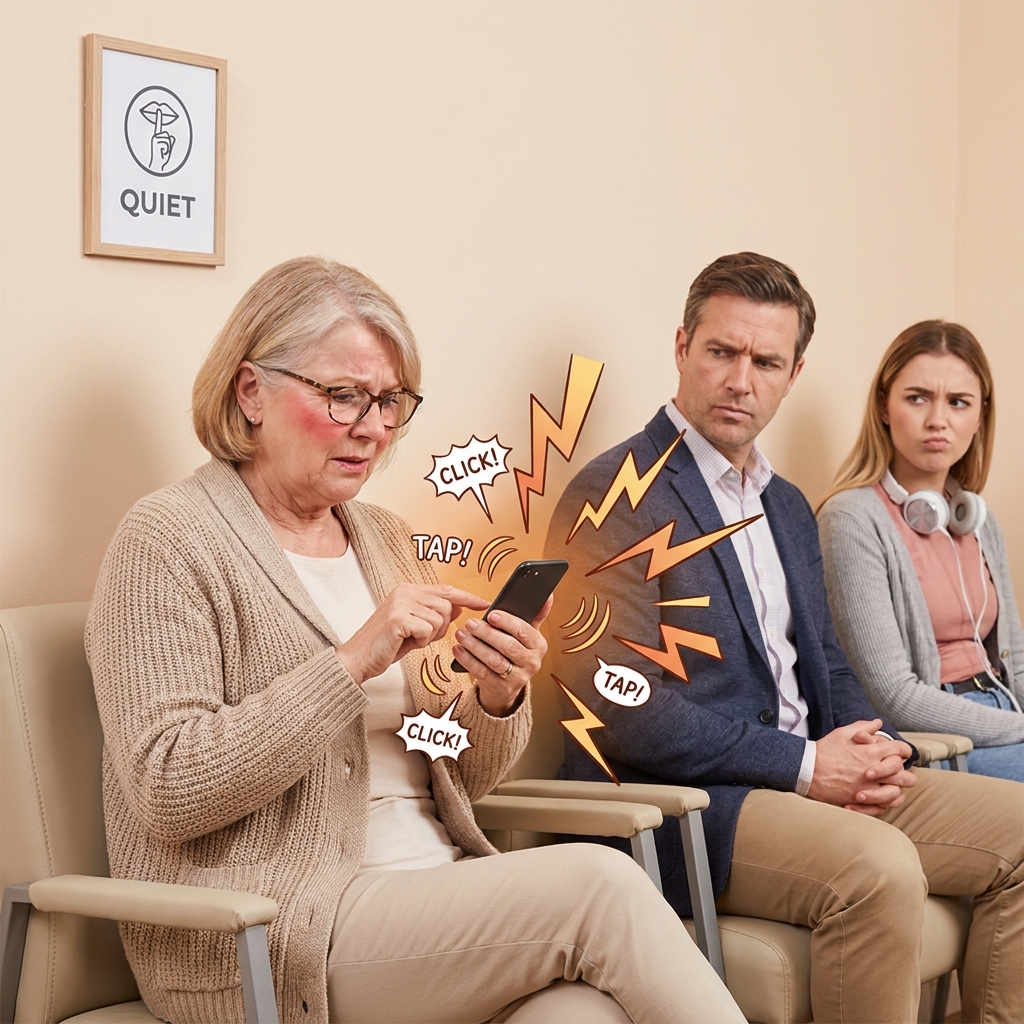
Learning how to turn off iPhone keyboard clicks might be one of the most satisfying ten seconds you spend on your phone all week. Tell me if either of these sounds familiar. You're sitting in the doctor's waiting room and it's so quiet you could hear a pin drop. You suddenly remember you need to send an important text, so you take your phone out and start typing. Before you know it, every single letter you type is broadcasting itself to the entire room, the heads start turning, and you're officially the annoying person in the waiting room.
Or maybe you're at home watching a movie with your family. You notice a message come in that needs a reply, so you start typing away. Halfway through your response you feel it. The daggers. Every eyeball in the room slowly turning toward you because your keyboard clicks are drowning out the movie.
If you're tired of annoying the people around you and have been wanting to turn off iPhone keyboard clicks, you are not alone and the fix takes about ten seconds. Your online tech nephew has you covered.
Short on Time? Here's the Quick Version
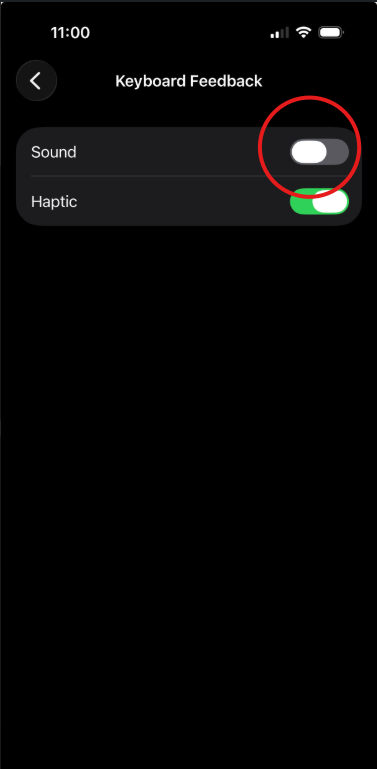
Settings > Sounds & Haptics > Keyboard Feedback > Turn off Sound.
That's it, about 10 seconds and your keyboard goes silent in every app and is no longer the star of the show in every quiet waiting room or family movie night. Keep reading for the full walkthrough with pictures and detailed explanations!
Why Does Your iPhone Make That Clicking Sound?
Every time you tap a letter on your iPhone keyboard, your phone plays a small clicking sound as feedback to let you know the tap was registered. Apple built it in to help people feel more confident that they're actually hitting the right keys, and Apple's own support page → Apple Support - Change iPhone Keyboard Sounds Or Haptics covers both the Sound and Haptic settings if you want to explore further.
For some people it's helpful, especially when they're first learning to type on a touchscreen. For others it's just plain annoying (especially to those around you). Either way, turning it off is completely safe and won't affect how your keyboard works at all.
It's worth knowing that this setting applies across your entire iPhone. Once you turn it off, the keyboard will be silent in every app you use, whether that's Messages, Email, Notes, or anything else. No more clicking anywhere, anytime.
How to Turn Off iPhone Keyboard Clicks (Step-by-Step)
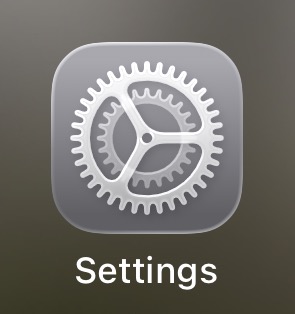
Step 1: Find the Settings app on your iPhone. It looks like a grey square with gears on it. Tap it to open it.
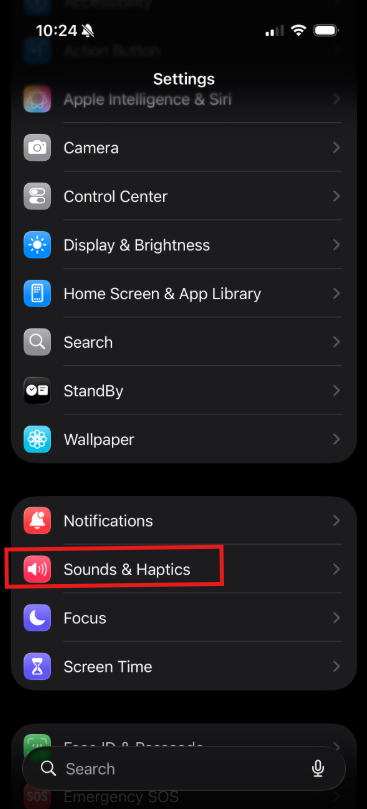
Step 2: Scroll down and tap Sounds & Haptics.
Step 3: Scroll to the very bottom of the page until you see Keyboard Feedback. Tap it.
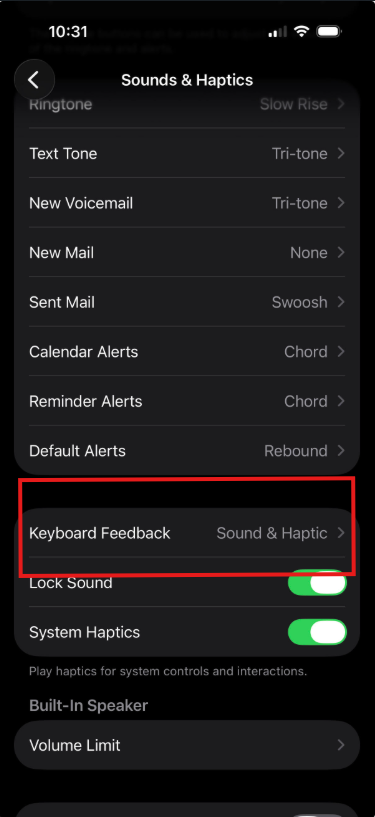
Step 4: Tap Keyboard Feedback and you'll see two options: Sound and Haptic. Toggle Sound off. That's the one responsible for the clicking noise. Haptic is a subtle vibration you feel in your finger when you tap a key, no sound, just a tiny buzz. In fact, you might not even notice it, it's that subtle. You can turn that off too if you'd prefer, but for the purpose of this article we're focusing on the Sound toggle.
A Few Other Sounds You Can Turn Off
While you're in the Sounds & Haptics settings, you may have noticed there are quite a few other sounds your iPhone makes throughout the day. Things like the click when you lock your phone, alert tones for new emails, and calendar reminders. All of these can be adjusted or turned off completely from the same page. Take a few minutes to scroll through and see if there's anything else that's been bothering you. You might be surprised how much quieter your iPhone can be with just a few small changes.
While you're in a settings-tweaking mood, here's another small fix worth knowing about like how to finally go about taming that pesky iPhone autocorrect → Ole Dog New Tech - How to Win the War With Autocorrect. It's another one of those tiny annoyances most people don't realize they can just turn off.
You're All Set!
That's really all there is to it. No more clicking, no more stares in the waiting room, and no more movie night drama. A small change in your settings and you can type away in complete peace.
If this helped you, I'd love to hear about it in the comments below. And if there's something else on your iPhone that's been bugging you, drop me a message. That might just be my next post!
Until next time,
Your Online Tech Nephew.
Frequently Asked Questions:
Will turning off keyboard clicks affect anything else, like typing accuracy?
No. The sound is purely feedback, it has nothing to do with how your keyboard actually registers taps. Turning it off is completely safe and won't change how typing works.
What's the difference between Sound and Haptic feedback?
Sound is the audible click you hear with each key press. Haptic is a tiny vibration you feel in your finger instead, no noise at all. You can turn either one off independently, or both.
Will this turn off all sounds on my iPhone, or just the keyboard?
Just the keyboard. Your ringtone, text alerts, and other notification sounds are completely separate and won't be affected.
Do I need to turn this off separately in every app?
No, this is a device-wide setting. Once you turn it off in Settings, your keyboard stays silent everywhere, Messages, Email, Notes, and any other app you type in.
Can I turn the sound back on later if I change my mind?
Yes, anytime. Just head back to the same Keyboard Feedback screen and toggle Sound back on. Nothing here is permanent.