

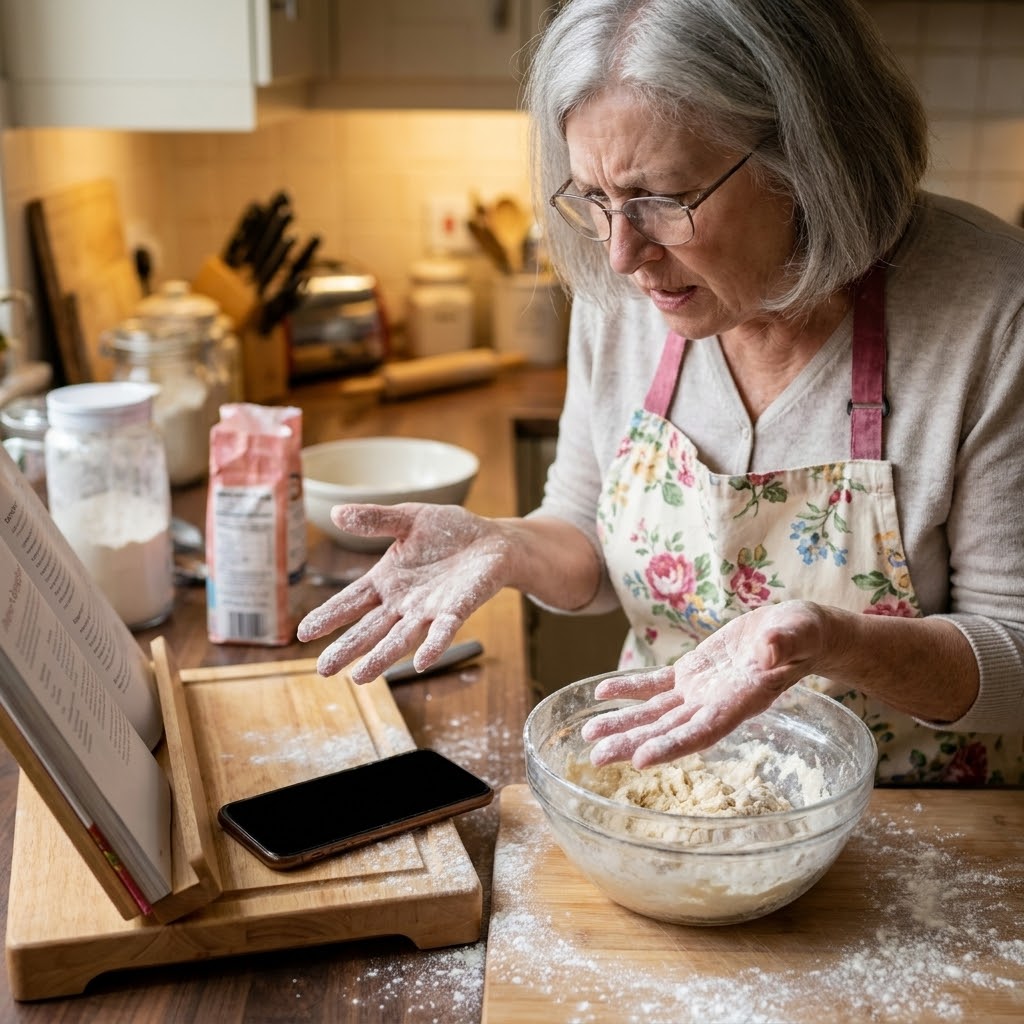
Is your iPhone screen timeout set too quickly? Tell me if this sounds familiar. You've finally found that wonderful cookie recipe you've been meaning to try, So you grab all the ingredients and set them out on the counter, set up your bowls and measuring cups, pull up the recipe on your iPhone, and prop it up so you can follow along while you bake. Just as you start mixing and your hands are covered in flour, the screen goes dark. Now you have to unlock your phone with floury fingers just to see what comes next. Some days it's enough to set you over the edge and makes you want to throw the phone in the oven right along with the cookies!
Just know, you haven't done anything wrong. Your iPhone isn't broken. It's just doing something called Auto-Lock, and the good news is you can change it in about 30 seconds.
In this post, I'll show you exactly how to keep your iPhone screen on longer so it stops timing out when you need it most.
Short on Time? Here's the Quick Version
Settings > Display & Brightness > Auto-Lock > Choose a longer time - anywhere from 30 seconds up to Never.
If Auto-Lock is greyed out and won't let you change it, check Settings > Battery > make sure Low Power Mode is turned off first.
Keep reading for the full walkthrough with pictures!
What Is Auto-Lock and Why Does It Exist?
Auto-Lock is a feature that automatically turns off your iPhone screen after a period of time. Apple built it in to save your battery. If your phone sits untouched, the screen goes dark so it isn't draining power for no reason. Apple's own guide → Apple Support - Keep iPhone Display on Longer confirms exactly this, and notes that delaying Auto-Lock can use more power, which is worth keeping in mind if you decide to go with Never later on.
By default, most iPhones are set to lock after 30 seconds or 1 minute. That's great for battery life, but it can feel really frustrating when you're reading a recipe, following along with directions, or looking at a photo.
The fix is simple. You just need to tell your iPhone to wait a little longer before it goes dark.
How to Change Your iPhone Screen Timeout (Step-by-Step)
You'll be done in under a minute. Here's exactly what to do:
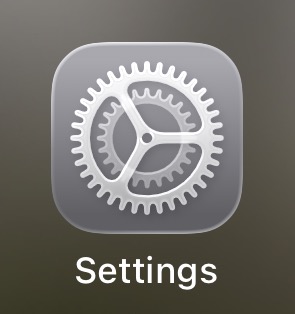
Step 1: Find the Settings app on your iPhone. It looks like a grey square with gears on it. Tap it to open it.
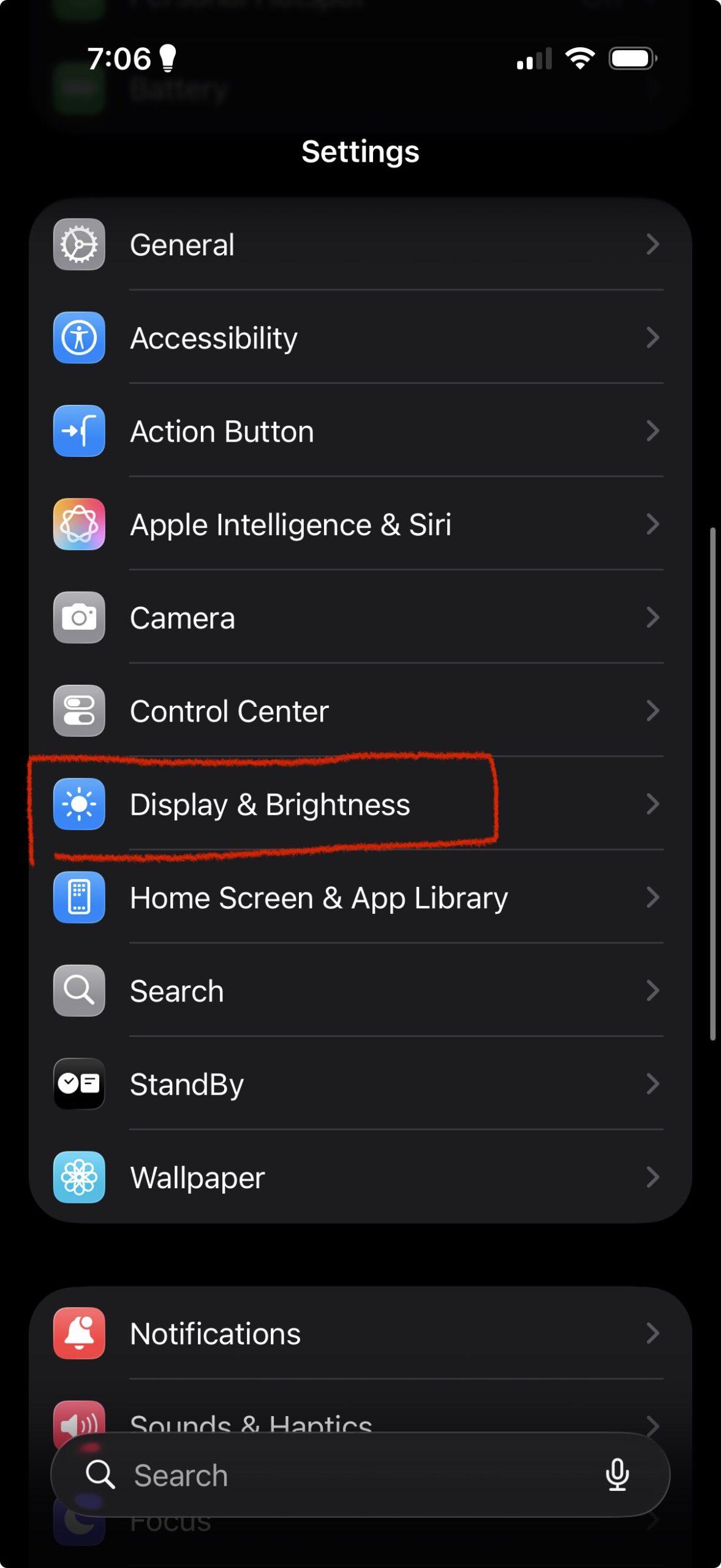
Step 2: Scroll down a little and tap Display & Brightness.
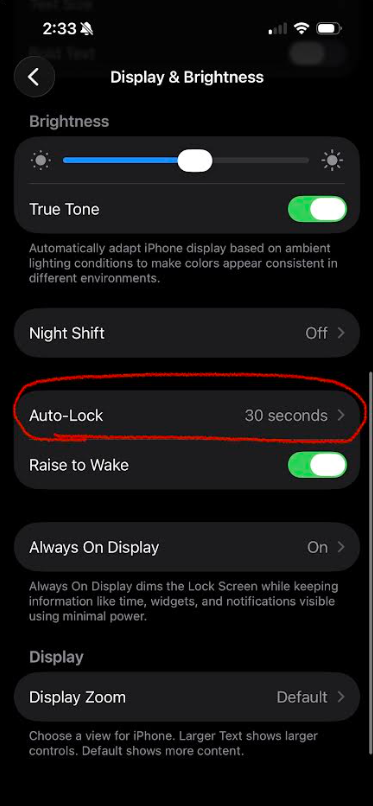
Step 3: Scroll down a bit and look for Auto-Lock. Tap it. Note: Your time might be different than the 30 seconds seen in the example below. That's okay.
Step 4: You'll see a list of options: 30 Seconds, 1 Minute, 2 Minutes, 3 Minutes, 4 Minutes, 5 Minutes, and Never. Tap whichever one you'd like. For the purpose of the story highlighted above, we're going to select "Never" in the example below so the screen will not time out at all during the baking process. When Never is selected, you'll also notice a small warning at the bottom of the screen warning this option will use more energy. From this point on, the only way your screen will lock is if you physically press the side button on your iPhone yourself.
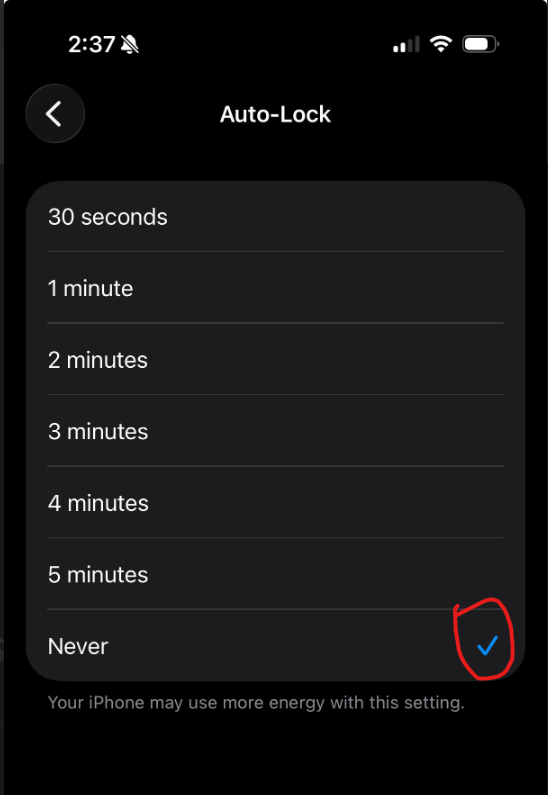
Step 5: That's it! Your iPhone saves the setting automatically. No need to tap a Save button.
 Tip: For everyday use, I recommend choosing 3-5 minutes. It gives you plenty of reading time without being too hard on your battery. In situations like our baking example, Never makes perfect sense, but it should only be selected for as long as you need it. Once the cookies are in the oven, head back into your settings and switch it back. Your battery will thank you.
A Quick Note About Low Power Mode
If you've ever turned on Low Power Mode, you may notice your screen goes dark faster than usual even after changing these settings. That's because Low Power Mode automatically sets Auto-Lock to 30 seconds to save battery. If you want your screen to stay on longer, make sure Low Power Mode is turned off first.
To check, go to Settings → Battery and make sure Low Power Mode is toggled off. To learn more about how Low Power Mode works and how it affects your battery, check out our post on Ole Dog New Tech - Why Your iPhone Battery Keeps Dying.
You're All Set!
That's really all there is to it. A small change in your settings, and the frustration of your iPhone screen timing out too quickly has vanished. If this helped you, I'd love to hear about it in the comments below. And if there's another iPhone setting that's been bugging you, drop me a message. That might just be my next post!
Until next time,
Your Online Tech Nephew.
Frequently Asked Questions
Will a longer Auto-Lock time drain my battery faster?
A little, yes, since your screen stays on longer. For everyday use, 3 to 5 minutes is a solid middle ground, plenty of reading time without much extra battery cost.
Does changing this affect my passcode or Face ID security?
No. Auto-Lock only controls how long the screen stays on before it locks. Your passcode and Face ID still work exactly the same once the screen does lock.
Why is my Auto-Lock option greyed out?
This almost always means Low Power Mode is turned on, which forces Auto-Lock to 30 seconds automatically. Turn off Low Power Mode in Settings, then Battery, and the option should become available again.
If I choose Never, will my screen really stay on forever?
Yes, until you either press the Side button yourself or the battery runs out. It won't lock on its own, so it's best used temporarily rather than as a permanent setting.
Can I set a different Auto-Lock time for specific apps?
No, this is a device-wide setting, not something you can adjust app by app. Some apps like video or navigation apps may behave differently while actively in use, but the Auto-Lock setting itself applies to your whole iPhone.