


Want to turn off auto-correct on your iPhone and win the war with it once and for all? Is it constantly inventing its own language when all you're trying to do is send a simple message? Your granddaughter's name gets changed to something unrecognizable. A perfectly normal word disappears and gets replaced with something that makes no sense. By the time you hit send, your message looks like your iPhone has completely lost its mind.
You're not alone and you're not doing anything wrong. In this post, I'll show you exactly how to turn off auto-correct on your iPhone, plus one other keyboard fix that will make typing feel like less of a battle. Auto-correct has frustrated millions of iPhone users, and today we're going to fix it.
Let's jump right into it. Your online tech nephew has got you covered.
Short on Time? Here's the Quick Version
Settings > General > Keyboard > Turn off Auto-Correction.
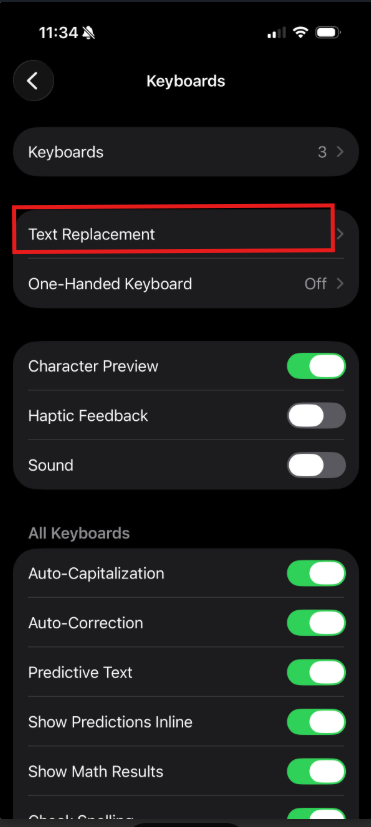
If you'd rather keep auto-correct on, but stop it from changing a specific word, like a name it constantly messes up, go to the same Keyboard screen > Text Replacement > + > type the word in Phrase field, and leave Shortcut blank.
Keep reading for the full walkthrough with more details and step-by-step pictures!
Why Does Auto-Correct Do This?
If you're interested in Apple's own official explanation for how to use auto-correct on your iPhone, this link → Apple Support - How to use Auto-Correction and predictive text on your iPhone, iPad, or iPod touch, covers exactly how it and predictive text are supposed to work.
Auto-correct was designed to help. It was built with good intentions, to catch typos and fix misspelled words before you send them, and honestly, for a lot of people it does exactly that. It's one of those features that has a bit of a love-hate relationship with its users. You don't notice it when it's working, but you definitely notice it when it isn't. The problem isn't auto-correct itself, it's that it doesn't always know your world. Your grandkids' names, your last name, the phrases you use every day. That's what we're going to fix today.
How to Turn Off Auto-Correct on Your iPhone (Step-by-Step)
All the fixes in this post live in the same place on your iPhone, so you'll be in and out in under two minutes. Here's exactly what to do:
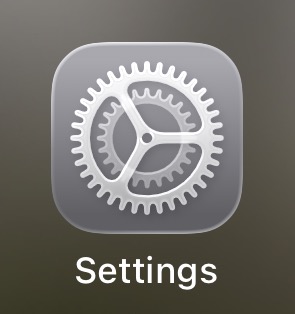
Step 1: Find the Settings app on your iPhone. It looks like a grey square with gears on it. Tap it to open it.
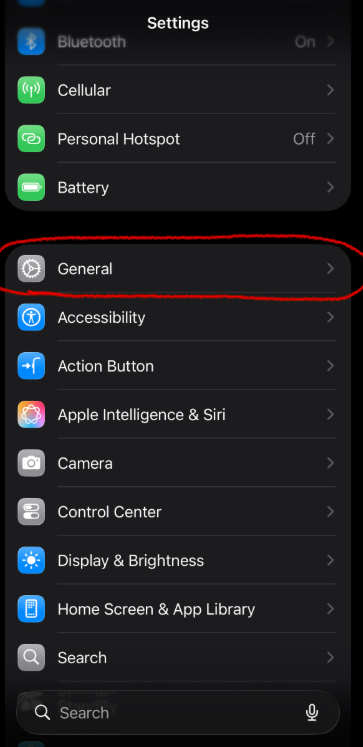
Step 2: Scroll down and tap General.
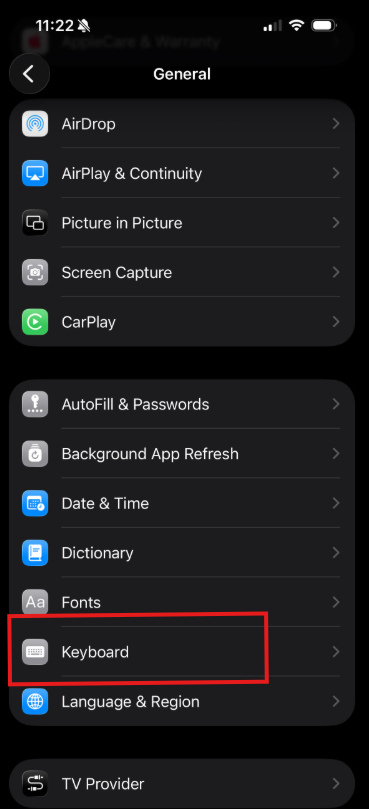
Step 3: Scroll down a bit and tap Keyboard.
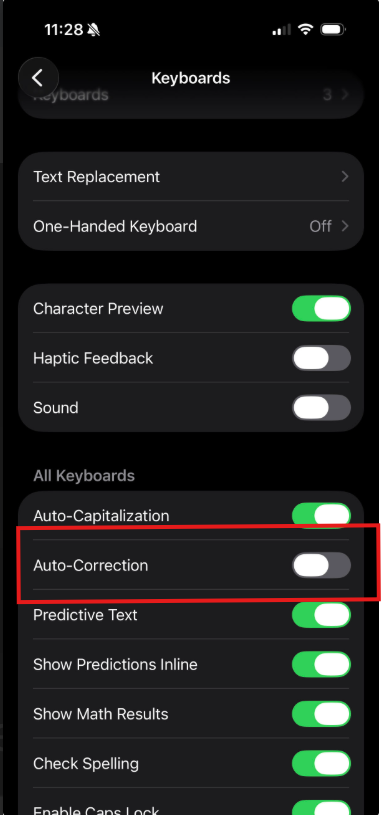
Step 4: You'll see a list of toggles. Find Auto-Correction and toggle it off. But before you do, I strongly recommend you read the next section Before You Decide first to figure out if this is actually the right move for you.
Before You Decide - A Word of Honest Advice
Turning auto-correct off sounds like the obvious solution, and for some people it absolutely is. But it's worth knowing that a lot of iPhone users turn it off, feel great about it for a few days, and then quietly turn it back on. Turns out auto-correct was catching a lot of typos they never even noticed it fixing.
Think of it like a referee in sports. It's a thankless role. Good performance is just expected, so all the times it saves your bad spelling go completely unnoticed. But the moment it massacres the spelling of your favourite restaurant or your nephew's last name, suddenly it's the worst thing that ever happened to you.
Auto-correct is no different. It only gets recognized for its mistakes, never praised for all the times it's quietly saving your butt.
The truth is, most people's relationship with auto-correct is a classic case of can't live with it, can't live without it. It's personal preference, and only you know which side of that fence you're on.
Here's what I'd suggest. Turn it off for a few days and pay attention to how your typing feels. If you prefer it off, great. You're done. If you find yourself missing it, turn it back on and read below for my personal recommendation on how to combat auto-correct the right way, without giving up the safety net altogether.
The Fix That Might Be All You Need - Your Personal Dictionary
Before you make your final decision, there's one more thing I want to show you. This is the one most people don't know about and it might be the most useful tip in this entire post.
Your iPhone has a personal dictionary where you can save words, names, and phrases that auto-correct keeps changing. Once a word is in your dictionary, your iPhone will never touch it again.
Here's how to add a word:
Step 1: Go to Settings → General → Keyboard. Just like we did above.
Step 2: Tap Text Replacement at or near the top of the list.
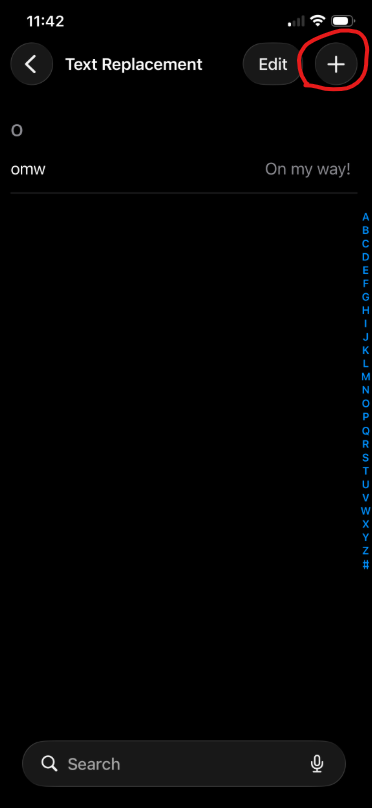
Step 3: Tap the + button in the top right corner. (You might notice one or two already there by default like to one in the example below - no big deal.)
Step 4: In the Phrase field, type the word exactly as you want it to appear. For example, your granddaughter's name. Let's say it's Kayleigh. Type "Kayleigh" in the Phrase field and leave the Shortcut field blank, the hit Save.
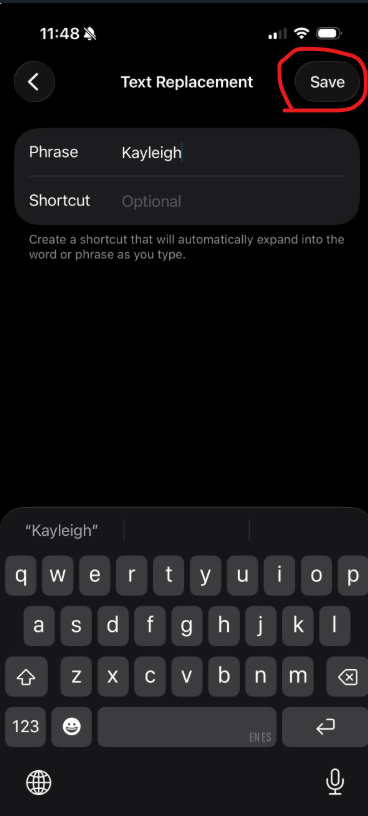
From now on, whenever you type Kayleigh, your iPhone will leave it exactly as you typed it. No more changing it to something unrecognizable.
You're All Set!
That's really all there is to it. Two fixes, one screen, and typing on your iPhone just got a whole lot less frustrating. No more invented languages, no more mystery words showing up in your messages.
Since you're already comfortable in the Text Replacement screen now, here's another use for it worth trying. Setting up an iPhone keyboard shortcut → Ole Dog New Tech - iPhone Keyboard Shortcut uses that exact same screen, just to save you typing instead of stopping autocorrect.
If this helped you, I'd love to hear about it in the comments below. And if there's something else on your iPhone that's been driving you crazy, drop me a message. That might just be my next post!
Until next time,
Your Online Tech Nephew.
Frequently Asked Questions
If I turn off Auto-Correction, will spell check still work?
That depends on which toggle you turn off. Auto-Correction fixes words as you type. Check Spelling, a separate toggle on the same screen, just underlines misspelled words in red without changing them. You can turn either one off independently.
Will adding a name to Text Replacement work in every app?
Yes. Once a word is in your personal dictionary, it stays protected everywhere you type. Messages, Email, Notes, and beyond. Not just in one app.
Can I add more than one name or word to Text Replacement?
Yes. You can add many words, names, or phrases that your iPhone is autocorrecting incorrectly for you using the same plus button.
What if I change my mind and want to remove a word later?
Head back to the Text Replacement screen, swipe left on the word you want to remove, and tap Delete. It's just as easy to undo as it is to set up.
Do I have to choose between turning off Auto-Correction entirely and using Text Replacement?
No, and honestly Text Replacement alone is often the better move. It protects the names and words you care about while still letting auto-correct catch genuine typos everywhere else.