

If you've ever wondered why your iPhone battery keeps dying and you've come close to launching it against a brick wall out of frustration, this guide's for you.
Tell me if this sounds familiar. You pick up your iPhone in the morning with a good charge, and by late afternoon you're already scrambling for a charger.
You're not alone. One of the most searched questions iPhone users have is how to make your iPhone battery last longer, and the good news is that most of it comes down to a few simple things running in the background without you even knowing.
The even better news? None of this takes more than a few minutes, and once it's done, you won't be searching for a charger nearly as often. Your online tech nephew has got you covered.
Let's get into it.
Short On Time? Here's The Quick Version
Turn Down Your Screen Brightness
Settings > Display & Brightness > Slide the slider to the left under the Brightness section.
Turn On Low Power Mode
Settings > Battery > Power Mode > Toggle Low Power Mode button on.
Turn Off Background App Refresh
Settings > General > Background App Refresh > Select Off from the menu.
Together, these three changes take about a minute and make a real difference in your battery's performance. Keep reading the full walkthrough with pictures to learn more!
Why Your iPhone Battery Keeps Dying: Check Your Battery Health First
Before we dive into the tips, there's something worth knowing. As your iPhone gets older, the battery itself naturally starts to wear down. Just like a car battery or the batteries in your TV remote, it simply doesn't hold as much charge as it used to. This is completely normal and happens to every iPhone over time. (If you're curious about the science behind it, Apple has a detailed explainer → Apple Support - Battery and Performance on how batteries age and what affects performance).
The good news is that your iPhone actually keeps track of this for you. Here's how to check it:
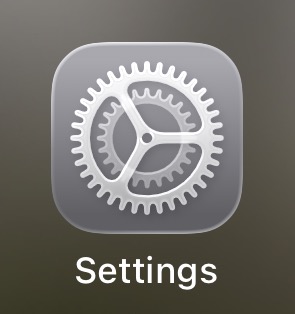
Step 1: Open the Settings app.
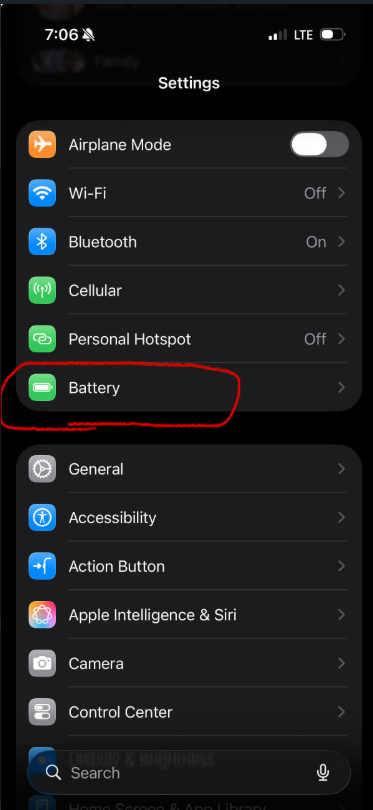
Step 2: Tap Battery.
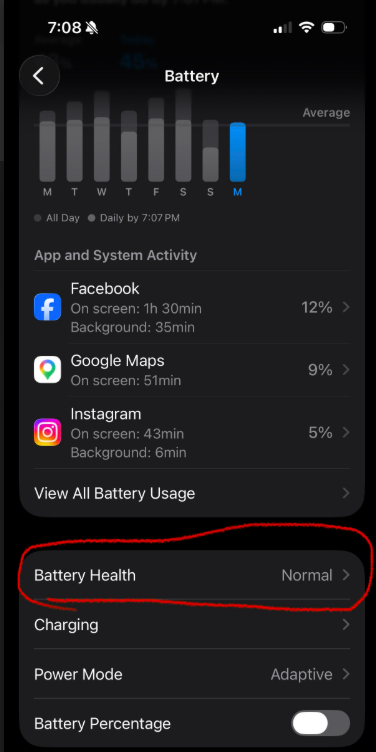
Step 3: Scroll down and tap Battery Health.
Step 4: You'll see a percentage next to Maximum Capacity. This tells you how much of your original battery capacity your iPhone still has.
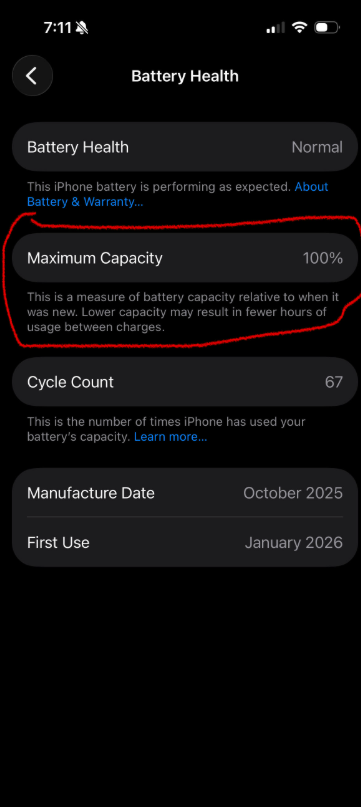
A brand new iPhone starts at 100%. If yours is showing somewhere between 80-100%, you're in good shape and the tips below will make a real difference. If it's dropped below 80%, your battery may begin to starting showing its age.
 Tip: Apple typically recommends battery replacement when your Maximum Capacity drops below 80%, but don't let that number stress you out. If you're using your iPhone for calls, texts, and the occasional browse, you can get plenty of life out of it even below that threshold. If your battery is still above 65%, you're in good shape to get solid use out of your phone with the right settings in place. If it's dropped below 65%, these tips will still help, but be realistic about your expectations. They're not going to rejuvenate an aging battery back to its former glory. At that point, replacement is worth a serious conversation.
Tip #1: Turn Down Your Screen Brightness
Here's something most people don't know. Your screen is the single biggest drain on your iPhone battery. If it's constantly running at a high brightness setting, it eats through your battery like a bear coming out of hibernation at an all-you-can-eat buffet.
The fix is simple.
Step 1: Open the Settings app again on your home screen.
Step 2: Tap Display & Brightness.
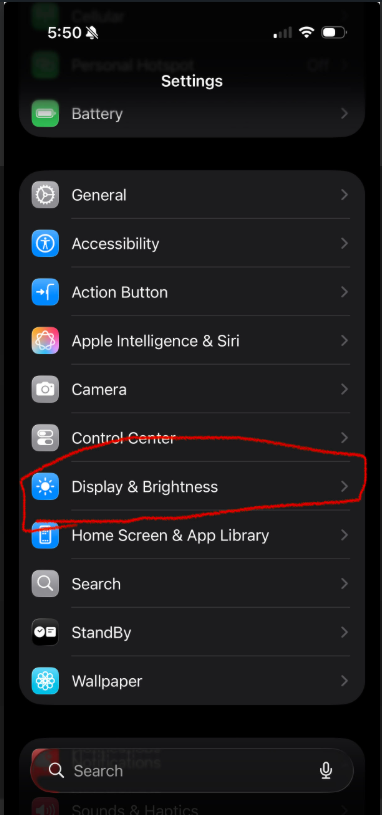
Step 3: You'll see a slider with a sun icon next to it. Drag it to the left to lower the brightness.
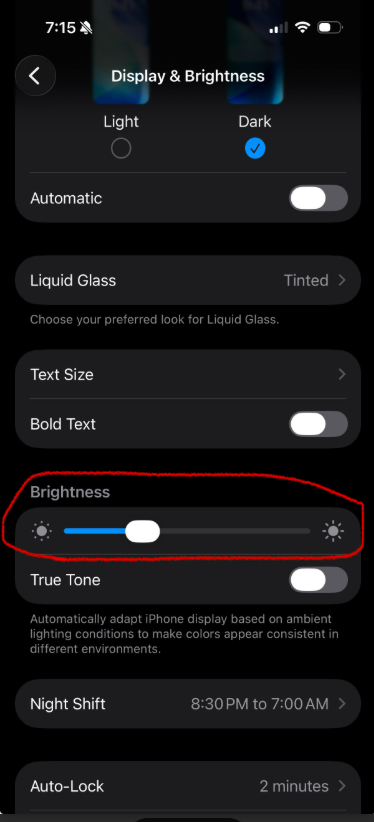
Step 4: That's it. You're done!
Tip: Want your iPhone to handle this automatically? While you're here, go to Settings > Accessibility > Display & Text Size and turn on Auto-Brightness (located at the bottom of your screen). Your phone will adjust the screen brightness on its own based on the light around you. Set it once and forget it.
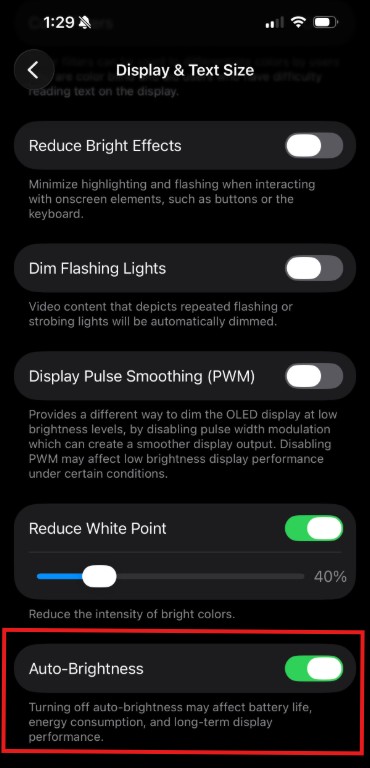
Prefer a quicker route?
You can also access the brightness slider by swiping down from the top right corner of your screen to open the Control Centre. When you see the control panel, just drag the slider up or down, depending on what your goal for the brightness is. A good rule of thumb is to swipe down on the battery icon in the top right corner. Just know that this swipe can be a little finicky depending on where your finger lands. If it's not working first try, the Settings route above will never let you down.
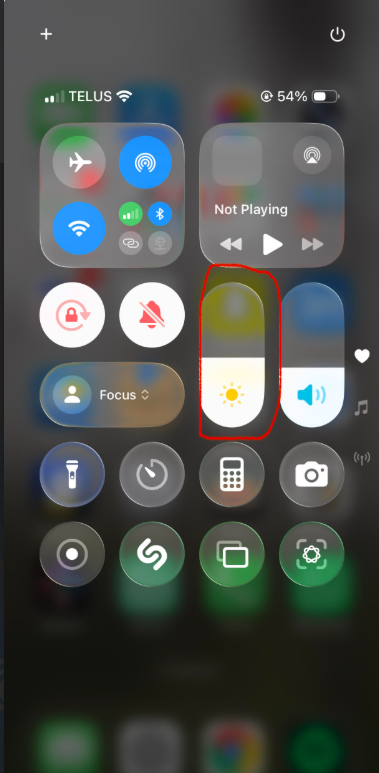
Want to squeeze out even more savings here? A shorter screen timeout means your display shuts off faster when you're not using it. Here's how to adjust yours → Ole Dog New Tech - How to Adjust Your iPhone Screen Timeout if you want to tackle that one too.
Tip #2: Turn On Low Power Mode
If there's one tip on this list that will make the biggest immediate difference, it's this one. Low Power Mode is basically your iPhone's way of saying "I've got you." The moment you turn it on, your phone starts conserving energy by slowing down or pausing things it doesn't need to be doing in the background.
Think of it like a boat captain running low on fuel in the middle of the ocean. To conserve what's left, they'll throw anything heavy and unnecessary overboard to give themselves the best chance of making it to shore. Low Power Mode turns your iPhone into that captain. It tosses out all the unnecessary background stuff so your battery has the best chance of making it to your charger.
The best part? It takes about five seconds to turn on.
Step 1: Open the Settings app again.
Step 2: Tap Battery again.
Step 3: Tap Power Mode.
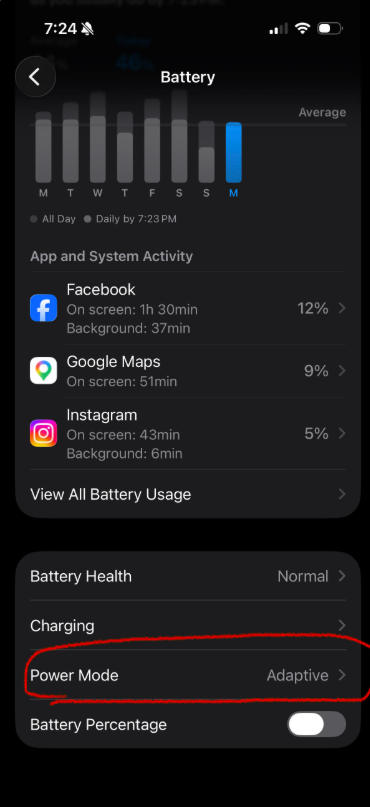
Step 4: the toggle next to Low Power Mode to turn it on. It will turn green when it's active
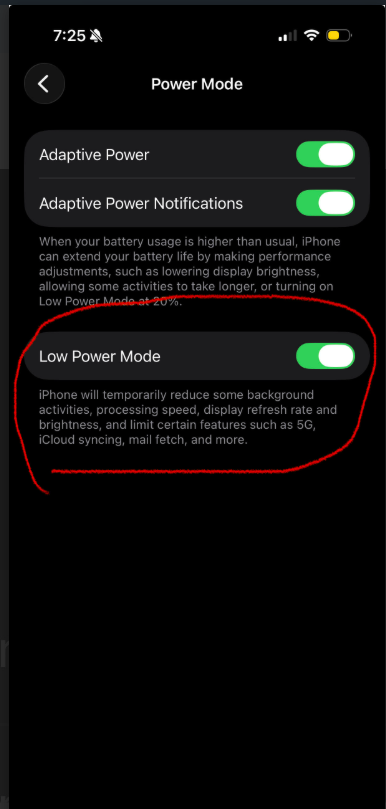
That's it. You'll notice your battery icon in the top right corner of your screen turns yellow. Don't worry, that's completely normal. It's just your iPhone's way of letting you know Low Power Mode is on and working. You can see it turned yellow in the screenshot above.
Tip: Some people leave Low Power Mode on all the time and that's perfectly fine. Others turn it on when their battery drops to around 50% to stretch it through the rest of the day. Either way works, do whatever feels right for you.
Adaptive Power
One more thing worth mentioning. You may have seen a notification pop up on your screen that says "Adaptive Power — iPhone is adjusting performance to help extend your battery life." If you've never seen it, don't worry. Not everyone gets it. But if you have, don't panic. This is just your iPhone being proactive. It's automatically making small adjustments in the background to stretch your battery life without you having to do anything at all. Think of it as your iPhone looking after itself. You can ignore it and carry on. Everything will work just fine. In the screenshot above, you can see it toggled on with the notifications toggled on as well. It's another way to save your battery's charge.
Tip #3: Turn Off Background App Refresh
You'll remember from Tip #2 that one of the first things Low Power Mode does is start shutting down background activity. Well, this is exactly what it's shutting down, and the good news is you don't have to wait for Low Power Mode to kick in to deal with it. You can turn it off yourself right now.
Here's something that surprises most people. Every app on your iPhone is constantly working in the background, even when you're not using it. Your weather app is checking the forecast. Your news app is downloading the latest headlines. Your social media apps are refreshing your feed. All of this is happening quietly behind the scenes, around the clock, whether you asked for it or not.
And it's draining your battery the whole time.
Background App Refresh is the feature that allows all of this to happen. The good news is you can turn it off in about thirty seconds and your apps will still work perfectly. They'll just wait until you actually open them to update, instead of doing it constantly in the background.
Step 1: Open the Settings app.
Step 2: Tap General.
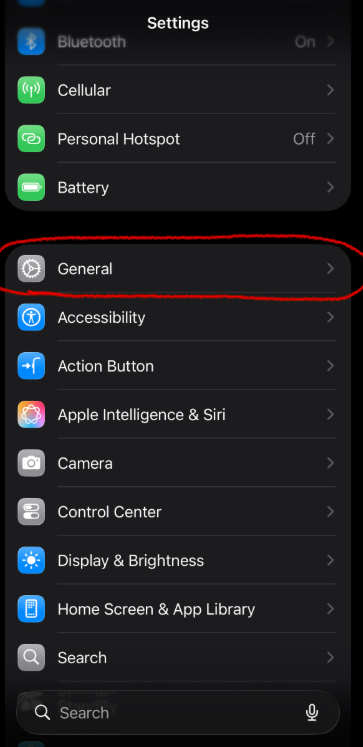
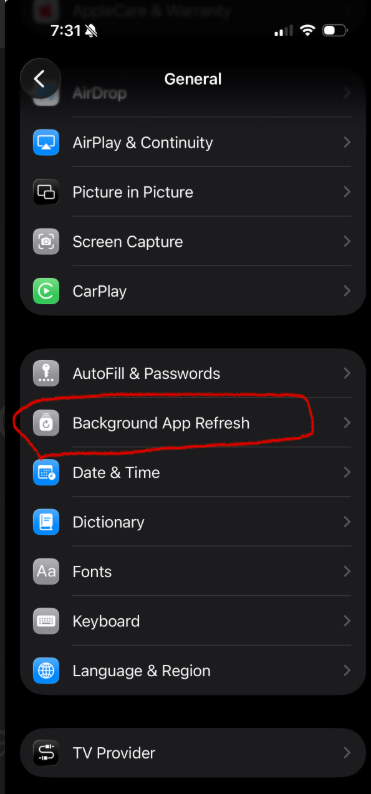
Step 3: Scroll down and tap Background App Refresh.
Step 4: At the top, tap Background App Refresh again.
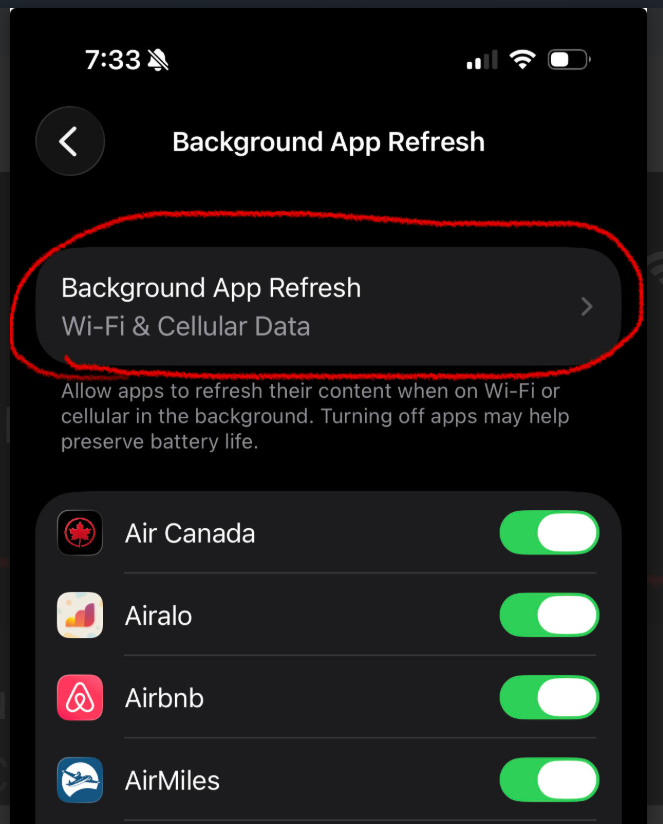
Step 5: Select Off.
That's it. Your apps are all still there and they'll all still work. They're just not burning through your battery behind your back anymore.
Tip: Don't worry about missing anything important. When you open an app it will update immediately. The only difference is it's now doing it on your schedule, not its own.
There You Go!
Three simple tips and your iPhone battery should already be looking a whole lot healthier.
You've checked your battery health so you know exactly what you're working with. You've turned down your screen brightness so it's not burning through your charge like a bear at a buffet. You've switched on Low Power Mode so your iPhone can start throwing the unnecessary stuff overboard. And you've turned off Background App Refresh so your apps aren't quietly draining your battery behind your back while you sleep.
Not bad for a Saturday morning.
The best part is that none of these changes are permanent. If something doesn't feel right, you know exactly where to go to adjust it. Your iPhone is supposed to work for you, not the other way around.
Go ahead and keep an eye on your battery today. I have a feeling you're going to notice the difference.
If this helped you out, drop a comment below and let me know which tip made the biggest difference. And if you know someone who's been complaining about their battery dying all day, do them a favour and share this with them. It takes thirty seconds and they'll thank you for it.
Until next time,
Your Online Tech Nephew.
Frequently Asked Questions
Will these settings hurt my phone in any way?
No. All three are official Apple settings built right into your iPhone. Nothing here voids a warranty or damages your device, you can turn any of them on or off anytime.
Do I have to choose between the three tips, or can I use all of them?
You can absolutely use all three together, and doing so will make the biggest combined difference. There's no downside to running them at the same time.
Will Low Power Mode slow my phone down?
It may very slightly reduce some background performance while it's active, but for everyday use like calls, texts, and browsing, most people don't notice a difference at all.
My battery health is below 80%. Do these tips still help?
Yes, they'll still make a real difference day to day. They just can't restore an aging battery back to its original capacity, that's a hardware limitation, not something any setting can fix.
How often should I check my Battery Health?
There's no need to check often, once every few months is plenty. It changes gradually over time, not day to day.
What if I've tried everything and my iPhone battery still dies fast?
If you're still wondering why your iPhone battery keeps dying despite trying all three tips, it's worth checking your Battery Health one more time to see if it's dropped significantly, or reaching out to Apple Support for a closer look. Sometimes it really is just a battery that's reached the end of its life.